WebP vs JPG vs PNG - Which Image Format Should You Use in 2026?
Compare WebP, JPG, and PNG for websites, blogs, Shopify stores, social media, and SEO. Learn which format to use, when to convert, and how to reduce image size without hurting quality.
Recommended PicFlow tool
Need to optimize images while reading?
Use PicFlow tools to compress, resize, convert, or inspect images directly from your browser.
Use PicFlow Image Compressor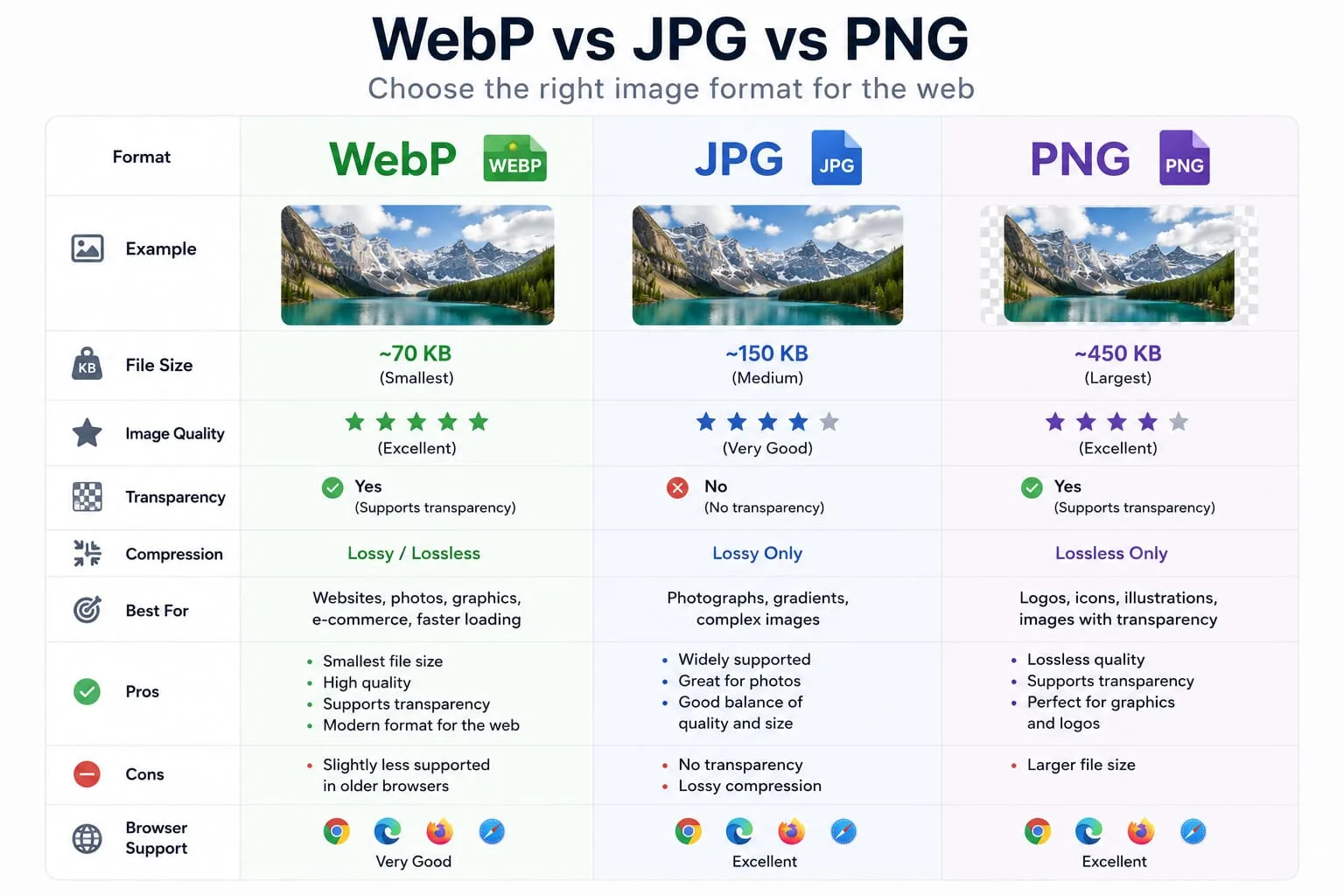
Choosing the right image format looks simple until your website starts feeling slow, your product photos look blurry, or Google PageSpeed Insights tells you to “serve images in next-gen formats.” Most website owners know that images matter, but they often treat JPG, PNG, and WebP as interchangeable. They are not.
The format you choose affects file size, visual quality, transparency, loading speed, mobile performance, and even how professional your website feels. A huge PNG used as a blog hero image can slow down a page. A heavily compressed JPG used for a logo can create blurry edges. A WebP file used in the wrong workflow can cause confusion if your CMS or team is not prepared for it.
This guide explains WebP vs JPG vs PNG in a practical way. Instead of giving you a technical file-format lecture, we will focus on what matters when publishing images online: speed, SEO, quality, transparency, compatibility, and workflow.
By the end, you will know exactly when to use WebP, when JPG is still fine, when PNG is the right choice, and how PicFlow AI can help you convert, compress, and optimize images before publishing.
Quick Answer: Which Format Should You Use?
For most modern websites, WebP should be your default publishing format because it usually gives the best balance of quality and small file size.
Use this quick rule:
- Use WebP for most website images, blog graphics, product photos, thumbnails, and performance-focused pages.
- Use JPG for standard photography when you need maximum compatibility or a simple shareable file.
- Use PNG for logos, screenshots, UI graphics, icons, and images that need crisp transparency.
- Keep original master files separately, then export optimized versions for the web.
The mistake many people make is uploading the same large source image everywhere. Your design file, camera export, or downloaded PNG may be useful as a master file, but it is rarely the best final format for a live website.
What Is WebP?
WebP is a modern image format created for the web. It supports both lossy and lossless compression, transparency, and animation. This makes it flexible enough to replace many JPG and PNG use cases on websites.
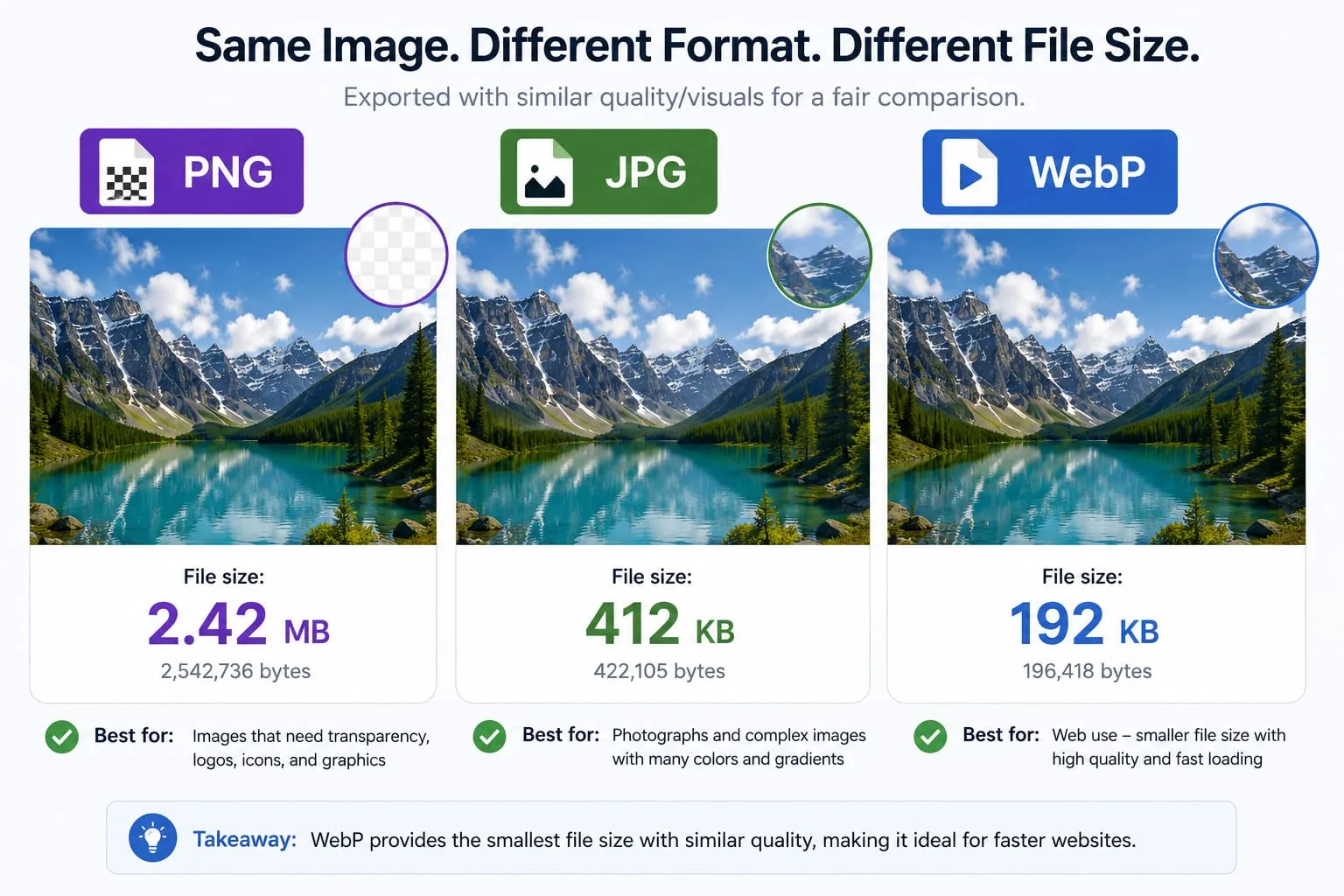
The biggest advantage of WebP is simple: smaller files at similar visual quality. Google’s WebP documentation reports that WebP lossless images are smaller than PNG and WebP lossy images are smaller than comparable JPEG images at similar quality. That is why WebP appears so often in performance recommendations.
For website owners, that means WebP can help:
- reduce total page weight
- improve mobile loading speed
- reduce bandwidth usage
- improve perceived performance
- reduce pressure on Core Web Vitals
- make image-heavy pages easier to load
WebP is especially useful for blogs, SaaS landing pages, e-commerce product grids, portfolios, documentation pages, and any page that contains several images.
What Is JPG?
JPG, also called JPEG, is one of the most common image formats on the internet. It is designed mainly for photographs and complex images with many colors and gradients.
JPG uses lossy compression. That means it reduces file size by removing visual data. At reasonable quality levels, this loss is hard to notice. At very low quality levels, you start seeing artifacts, blockiness, color banding, and blurry details.
JPG is still useful because:
- it works everywhere
- it is easy to share
- it is good for photographs
- it usually creates smaller files than PNG for photos
- almost every CMS, app, and device supports it
The weakness of JPG is that it does not support transparency and can look bad when used for logos, screenshots with text, icons, or graphics with sharp edges.
What Is PNG?
PNG is a lossless image format. It preserves image detail very well and supports transparency. That makes it excellent for logos, icons, UI screenshots, product cutouts, transparent graphics, and images where sharp edges matter.
The downside is file size. PNG files can be very large, especially when used for photos or complex illustrations. A screenshot saved as PNG may be fine, but a full-width photographic hero image saved as PNG can become a serious performance problem.
Use PNG when you need:
- transparency
- crisp text
- clean edges
- screenshots
- interface graphics
- brand assets
- icons and logos
Avoid PNG for large photographic images unless there is a specific reason.
WebP vs JPG: Which Is Better?
For web publishing, WebP often beats JPG because it can deliver similar visual quality at a smaller file size. This is especially useful for hero images, thumbnails, blog images, and product photos.
However, JPG is not dead. It is still a practical format when:
- you are sharing images outside your website
- your workflow depends on old software
- your audience downloads files for offline use
- you want the safest universal compatibility
- you need simple editing and re-exporting
If you are uploading images to a modern website, WebP is usually better. If you are emailing a photo to someone or exporting from an older tool, JPG is still fine.
The best workflow is often:
- Keep the original photo or design file.
- Export a high-quality JPG or PNG master if needed.
- Convert the final website version to WebP.
- Compress it for faster loading.
- Test the result visually before publishing.
WebP vs PNG: Which Is Better?
This comparison depends on the image type.
For website photos and blog graphics, WebP is usually better because the file is smaller. For logos, icons, screenshots, and transparent UI assets, PNG may still be better as a source format because it preserves sharp edges and transparency perfectly.
But WebP also supports transparency, so many transparent PNGs can be converted to WebP for publishing. This is very useful for product cutouts, transparent decorative images, and web graphics.
Use PNG when you need a clean master file. Use WebP when you need a fast-loading published file.
Example:
- Your designer exports a transparent product image as PNG.
- You keep that PNG as the original.
- You use PicFlow AI to convert the published version to WebP.
- You compare quality and file size.
- You publish the WebP version on your website.
That gives you the best of both worlds: an editable source file and a lightweight website file.
PNG vs JPG: Which Is Better?
PNG and JPG solve different problems.
Use JPG for:
- photographs
- portraits
- landscapes
- blog hero images
- product lifestyle photos
- images with many colors and soft gradients
Use PNG for:
- logos
- screenshots
- diagrams
- icons
- transparent images
- images with text
- UI examples
A common mistake is saving screenshots as JPG. Text in screenshots can look blurry after JPG compression. PNG usually keeps text sharper. Another common mistake is saving large photos as PNG. This creates unnecessarily large files and slows down the page.
Which Format Is Best for SEO?
There is no single image format that magically improves SEO. Google does not rank an image higher simply because it is WebP. However, the format affects file size and loading speed, and loading speed can affect user experience and performance metrics.
For SEO, the best image format is the one that gives you:
- good visual quality
- low file size
- correct dimensions
- descriptive filename
- useful alt text
- proper placement near relevant content
- responsive delivery
- no layout shift
WebP is usually the best publishing choice because it helps reduce file size. But format is only one part of image SEO. A small, badly named WebP file with no alt text is still poorly optimized. A well-named, compressed JPG with the right dimensions can perform better than a random oversized WebP.
PicFlow AI’s Image SEO tool can help you analyze whether an image is ready for search, performance, and accessibility.
Which Format Is Best for Shopify?
For Shopify stores, the most important goal is to keep images clear, consistent, and fast. Product images need to look professional, but they should not be so heavy that collection pages load slowly.
A practical Shopify workflow:
- Use square product images for consistency.
- Keep a high-quality original.
- Resize product images to the display size your theme needs.
- Convert heavy images to WebP where appropriate.
- Compress images before uploading.
- Use consistent file naming, such as
black-leather-wallet-front.webp. - Remove unnecessary metadata from exported product photos.
Use PNG for transparent product cutouts if needed, but consider WebP output if your theme and workflow support it.
Which Format Is Best for Social Media?
Social platforms often recompress images after upload, so your goal is to upload a clean, correctly sized image rather than the biggest possible file.
For social media:
- JPG is usually safe for photos.
- PNG can be useful for text-heavy graphics.
- WebP support can vary depending on the platform and workflow.
- Correct dimensions matter more than tiny file savings.
- Always preview cropping before posting.
Use PicFlow’s Social Media Image Previewer to see how an image may be cropped before publishing.
How to Convert Images to the Right Format with PicFlow AI
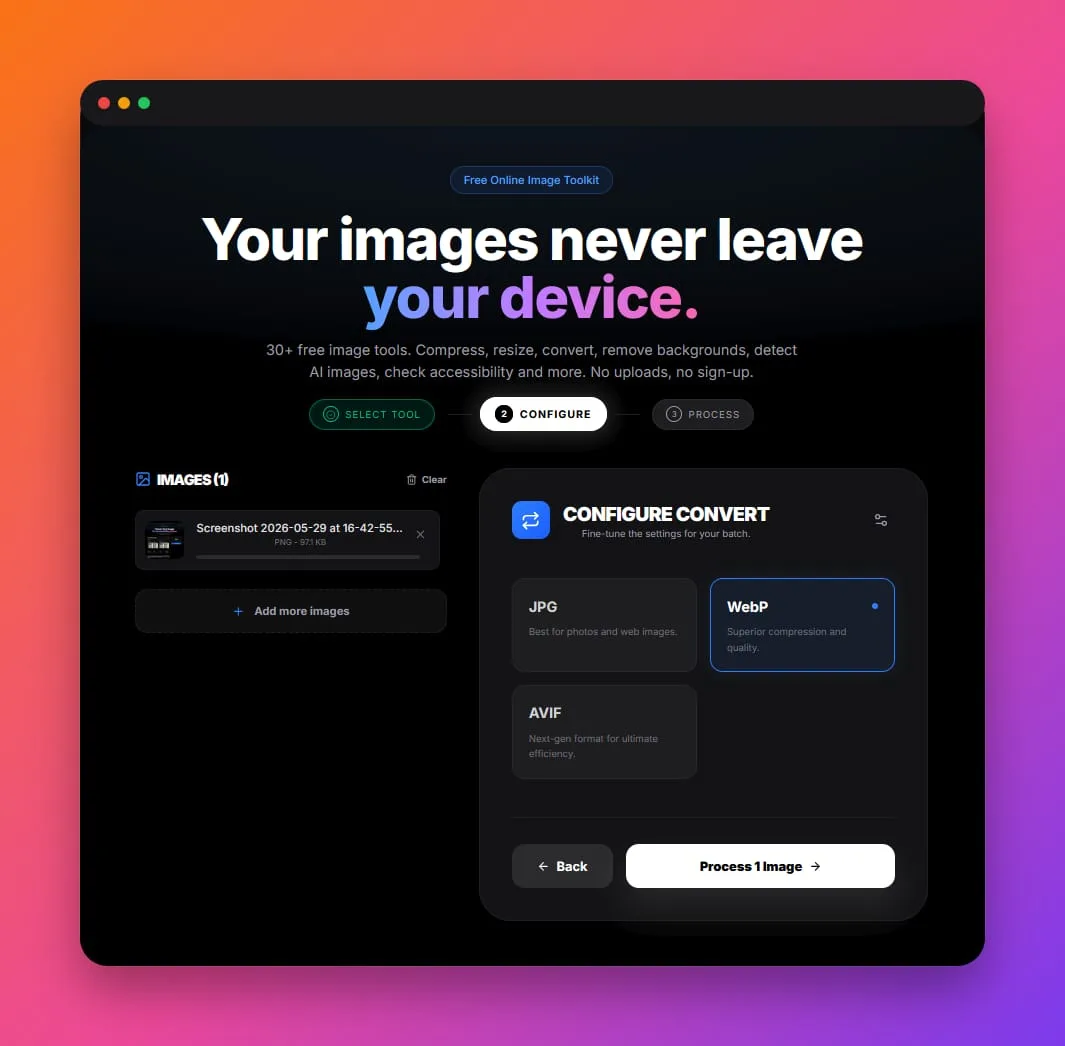
PicFlow AI makes format conversion simple:
- Open the Image Converter.
- Upload your image.
- Choose WebP, JPG, PNG, or another supported format.
- Adjust quality settings if available.
- Download the optimized version.
- Test the file visually before replacing your original.
If you want to reduce size further, send the output through the Image Compressor. If you are unsure whether the image is slowing down your page, use the Image Loading Speed Simulator.
Recommended Format by Use Case
Blog hero images
Use WebP. Keep the image large enough for desktop, but compress it well. Avoid uploading a 4000px image if your content column only displays it at 1200px.
Product photos
Use WebP or JPG for normal product photos. Use PNG or transparent WebP for cutouts.
Logos
Use SVG when possible. If not, use PNG or WebP with transparency.
Screenshots
Use PNG as a source format. Convert to WebP for publishing if the text remains crisp.
Social posts
Use JPG or PNG depending on the design. Resize for the exact platform before publishing.
Website thumbnails
Use WebP. Thumbnails should be small, consistent, and compressed.
Email images
Use JPG or PNG for compatibility. Keep file sizes low.
Common Mistakes to Avoid
Mistake 1: Uploading full camera files
A phone photo can be thousands of pixels wide and several megabytes. Resize it before publishing.
Mistake 2: Using PNG for every image
PNG is not a universal quality button. It can be unnecessarily heavy.
Mistake 3: Over-compressing JPG files
If text, faces, or product details look damaged, increase quality or use another format.
Mistake 4: Converting without checking transparency
Some workflows flatten transparent images onto a white background. Always preview before publishing.
Mistake 5: Forgetting responsive images
One image size does not fit every device. Use responsive images when possible.
Final Recommendation
If you publish images on a website in 2026, WebP should be part of your normal workflow. It is not the only format you need, but it is usually the best final format for speed-focused publishing.
Use this simple decision tree:
- Need a fast website image? Use WebP.
- Need a photo for broad sharing? Use JPG.
- Need transparency or crisp screenshots? Use PNG or transparent WebP.
- Need the smallest practical website version? Resize, convert, and compress.
Start by testing a few of your biggest images with PicFlow AI. Convert them to WebP, compress them, and compare file size and quality. In many cases, you can improve loading speed without changing how the image looks to visitors.
FAQ
Is WebP better than JPG?
For most website images, WebP is usually better because it can provide similar quality at smaller file sizes. JPG is still useful for sharing, compatibility, and simple photo workflows.
Is WebP better than PNG?
For published website images, WebP is often better because it is smaller and supports transparency. PNG is still excellent for source files, screenshots, logos, and graphics that need perfect sharp edges.
Should I convert all PNGs to WebP?
Not always. Convert PNGs used on your website if the WebP version looks good and is smaller. Keep the original PNG as a master file.
Does WebP support transparency?
Yes. WebP supports transparency, which makes it useful as a lightweight replacement for many transparent PNG files.
Which image format is best for Google SEO?
The best format is the one that loads quickly, looks good, has the correct dimensions, and includes descriptive filename and alt text. WebP is often the best publishing format because it reduces file size.
Can I use PicFlow AI to convert images to WebP?
Yes. Use PicFlow AI’s Image Converter to convert JPG, PNG, HEIC, and other formats into WebP directly online.
Frequently asked questions
What is the main takeaway from WebP vs JPG vs PNG - Which Image Format Should You Use in 2026??
The guide explains practical image optimization steps that can help improve file size, loading speed, visual quality, and publishing workflows.
Can I use PicFlow tools while following this guide?
Yes. PicFlow includes browser-based tools for compression, resizing, conversion, metadata checks, background removal, and other image workflows.
Does image optimization help SEO?
Yes. Smaller, correctly sized images can improve page speed and Core Web Vitals, which supports better user experience and search performance.
Which image format should I use for websites?
WebP and AVIF are often efficient for websites, while JPG is widely compatible for photos and PNG is useful when transparency is needed.
Does PicFlow upload my images?
PicFlow is built around privacy-first browser workflows where supported, with processing handled for the action you request.
Related PicFlow tools
Related posts
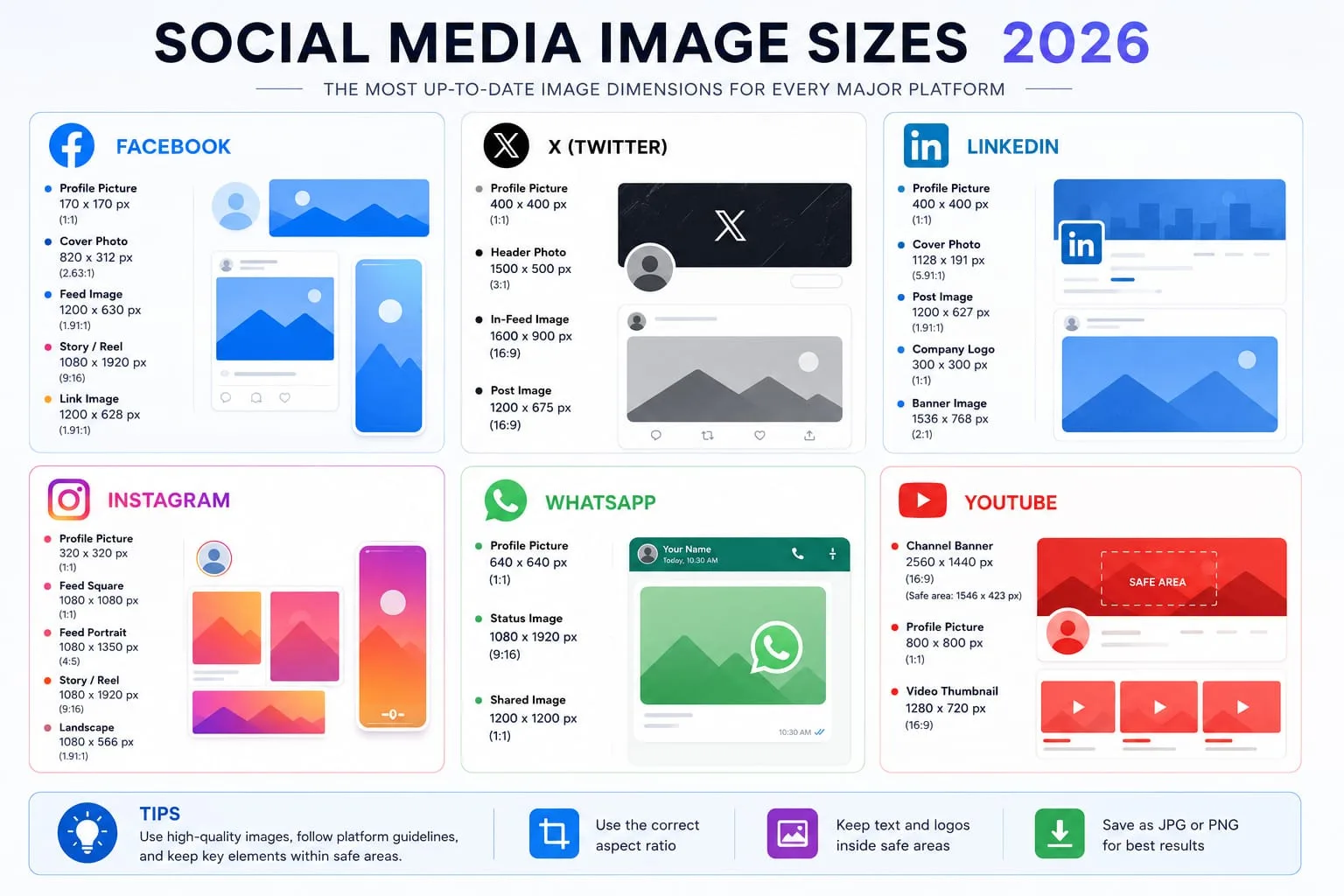
How to Resize Images for Every Social Media Platform in 2026
Learn the best image sizes for Facebook, X, LinkedIn, WhatsApp, Instagram, and YouTube. Resize, crop, preview, and export social images online with PicFlow AI.
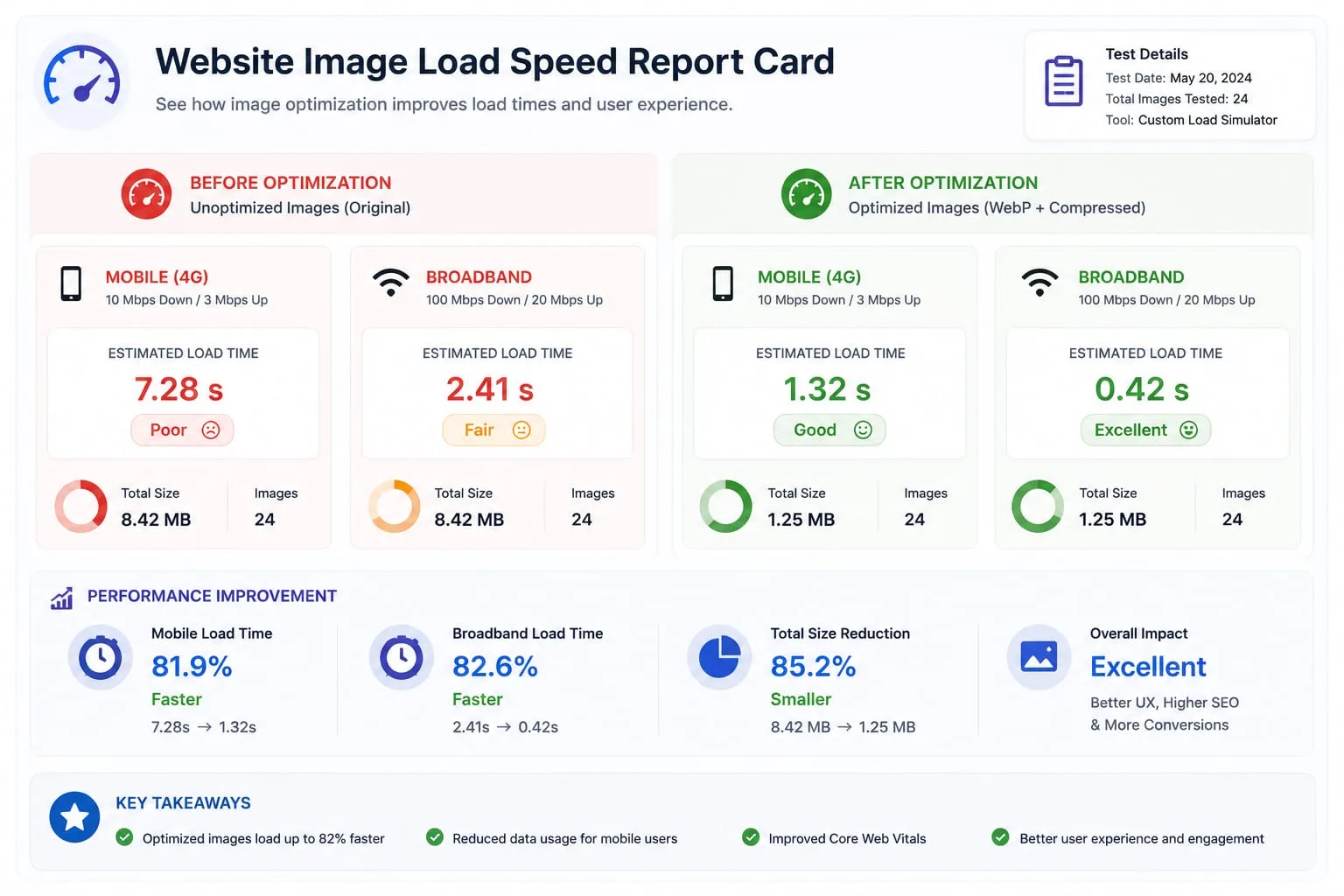
Image Loading Speed Test - Estimate Image Load Time Before Publishing
Learn how to test image loading speed, estimate load time on 3G, 4G, and broadband, and fix slow images before they hurt user experience or Core Web Vitals.

Image Placeholder Generator - Blur, Base64 and LQIP Guide
Learn how blur placeholders, Base64 placeholders, dominant color placeholders, and LQIP images improve perceived loading speed. Generate placeholders online with PicFlow AI.