Image Loading Speed Test - Estimate Image Load Time Before Publishing
Learn how to test image loading speed, estimate load time on 3G, 4G, and broadband, and fix slow images before they hurt user experience or Core Web Vitals.
Recommended PicFlow tool
Need to optimize images while reading?
Use PicFlow tools to compress, resize, convert, or inspect images directly from your browser.
Use PicFlow Image CompressorImage Loading Speed Test — Estimate Image Load Time Before Publishing
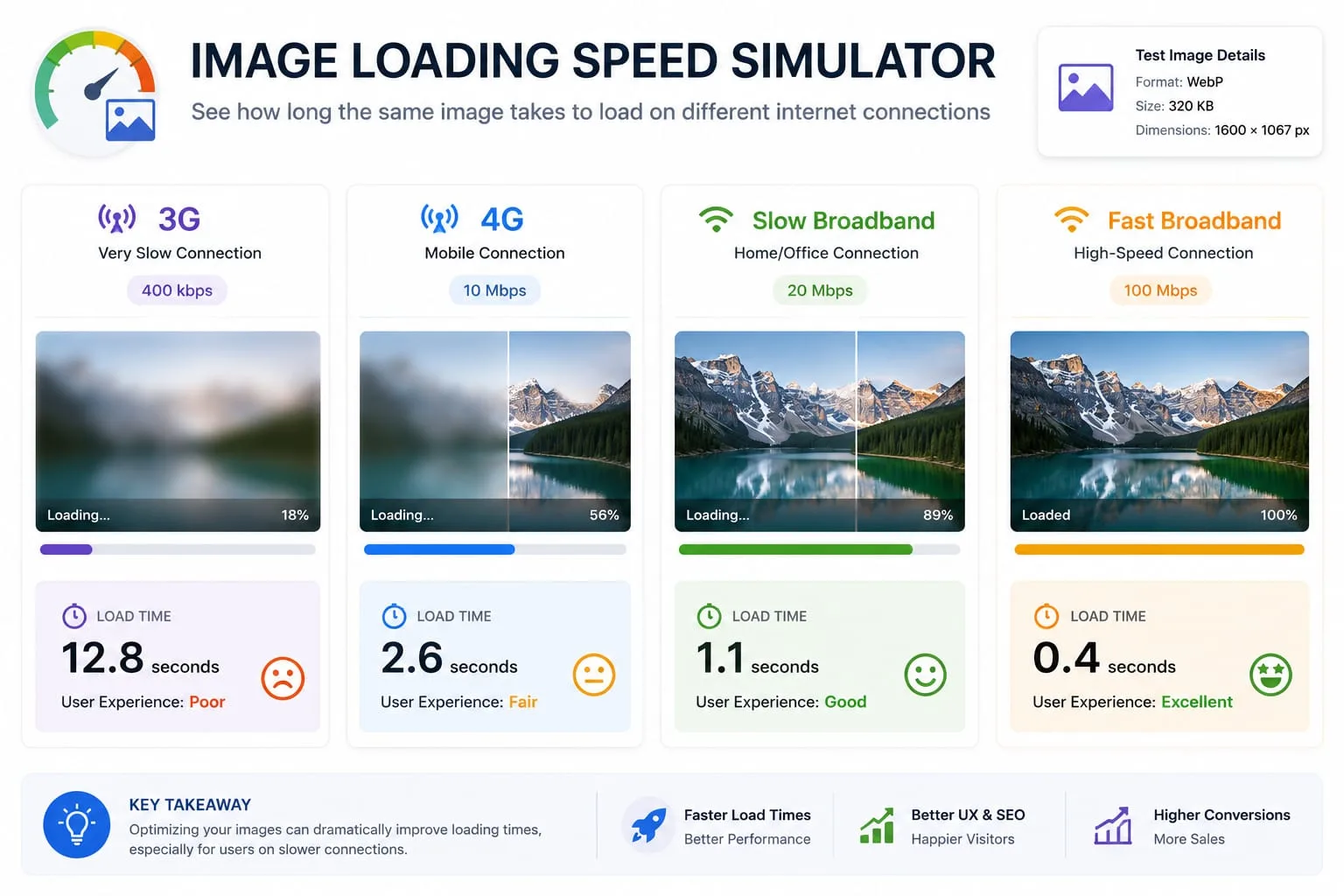
Large images are one of the easiest ways to make a website feel slow. The frustrating part is that an image can look normal on your own computer while still being too heavy for real visitors. If you are on fast Wi-Fi, a 2MB image may appear quickly. For a mobile visitor on a slower connection, that same image can delay the page noticeably.
That is why an image loading speed test is useful. Instead of guessing whether an image is too large, you can estimate how long it may take to load on different connection types before publishing it.
This guide explains how image load time works, why file size matters, how slow images affect Core Web Vitals, and how to use PicFlow AI’s Image Loading Speed Simulator to find and fix heavy images before they hurt your website.
Why Image Speed Matters
Images often make up a large part of a page’s total weight. A blog post with five oversized images, a Shopify collection page with dozens of product thumbnails, or a landing page with an uncompressed hero image can become heavy very quickly.
Slow images can cause:
- delayed first impression
- poor mobile experience
- lower perceived quality
- higher bounce rate
- slower product browsing
- weaker PageSpeed scores
- worse Largest Contentful Paint if the main image is affected
If the largest visible element on a page is a hero image, that image can be part of the Largest Contentful Paint experience. When that image is too large, loads late, or is not properly prioritized, the page can feel slow.
What Is an Image Loading Speed Test?
An image loading speed test estimates how long an image may take to download based on its file size and a connection profile.
For example, the same image may feel very different on:
- slow 3G
- fast 3G
- 4G
- slow broadband
- fast broadband
A 100KB image may load quickly almost everywhere. A 3MB image may feel acceptable on fast broadband but slow on mobile. A 7MB image is usually a warning sign for web publishing unless there is a special reason.
PicFlow AI’s Image Speed Test helps you see the difference visually.
File Size vs Dimensions: What Matters More?
Both matter.
File size
File size controls how much data must be downloaded. A 2MB image requires more transfer than a 200KB image.
Dimensions
Dimensions control how large the image is in pixels. An image that is 5000px wide but displayed at 800px wide is wasteful. The browser downloads more data than the user needs.
Format
The format affects how efficiently the visual information is stored. WebP or AVIF can often reduce file size compared with older formats, while PNG can be large for photos.
Compression
Compression reduces file size. Good compression keeps visual quality high while removing unnecessary data.
The best result comes from combining all four: correct dimensions, efficient format, good compression, and sensible delivery.
Why Your Own Internet Speed Can Mislead You
If you test your website only from your own laptop on fast Wi-Fi, you may underestimate image problems. Your visitors may be using:
- mobile data
- public Wi-Fi
- older phones
- slower networks
- data saver mode
- crowded connections
- international routes to your server
A heavy image does not affect every visitor equally. That is why testing different connection profiles is useful.
How to Use PicFlow AI Image Speed Test
- 1. Open the [Image Loading Speed Simulator](https://picflowai.pro/image-speed-test).
- 2. Upload the image you want to test.
- 3. Review the original file size, dimensions, and format.
- 4. Compare estimated load time across connection types.
- 5. Review the optimization recommendation.
- 6. Apply compression, resizing, WebP conversion, or placeholder generation.
- 7. Download the optimized file or continue with another PicFlow tool.
The tool is designed to answer one simple question:
Is this image too heavy for the way I want to use it?
What Is a Good Image Load Time?
There is no universal number because pages, devices, and connection speeds vary. But a practical rule is:
- images under 100KB are usually lightweight
- 100KB–300KB is often reasonable for many web images
- 300KB–700KB may be acceptable for important visuals
- 700KB–1MB should be reviewed carefully
- 1MB+ should usually be optimized before publishing
- multi-megabyte images should not be used casually on normal pages
A full-width hero image may justify a larger file than a small thumbnail. A product gallery may need sharper images than a decorative background. The key is matching file size to purpose.
How Slow Images Affect LCP
Largest Contentful Paint, or LCP, measures when the largest visible content element appears in the viewport. On many pages, that element is an image.
A slow hero image can affect LCP when:
- the image file is too large
- the image is loaded too late
- the image is hidden behind scripts or CSS
- the browser discovers the image late
- the server response is slow
- the image is not properly sized
An image speed test does not replace a full PageSpeed test, but it helps you catch one of the most common causes before publishing.
How to Fix Slow Images
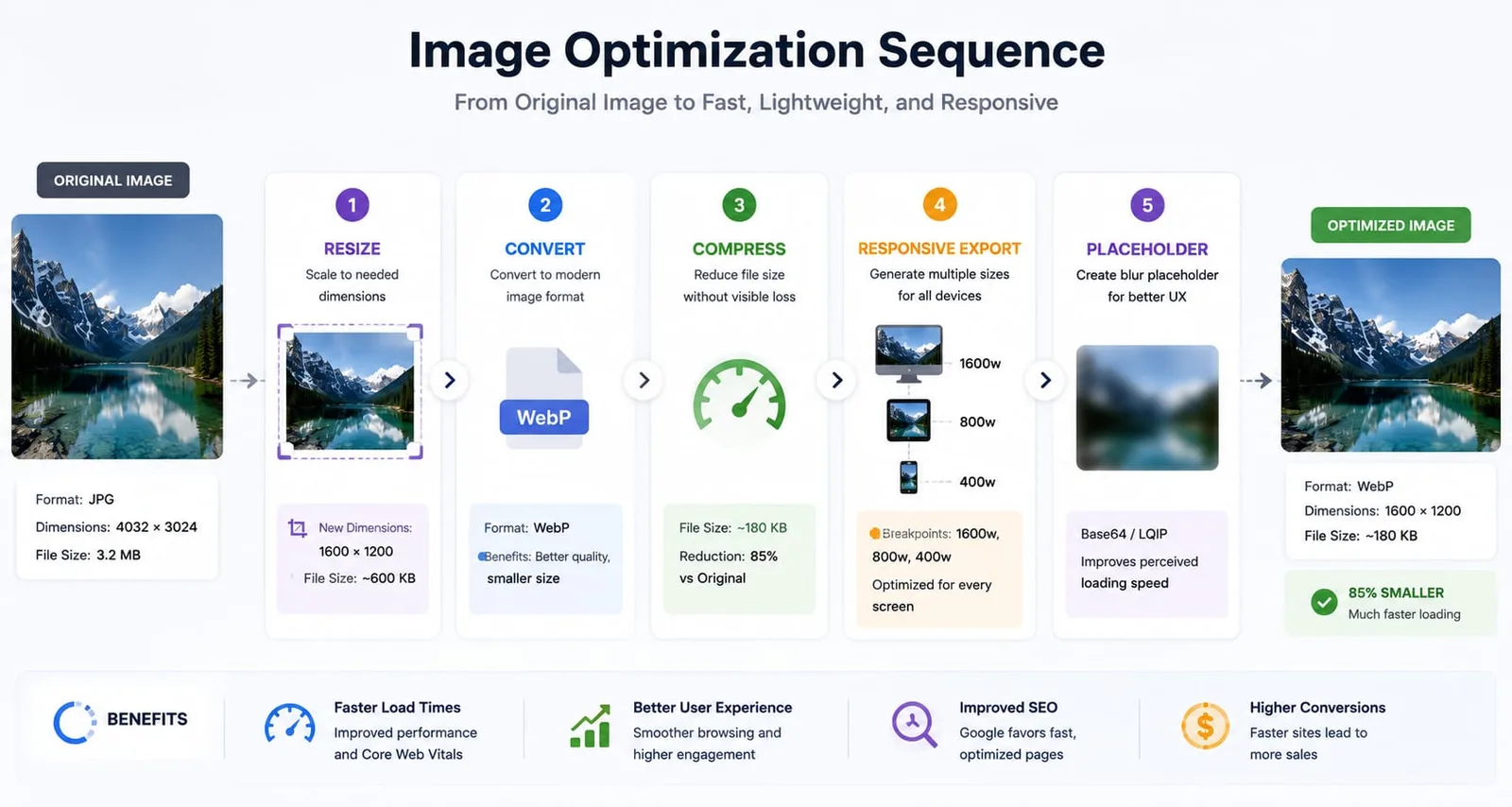
1. Resize the image
Do not upload a 5000px image if it displays at 1200px. Use PicFlow’s Resize Image tool.
2. Convert to WebP
If the image is a JPG or PNG, try converting it to WebP with the Image Converter.
3. Compress the file
Use the Image Compressor to reduce size while keeping quality acceptable.
4. Generate responsive sizes
Use different sizes for different screens with Responsive Image Generator.
5. Create a placeholder
Use the Image Placeholder Generator to improve perceived loading experience.
6. Remove unnecessary metadata
Remove EXIF and extra metadata if it is not needed.
Best Image Speed Workflow for Bloggers
For blog articles:
- 1. Resize hero image to a reasonable width.
- 2. Convert to WebP.
- 3. Compress it.
- 4. Add a descriptive filename.
- 5. Use alt text.
- 6. Generate a placeholder for above-the-fold images.
- 7. Add internal links to relevant tools or content.
- 8. Test the final image load time.
Best Image Speed Workflow for E-commerce
For online stores:
- 1. Keep product images consistent.
- 2. Resize images by placement.
- 3. Use square images for product grids when appropriate.
- 4. Compress product photos carefully.
- 5. Avoid destroying product details.
- 6. Use WebP where supported.
- 7. Test category pages, not just product pages.
- 8. Save the workflow as a PicFlow recipe.
Best Image Speed Workflow for Developers
For developers:
- 1. Use responsive image markup.
- 2. Set width and height.
- 3. Generate multiple sizes.
- 4. Use blur placeholders for key visuals.
- 5. Use lazy loading for non-critical images.
- 6. Preload the most important image only when appropriate.
- 7. Avoid layout shift.
- 8. Monitor real-world performance.
Common Image Speed Mistakes
Using original camera exports
Phone and camera images are usually too large for direct publishing.
Compressing but not resizing
A compressed 5000px image can still be wasteful.
Resizing but not compressing
A correctly sized image may still be too heavy.
Using PNG for photos
PNG is often large for photographic images.
Ignoring mobile
A page that feels fine on desktop can be slow on mobile.
Uploading images without testing
Testing after publishing is better than nothing, but testing before publishing prevents problems.
How to Explain Image Speed to Clients or Managers
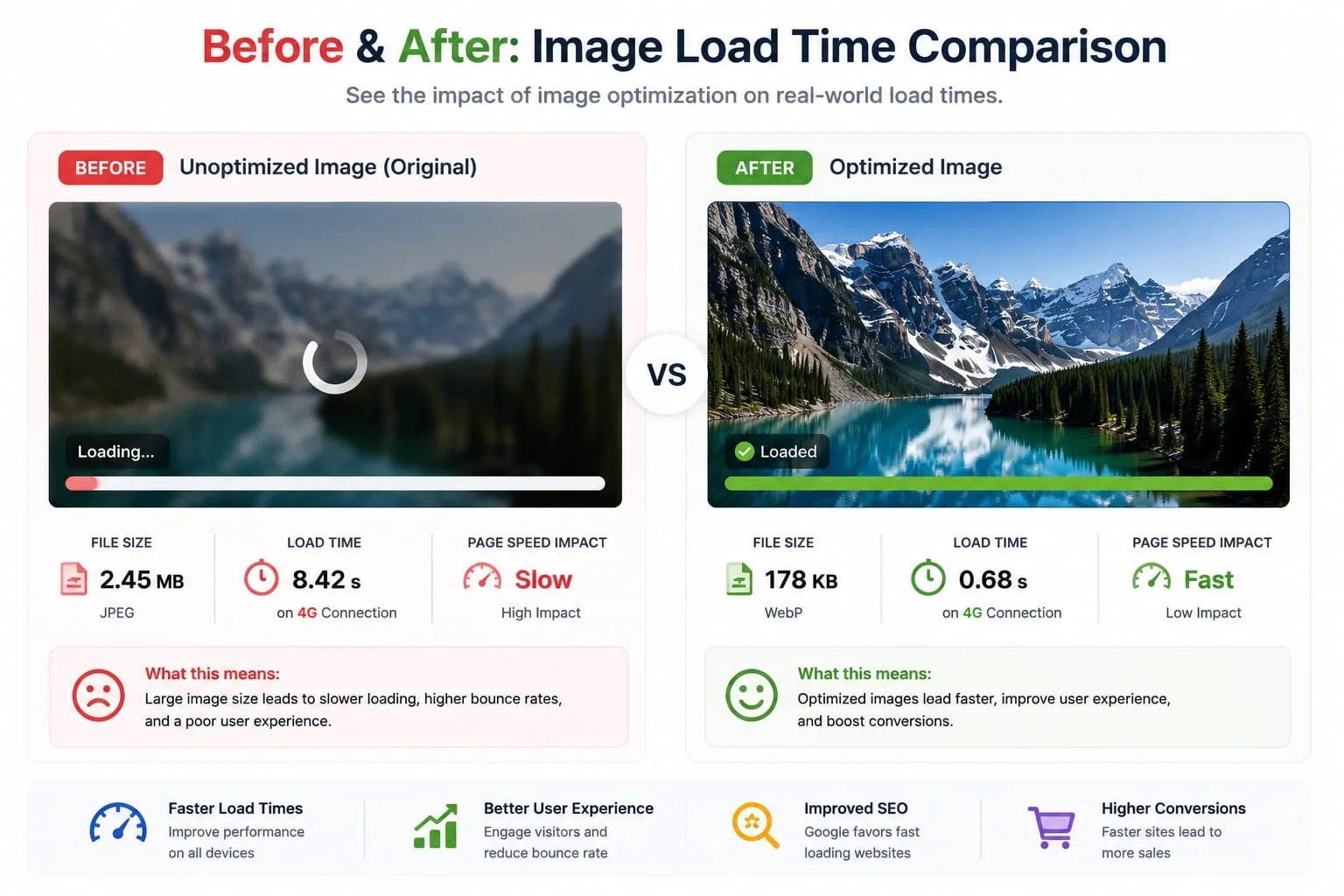
Image optimization is often hard to explain because people judge images visually. A client may look at a page and say, “The image looks fine.” But the real issue is not appearance. The issue is how much data the visitor must download.
A speed simulator helps turn the problem into something visible:
- “This image may take several seconds on slower mobile.”
- “After compression, the file is much smaller.”
- “The optimized version looks almost the same.”
- “This change can help the page feel faster.”
This is useful for freelancers, agencies, SEO consultants, developers, and marketers who need to justify optimization work.
Single Image Test vs Full Page Test
An image speed test is not the same as a full website audit. It answers a focused question: how heavy is this image, and how much could optimization help?
A full page test checks many other factors:
- server response
- CSS and JavaScript
- fonts
- third-party scripts
- caching
- layout shift
- image discovery timing
- lazy loading
- CDN behavior
Use both. Start with an image speed test to fix obvious heavy images, then run a full page audit with your normal performance tools.
Image Speed Rules by Placement
Hero images
Hero images deserve the most attention because they are visible early. Use the correct dimensions, compress carefully, and consider a placeholder.
Thumbnails
Thumbnails should never be huge. They appear small, so they should be resized aggressively.
Product images
Product images must balance speed and detail. Compress carefully, but do not destroy texture, labels, or important product features.
Blog screenshots
Screenshots with text should remain readable. Use PNG as a source if needed, but test WebP output for publishing.
Background images
Decorative background images should be compressed heavily. If users do not need to inspect details, do not spend unnecessary kilobytes.
What to Do After the Test
If the test says an image is heavy:
- 1. resize it first
- 2. convert to WebP
- 3. compress it
- 4. test again
- 5. compare visual quality
- 6. generate responsive sizes if needed
- 7. publish the optimized file
- 8. keep the original safely stored
Do not overwrite your only original image. Keep a master version and publish optimized copies.
FAQ
What is an image loading speed test?
It estimates how long an image may take to load based on file size and typical connection speeds.
Can one large image hurt PageSpeed?
Yes. If the image is large, visible early, or part of the main page content, it can affect loading experience and potentially LCP.
What is the best way to reduce image load time?
Resize the image, convert to an efficient format like WebP, compress it, and use responsive image delivery.
Is WebP always faster?
WebP is often smaller than JPG or PNG, but the actual result depends on the image and settings. Always compare output quality and file size.
Can PicFlow AI test image speed?
Yes. PicFlow AI’s Image Loading Speed Simulator estimates load time across connection types and recommends optimization steps.
Frequently asked questions
What is the main takeaway from Image Loading Speed Test - Estimate Image Load Time Before Publishing?
The guide explains practical image optimization steps that can help improve file size, loading speed, visual quality, and publishing workflows.
Can I use PicFlow tools while following this guide?
Yes. PicFlow includes browser-based tools for compression, resizing, conversion, metadata checks, background removal, and other image workflows.
Does image optimization help SEO?
Yes. Smaller, correctly sized images can improve page speed and Core Web Vitals, which supports better user experience and search performance.
Which image format should I use for websites?
WebP and AVIF are often efficient for websites, while JPG is widely compatible for photos and PNG is useful when transparency is needed.
Does PicFlow upload my images?
PicFlow is built around privacy-first browser workflows where supported, with processing handled for the action you request.
Related PicFlow tools
Related posts
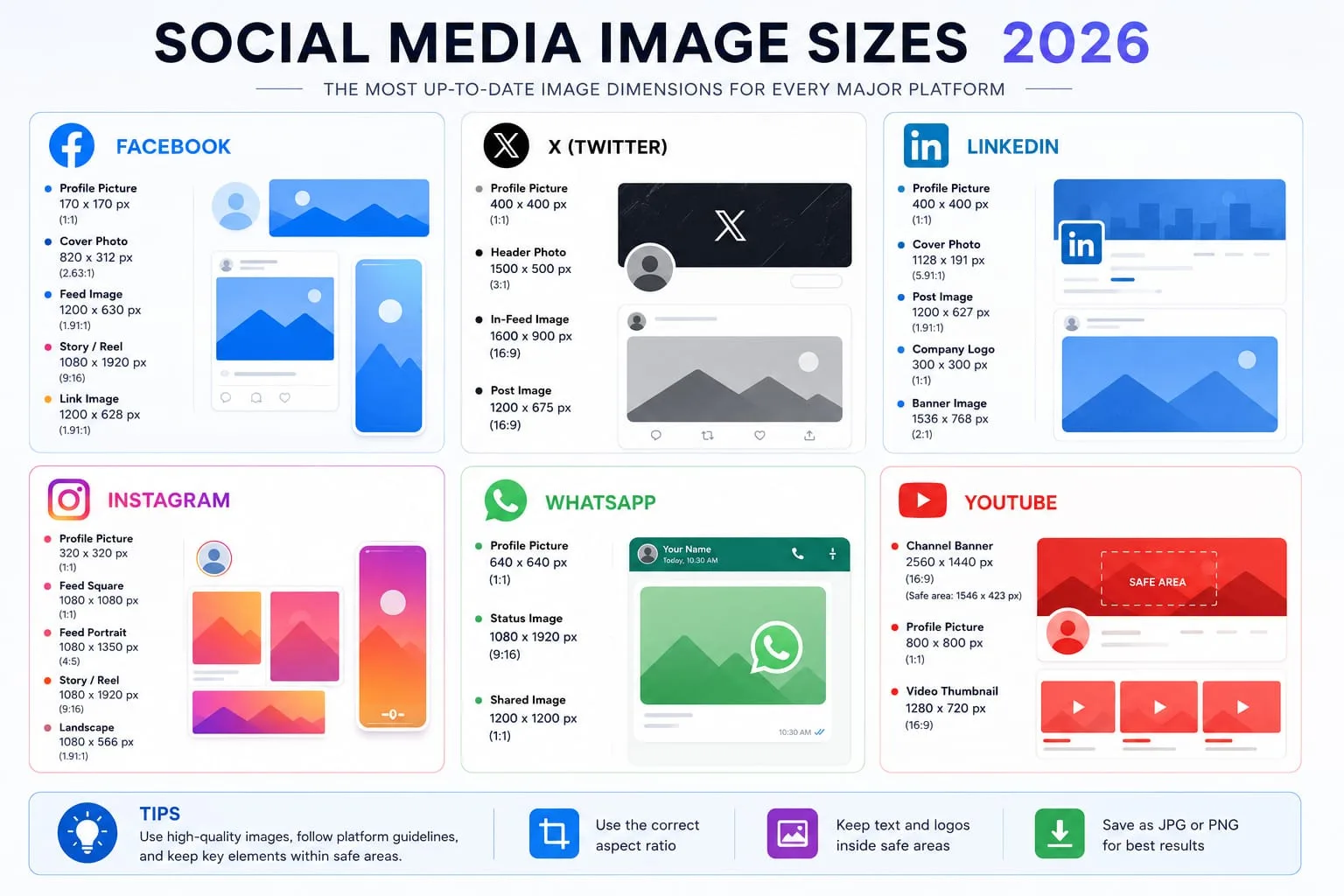
How to Resize Images for Every Social Media Platform in 2026
Learn the best image sizes for Facebook, X, LinkedIn, WhatsApp, Instagram, and YouTube. Resize, crop, preview, and export social images online with PicFlow AI.

Image Placeholder Generator - Blur, Base64 and LQIP Guide
Learn how blur placeholders, Base64 placeholders, dominant color placeholders, and LQIP images improve perceived loading speed. Generate placeholders online with PicFlow AI.
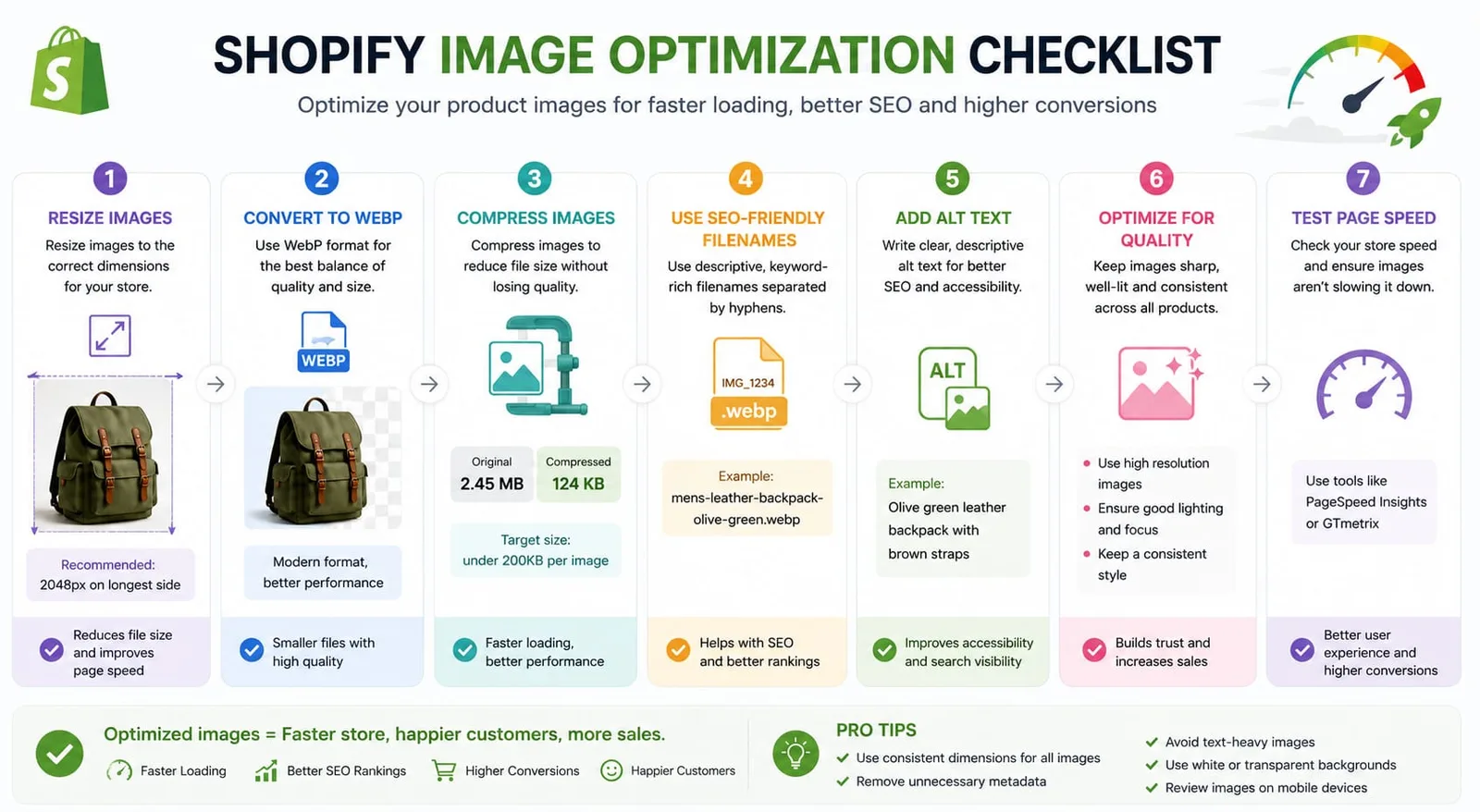
How to Optimize Images for Shopify - Complete 2026 Guide
Learn how to optimize Shopify product images for speed, SEO, mobile shoppers, and conversions. Includes dimensions, compression, WebP, filenames, alt text, and batch workflows.