How to Resize Images for Every Social Media Platform in 2026
Learn the best image sizes for Facebook, X, LinkedIn, WhatsApp, Instagram, and YouTube. Resize, crop, preview, and export social images online with PicFlow AI.
Recommended PicFlow tool
Need to optimize images while reading?
Use PicFlow tools to compress, resize, convert, or inspect images directly from your browser.
Use PicFlow Image CompressorHow to Resize Images for Every Social Media Platform in 2026
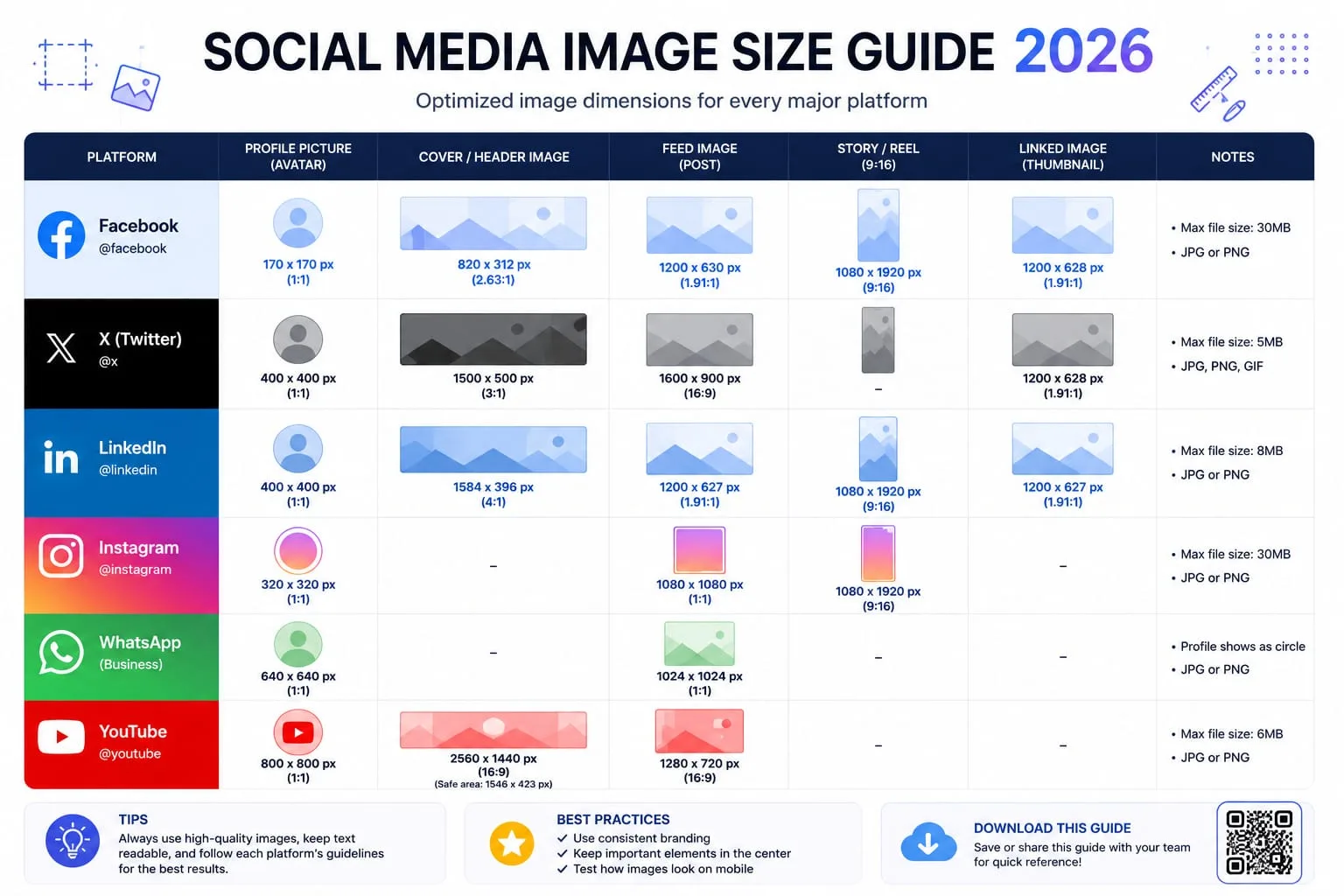
Social media image sizing is frustrating because every platform crops images differently. A design that looks perfect on your desktop may be cut off on Instagram. A blog preview image may look great on Facebook but awkward on LinkedIn. A YouTube thumbnail may lose important text near the edge. A Twitter/X card may crop a face, logo, or headline.
That is why resizing images for social media should not be a guessing game. You need the right dimensions, the right aspect ratio, safe spacing around important content, and a preview before publishing.
This guide gives you a practical 2026 workflow for resizing images for major social platforms, including Facebook, X/Twitter, LinkedIn, WhatsApp, Instagram, and YouTube. You will also learn how to use PicFlow AI’s Social Media Image Previewer to preview cropping before posting.
Quick Social Media Size Reference
Use these as practical starting points:
| Platform | Use Case | Recommended Size |
|---|---|---|
| Facebook / Open Graph | Link preview | 1200 × 630 |
| LinkedIn | Link preview | 1200 × 627 |
| X / Twitter | Large card / post image | 1200 × 675 |
| Instagram | Square post | 1080 × 1080 |
| Instagram | Portrait post | 1080 × 1350 |
| Instagram | Story / Reel cover style | 1080 × 1920 |
| YouTube | Thumbnail | 1280 × 720 |
| WhatsApp | Link preview | Usually uses Open Graph image |
These sizes can change as platforms update their layouts, but they are strong working targets for most creators and marketers.
Why Social Media Cropping Happens
Cropping happens because platforms need to display your image inside fixed containers. The same image may appear in:
- desktop feed
- mobile feed
- link card
- profile grid
- story viewer
- notification preview
- chat preview
- search result
- embedded preview
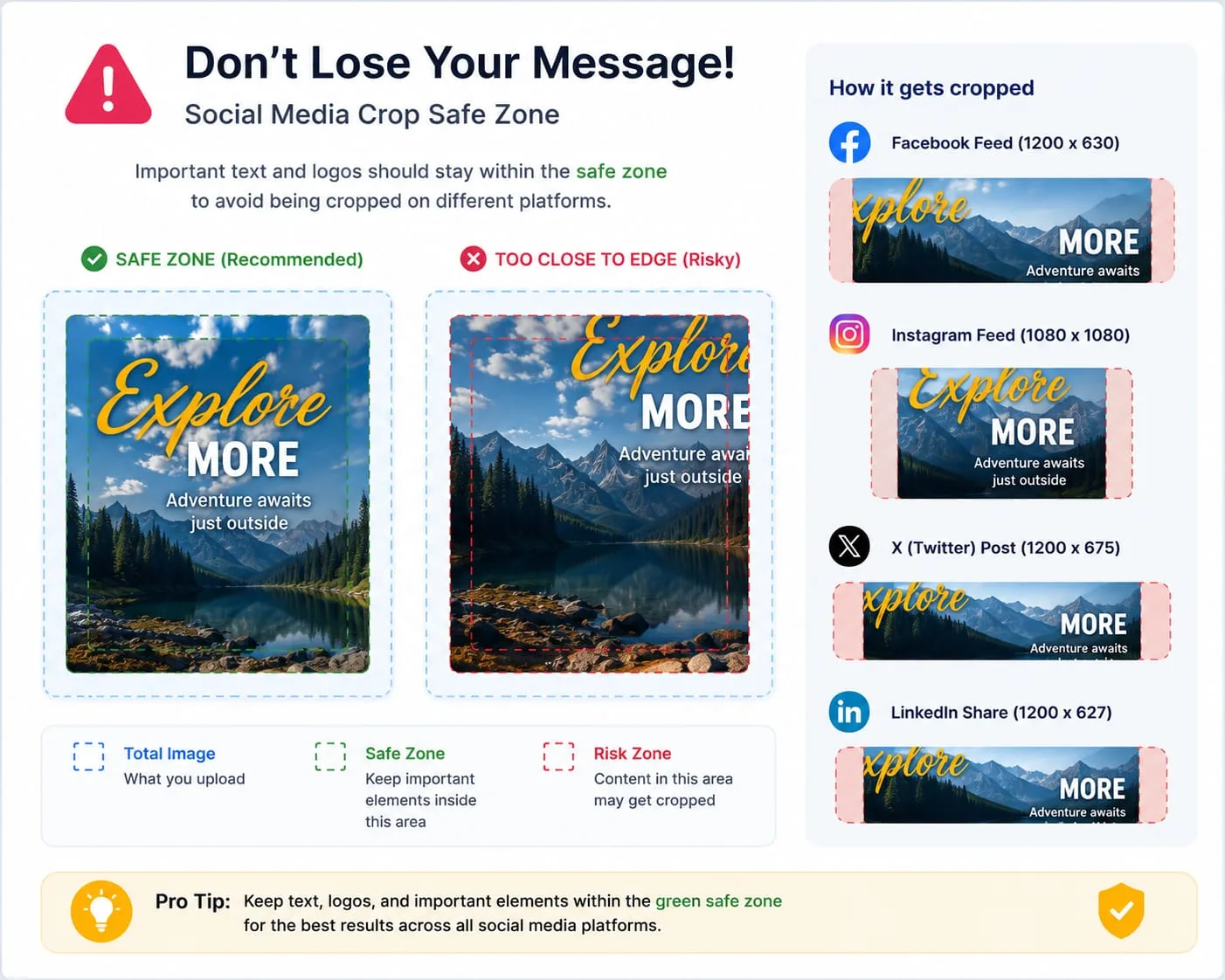
If your image has a different aspect ratio than the container, the platform has to either crop it, letterbox it, or resize it.
Important content near the edges is most at risk. This includes:
- text
- logos
- faces
- product edges
- buttons
- prices
- call-to-action labels
That is why safe zones matter.
Facebook and Open Graph Image Size
For most blog posts, landing pages, and website shares, the safest Facebook/Open Graph image size is around 1200 × 630. This gives a wide 1.91:1 style preview that works well for link cards.
Use this for:
- blog post previews
- SaaS landing pages
- product pages
- article shares
- WhatsApp link previews
- LinkedIn-compatible Open Graph images
Keep the main subject and text away from the outer edges. If your image contains a headline, keep it centered.
LinkedIn Image Size
LinkedIn link previews commonly work well around 1200 × 627, which is very close to standard Open Graph sizing. If you are creating one universal social preview image, 1200 × 630 is often a practical choice.
For LinkedIn, remember:
- business content often appears in smaller cards
- text should be large and readable
- avoid placing logos too close to edges
- keep contrast strong
- test before posting if the image is important
LinkedIn is often used for professional content, so clarity matters more than decoration.
X / Twitter Image Size
For X/Twitter, 1200 × 675 is a practical 16:9 image size for post images and large preview cards. The platform may crop depending on context and device, so safe spacing is still important.
Use X/Twitter images for:
- blog announcements
- product launch posts
- feature updates
- visual summaries
- thread graphics
- SaaS screenshots
Text-heavy images should be tested carefully because small previews can make text hard to read.
Instagram Image Sizes
Instagram supports multiple layouts, but these are the most useful:
Square post
1080 × 1080
Good for:
- simple product images
- quotes
- thumbnails
- carousel slides
- consistent grid layouts
Portrait post
1080 × 1350
Good for:
- better mobile screen coverage
- product highlights
- educational graphics
- creator posts
- before/after examples
Story
1080 × 1920
Good for:
- full-screen vertical content
- promotions
- announcements
- quick tutorials
- before/after demos
For stories, keep important text away from the top and bottom areas where interface elements may appear.
YouTube Thumbnail Size
YouTube thumbnails are commonly created at 1280 × 720, which is a 16:9 format.
A good thumbnail should:
- be readable at small sizes
- use high contrast
- avoid tiny text
- keep faces/products visible
- avoid placing key elements near edges
- look clear on mobile
YouTube thumbnails are often judged in a crowded feed, so clarity and contrast matter.
WhatsApp Link Preview Images
WhatsApp usually pulls preview images from Open Graph metadata when a link is shared. That means your Open Graph image often controls how your link appears in WhatsApp.
A practical workflow:
- Create a 1200 × 630 Open Graph image.
- Add it as your page `og:image`.
- Test the link preview.
- Make sure text is readable and not cropped.
PicFlow’s social preview tool can help you create a clean Open Graph image before publishing.
How to Resize Social Images with PicFlow AI
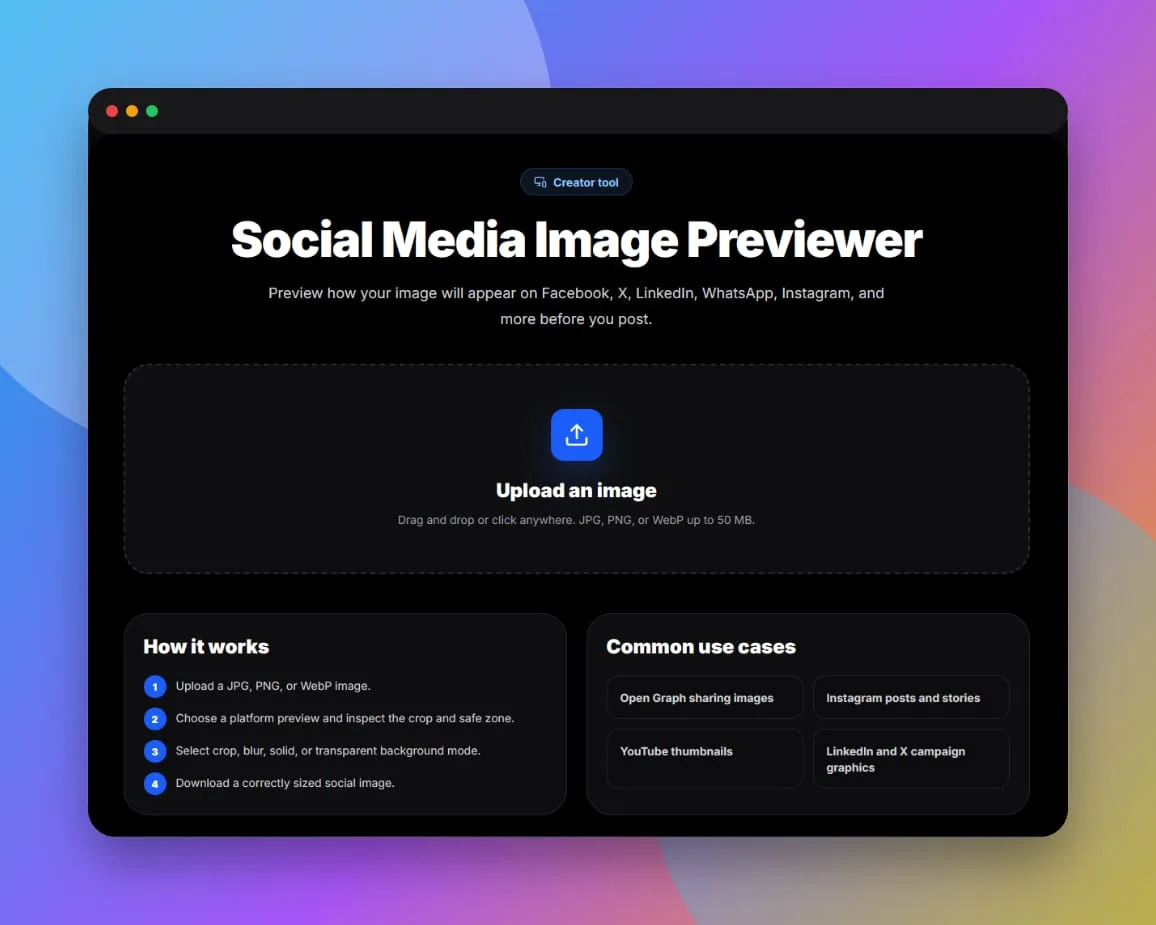
- Open [Social Media Image Previewer](https://picflowai.pro/social-preview).
- Upload your image.
- Select the target platform.
- Review the crop preview.
- Check warnings for aspect ratio, file size, and safe zones.
- Use one-click resize/crop.
- Download the platform-ready image.
You can also use:
- Resize Image for exact dimensions
- Crop Image for manual composition
- Compress Image for smaller final files
- Convert Image for WebP, JPG, or PNG output
Should You Use One Image for All Platforms?
You can, but it is not always best.
A 1200 × 630 Open Graph image works well for many link previews, but it is not ideal for Instagram stories or portrait posts. A 1080 × 1350 Instagram post looks strong on Instagram but may crop badly in a wide link preview.
Best practice:
- create one Open Graph image for website sharing
- create one Instagram portrait version
- create one story version if needed
- create one YouTube thumbnail if publishing video content
If you are promoting the same content everywhere, use PicFlow Recipes to create multiple outputs from one source image.
Social Image Design Tips
Keep text large
If the image appears small in a feed, small text becomes unreadable.
Keep important content centered
Edges are more likely to be cropped.
Use contrast
Low-contrast text may disappear on mobile.
Avoid too much detail
Social images are often viewed quickly.
Preview before posting
Do not assume your design will crop correctly.
Common Social Media Image Mistakes
Using a website hero image directly
Website hero images are often too wide or contain text near the edges.
Designing only for desktop
Most social viewing happens on mobile.
Ignoring link previews
A post image and a link preview image are not always the same thing.
Uploading huge files
Large files may be compressed by the platform anyway.
Forgetting safe zones
Text near the edge is risky.
Best Workflow for Social Media Teams
- Start with a high-quality image.
- Decide target platforms.
- Create a master design.
- Preview each platform crop.
- Export platform-specific versions.
- Compress outputs.
- Name files clearly.
- Save the workflow as a recipe.
Example recipe:
- Open Graph image: 1200 × 630
- X/Twitter image: 1200 × 675
- Instagram portrait: 1080 × 1350
- Story: 1080 × 1920
- YouTube thumbnail: 1280 × 720
Safe Zone Tips for Social Graphics
Safe zones are the areas where important content is least likely to be cropped or covered by interface elements. Each platform has different layouts, but the general rule is simple: keep important content away from edges.
For all platforms:
- keep headlines centered
- avoid placing logos in extreme corners
- keep faces away from the top edge
- avoid tiny text
- leave padding around product photos
- test mobile previews
For stories and vertical formats, avoid putting important text at the very top or bottom because app controls may cover it.
How to Create a Multi-Platform Social Pack
If you are promoting one article, product, or feature launch, create a social image pack instead of one image.
A useful pack:
- Open Graph image for website link previews
- X/Twitter image
- LinkedIn image
- Instagram portrait image
- Instagram story image
- YouTube thumbnail if video is involved
PicFlow AI can help you start with one image and export multiple platform versions. This is better than forcing one design into every social container.
Best Formats for Social Media Images
JPG is usually safe for photos and general sharing. PNG is useful for graphics with text, logos, or sharp design elements. WebP may be useful in some workflows, but not every platform or upload tool handles it the same way.
A practical workflow:
- create the design in high quality
- export JPG or PNG depending on content
- compress the final image
- preview cropping
- upload the platform-specific version
If the image has lots of text, check that the text remains crisp after compression.
Social Image Naming and Organization
Name exported images clearly so your team knows what each file is for.
Examples:
- `blog-post-open-graph-1200x630.jpg`
- `product-launch-instagram-1080x1350.jpg`
- `feature-update-twitter-1200x675.jpg`
- `youtube-thumbnail-image-speed-test-1280x720.jpg`
This prevents accidental uploads of the wrong version.
How to Turn This Into a PicFlow Recipe
A social media recipe can include:
- crop to platform aspect ratio
- resize to recommended dimensions
- compress output
- export JPG/PNG
- repeat for additional platforms
Create separate recipes for Instagram, Open Graph, and YouTube thumbnails if you publish often.
FAQ
What is the best image size for social media?
There is no single best size for every platform. A 1200 × 630 Open Graph image works well for many link previews, while Instagram and YouTube need different dimensions.
What size should Instagram posts be in 2026?
Use 1080 × 1080 for square posts and 1080 × 1350 for portrait posts.
What size should YouTube thumbnails be?
A common YouTube thumbnail size is 1280 × 720.
Why does my image get cropped on social media?
Your image aspect ratio does not match the platform’s display container, so the platform crops it to fit.
Can PicFlow AI preview social media cropping?
Yes. PicFlow AI’s Social Media Image Previewer shows platform-specific previews and helps you resize or crop images before posting.
Frequently asked questions
What is the main takeaway from How to Resize Images for Every Social Media Platform in 2026?
The guide explains practical image optimization steps that can help improve file size, loading speed, visual quality, and publishing workflows.
Can I use PicFlow tools while following this guide?
Yes. PicFlow includes browser-based tools for compression, resizing, conversion, metadata checks, background removal, and other image workflows.
Does image optimization help SEO?
Yes. Smaller, correctly sized images can improve page speed and Core Web Vitals, which supports better user experience and search performance.
Which image format should I use for websites?
WebP and AVIF are often efficient for websites, while JPG is widely compatible for photos and PNG is useful when transparency is needed.
Does PicFlow upload my images?
PicFlow is built around privacy-first browser workflows where supported, with processing handled for the action you request.
Related PicFlow tools
Related posts
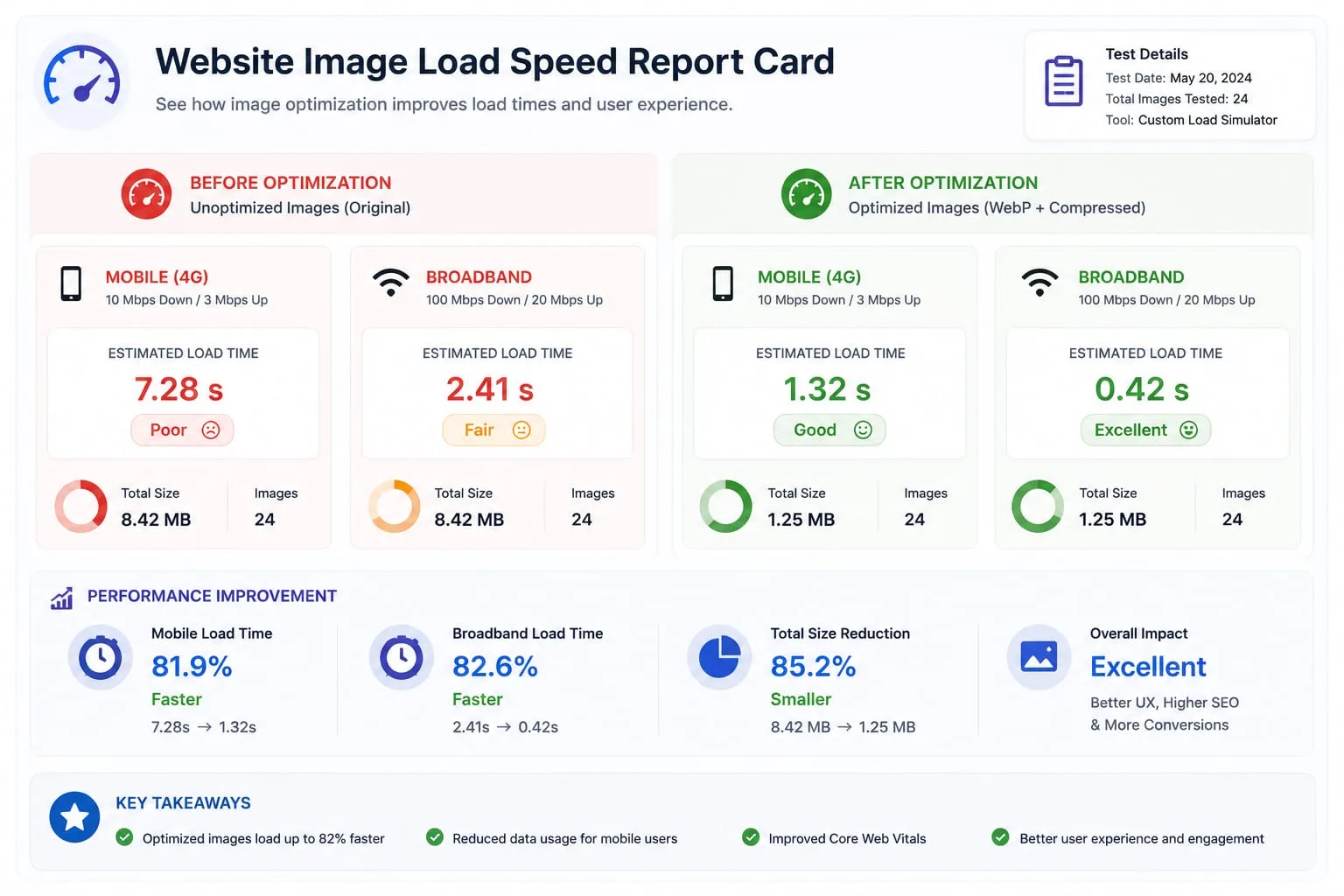
Image Loading Speed Test - Estimate Image Load Time Before Publishing
Learn how to test image loading speed, estimate load time on 3G, 4G, and broadband, and fix slow images before they hurt user experience or Core Web Vitals.

Image Placeholder Generator - Blur, Base64 and LQIP Guide
Learn how blur placeholders, Base64 placeholders, dominant color placeholders, and LQIP images improve perceived loading speed. Generate placeholders online with PicFlow AI.
How to Optimize Images for Shopify - Complete 2026 Guide
Learn how to optimize Shopify product images for speed, SEO, mobile shoppers, and conversions. Includes dimensions, compression, WebP, filenames, alt text, and batch workflows.