Image Placeholder Generator - Blur, Base64 and LQIP Guide
Learn how blur placeholders, Base64 placeholders, dominant color placeholders, and LQIP images improve perceived loading speed. Generate placeholders online with PicFlow AI.
Recommended PicFlow tool
Need to optimize images while reading?
Use PicFlow tools to compress, resize, convert, or inspect images directly from your browser.
Use PicFlow Image Compressor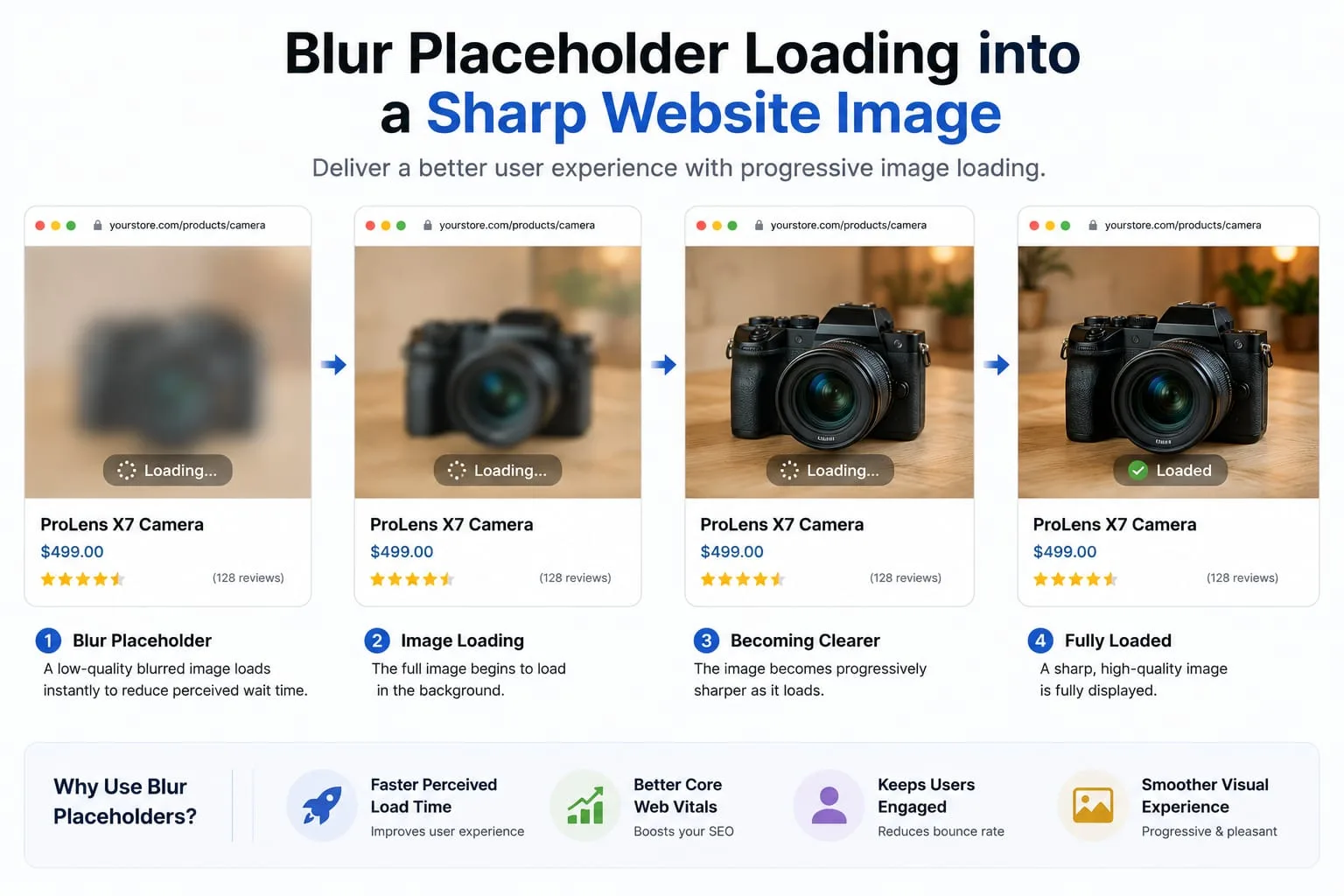
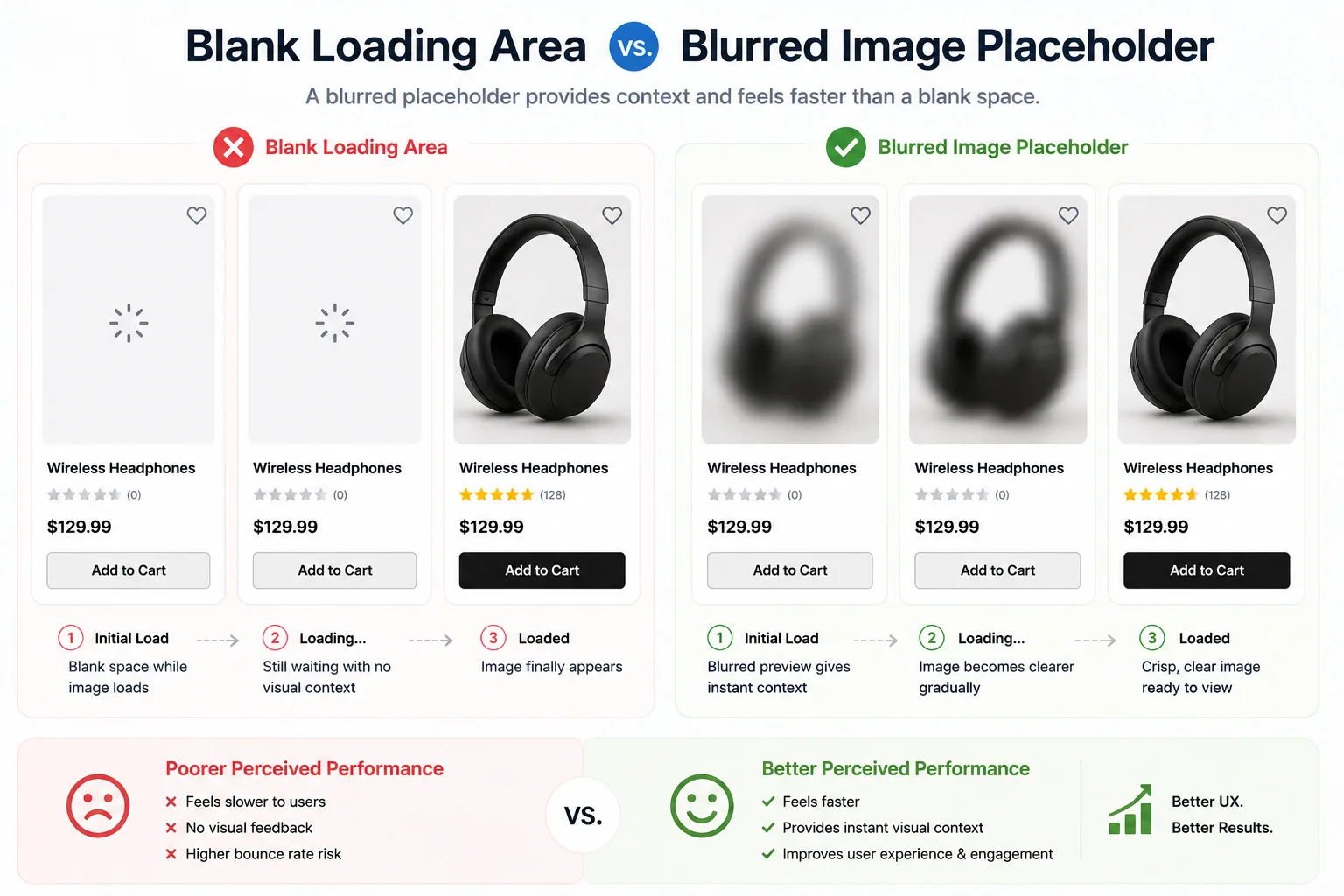
A blank image area makes a website feel slow. Even when the final image loads correctly, users may see an empty box, a sudden layout shift, or a page that feels unfinished. That is why many modern websites use image placeholders.
An image placeholder is a lightweight visual preview shown before the full image loads. It can be a blurred tiny version of the image, a dominant color block, a Base64 data URL, a CSS background, or a low-quality image preview known as LQIP.
Placeholders do not replace compression, resizing, or responsive images. They improve the experience while the real image is loading. For blogs, SaaS landing pages, e-commerce stores, documentation sites, and portfolios, placeholders can make image loading feel smoother and more professional.
This guide explains what image placeholders are, when to use them, which type is best, and how to generate them with PicFlow AI’s Image Placeholder Generator.
What Is an Image Placeholder?
An image placeholder is a temporary visual that appears before the final image is fully loaded. Instead of showing a blank area, the page shows something lightweight immediately.
Common placeholder types include:
- blurred placeholder
- dominant color placeholder
- tiny Base64 placeholder
- low-quality image placeholder
- CSS background placeholder
- SVG placeholder
- skeleton loader
The goal is not to trick users. The goal is to make loading feel intentional and reduce the awkward moment between layout rendering and image completion.
Why Image Placeholders Matter
Image placeholders help with perceived performance. Perceived performance is how fast a site feels to a user, not just how fast a technical test says it is.
A website can be technically optimized but still feel rough if images suddenly pop in. Placeholders make the experience smoother by giving users immediate visual feedback.
They are useful because they:
- reduce the feeling of blank space
- make image loading feel smoother
- help users understand where content will appear
- make galleries and article pages feel more polished
- improve the visual experience on slower connections
- support modern frontend workflows such as Next.js blur placeholders
What Is a Blur Placeholder?
A blur placeholder is a tiny version of the original image that is enlarged and blurred until the full image loads. Because the placeholder image is tiny, it loads quickly. The blur hides pixelation while still giving users a sense of the final image.
Blur placeholders work especially well for:
- blog hero images
- product photos
- portfolio thumbnails
- profile images
- card grids
- recipe pages
- documentation screenshots
A blur placeholder should not be large. A very small preview, sometimes only 8px to 32px wide, is often enough. The browser scales it up visually while the final image downloads.
What Is a Base64 Image Placeholder?
A Base64 placeholder is an image encoded as text and placed directly in HTML, CSS, JSON, or a JavaScript component. Because the placeholder is inline, the browser does not need to make a separate image request for it.
This is useful for frameworks and design systems where you want the placeholder to travel with the image data.
Example use cases:
- Next.js
blurDataURL - inline CSS placeholders
- component libraries
- static site generators
- CMS image metadata
- product card rendering
The tradeoff is that Base64 text adds weight to the HTML or JavaScript if overused. Keep Base64 placeholders tiny.
What Is LQIP?
LQIP stands for Low-Quality Image Placeholder. It is a deliberately small, compressed preview of the final image. It may be blurred, pixelated, or color-reduced.
LQIP is popular because it gives users an early preview of the image composition. On content-heavy pages, it can make the experience feel much faster.
LQIP works best when:
- the final image is important
- the image appears above the fold
- the page has many visual cards
- users are on mobile connections
- the final image may take a moment to load
What Is a Dominant Color Placeholder?
A dominant color placeholder uses the main color from the image as a background block. For example, a beach photo may show a soft blue placeholder, while a forest photo may show green.
This is the lightest placeholder type because it can be represented by a simple CSS color.
Pros:
- extremely lightweight
- easy to implement
- no Base64 image needed
- works well with card layouts
- avoids blank boxes
Cons:
- less informative than a blur placeholder
- may not match complex images well
- does not show image composition
Dominant color placeholders are excellent for thumbnails and grids where performance matters more than preview detail.
Placeholder Types Compared
Placeholder Type: Blur placeholder
Best For: Hero images, cards, product photos
Pros: Looks polished, shows composition
Cons: Slightly more setup
Placeholder Type: Base64 placeholder
Best For: Next.js, components, static sites
Pros: Inline and portable
Cons: Can bloat markup if too large
Placeholder Type: Dominant color
Best For: Grids, thumbnails, minimal sites
Pros: Very small and simple
Cons: Less visual detail
Placeholder Type: LQIP
Best For: Blogs, galleries, content cards
Pros: Good perceived speed
Cons: Needs generation
Placeholder Type: Skeleton loader
Best For: UI layouts
Pros: Good for structure
Cons: Does not preview actual image
How to Generate Image Placeholders with PicFlow AI
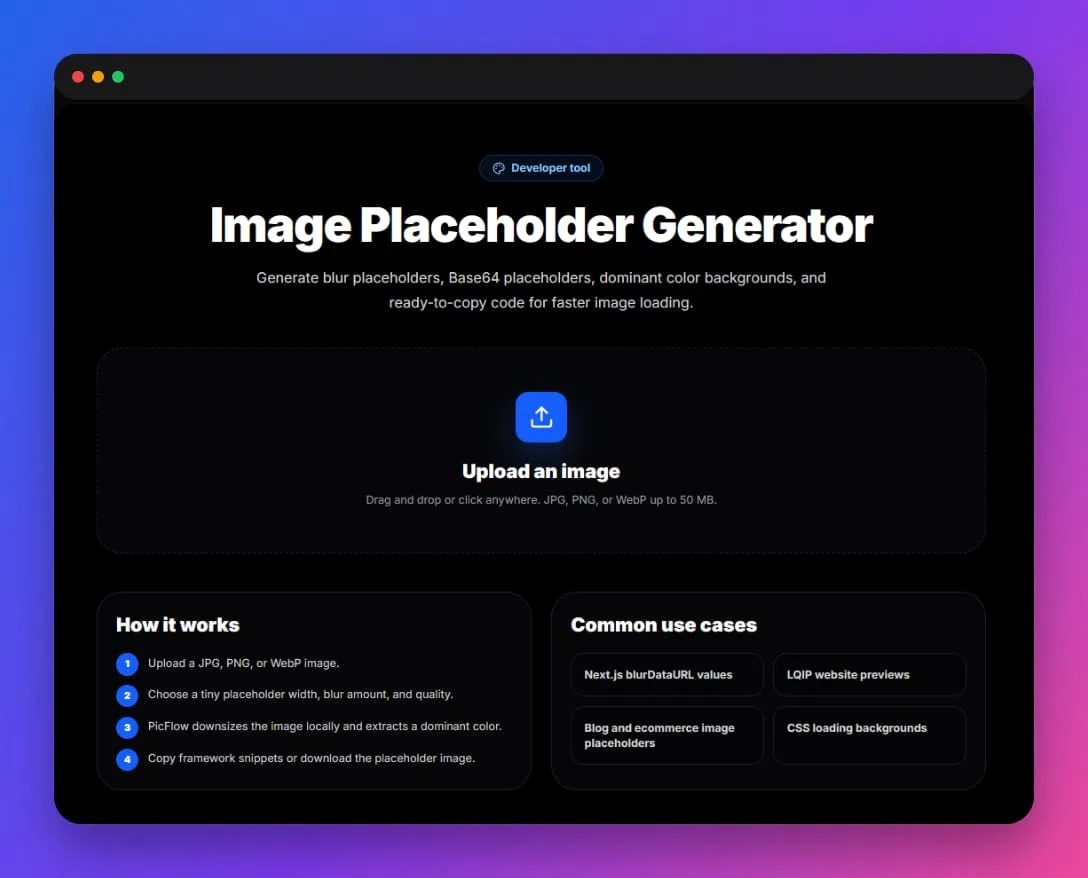
PicFlow AI makes placeholder generation simple:
- Open the Image Placeholder Generator.
- Upload your image.
- Choose a placeholder type.
- Adjust size, blur, or quality.
- Copy the Base64, CSS, HTML, or Next.js snippet.
- Download the placeholder if needed.
- Use the placeholder in your website or app.
Next.js blurDataURL Example
If you use Next.js, blur placeholders are especially useful. Next.js supports a placeholder="blur" option with a blurDataURL.
Example:
<Image
  src="/images/product.webp"
  alt="Black leather product photo"
  width={1200}
  height={800}
  placeholder="blur"
  blurDataURL="data:image/webp;base64,GENERATED_PLACEHOLDER"
/>
PicFlow AI can generate the blurDataURL so you do not have to manually create it.
CSS Placeholder Example
You can also use a placeholder as a CSS background.
.image-card {
  background-color: #d8d8d8;
  background-image: url("data:image/webp;base64,GENERATED_PLACEHOLDER");
  background-size: cover;
  background-position: center;
}
When the real image loads, it appears over the placeholder.
When Should You Use Placeholders?
Use placeholders for:
- above-the-fold images
- product grid thumbnails
- blog article cards
- landing page hero images
- gallery pages
- image-heavy documentation
- recipe cards
- social preview galleries
You may not need placeholders for:
- tiny icons
- decorative images
- below-the-fold images that lazy-load smoothly
- images that are already very small
- pages with only one lightweight image
Placeholders and Core Web Vitals
Placeholders do not automatically fix Core Web Vitals. A placeholder can make loading feel smoother, but the final image still needs to be optimized.
To improve performance properly:
- resize the image
- compress it
- use the right format
- set width and height
- avoid layout shift
- use responsive images
- lazy-load non-critical images
- prioritize the main hero image carefully
Use PicFlow’s Image Speed Test to estimate load impact and Responsive Image Generator for responsive outputs.
Common Placeholder Mistakes
Using a placeholder that is too large
A placeholder should be tiny. If the placeholder is 50KB, it defeats the purpose.
Using placeholders instead of optimization
A placeholder does not make a 5MB image okay. Compress and resize the real image too.
Forgetting width and height
If you do not reserve image space, the page may still shift when the image loads.
Making every image urgent
Not every image needs a fancy placeholder. Focus on images users see first.
Using a blurry image forever
Make sure the full image replaces the placeholder properly.
Best Workflow for Fast Image Loading
A strong image workflow looks like this:
- Resize image to the correct display size.
- Convert to WebP or another efficient format.
- Compress the final file.
- Generate a placeholder.
- Use responsive image sizes.
- Set width and height.
- Lazy-load below-the-fold images.
- Test the final page.
PicFlow can support each step with tools like Resize Image, Convert Image, Compress Image, and Image Placeholder Generator.
Placeholder Strategy by Page Type
Different pages need different placeholder strategies.
Blog pages
For blog posts, focus on the hero image and article card thumbnails. A blurred placeholder is useful for the main article image because it appears early and affects the first impression. For article grids, dominant color placeholders may be enough.
E-commerce pages
For product grids, placeholders help avoid a page full of empty boxes. A blurred product placeholder can make category pages feel smoother while product photos load. Use consistent dimensions to avoid layout shift.
SaaS landing pages
SaaS pages often use screenshots, feature cards, dashboards, and hero graphics. Use placeholders for large product screenshots, especially if they appear above the fold.
Portfolio and gallery pages
Placeholders are very useful for galleries because many images load together. A blurred or dominant color placeholder helps the grid feel intentional while the full images download.
How to Choose Placeholder Size
The placeholder should be small enough to load instantly but large enough to represent the original image. A practical starting point is:
- 8px wide for very tiny previews
- 16px wide for most blur placeholders
- 24px or 32px wide when you need slightly more structure
- dominant color only when the image does not need composition preview
The placeholder should usually be measured in bytes or a few kilobytes, not tens of kilobytes. If your placeholder is large, reduce its dimensions or quality.
Placeholder Implementation Checklist
Before publishing, check:
- The full image has width and height set.
- The placeholder is much smaller than the original.
- The placeholder does not add excessive inline code.
- The final image replaces the placeholder correctly.
- The image does not cause layout shift.
- The placeholder color or blur matches the final image well enough.
- Lazy loading is used for below-the-fold images.
- The main above-the-fold image is optimized separately.
Why Placeholders Work Well with PicFlow Recipes
A placeholder is rarely the only step in an image workflow. A strong recipe can combine:
- resize image
- convert to WebP
- compress image
- generate blur placeholder
- export code snippet
This is especially useful for developers and content teams who prepare many blog images, product images, or documentation screenshots.
FAQ
What is an image placeholder?
An image placeholder is a lightweight preview shown before the final image loads. It can be blurred, color-based, Base64 encoded, or a low-quality preview.
What is a blur placeholder?
A blur placeholder is a tiny version of the final image that is enlarged and blurred until the real image loads.
What is a Base64 image placeholder?
It is a small image encoded as text, often used directly in HTML, CSS, or frontend components.
Is LQIP good for SEO?
LQIP is mainly a user experience and perceived performance technique. It should be combined with compression, responsive images, and proper image SEO.
Can I generate a Next.js blurDataURL online?
Yes. PicFlow AI’s Image Placeholder Generator can create a Base64 blur placeholder that can be used as a Next.js blurDataURL.
Frequently asked questions
What is the main takeaway from Image Placeholder Generator - Blur, Base64 and LQIP Guide?
The guide explains practical image optimization steps that can help improve file size, loading speed, visual quality, and publishing workflows.
Can I use PicFlow tools while following this guide?
Yes. PicFlow includes browser-based tools for compression, resizing, conversion, metadata checks, background removal, and other image workflows.
Does image optimization help SEO?
Yes. Smaller, correctly sized images can improve page speed and Core Web Vitals, which supports better user experience and search performance.
Which image format should I use for websites?
WebP and AVIF are often efficient for websites, while JPG is widely compatible for photos and PNG is useful when transparency is needed.
Does PicFlow upload my images?
PicFlow is built around privacy-first browser workflows where supported, with processing handled for the action you request.
Related PicFlow tools
Related posts
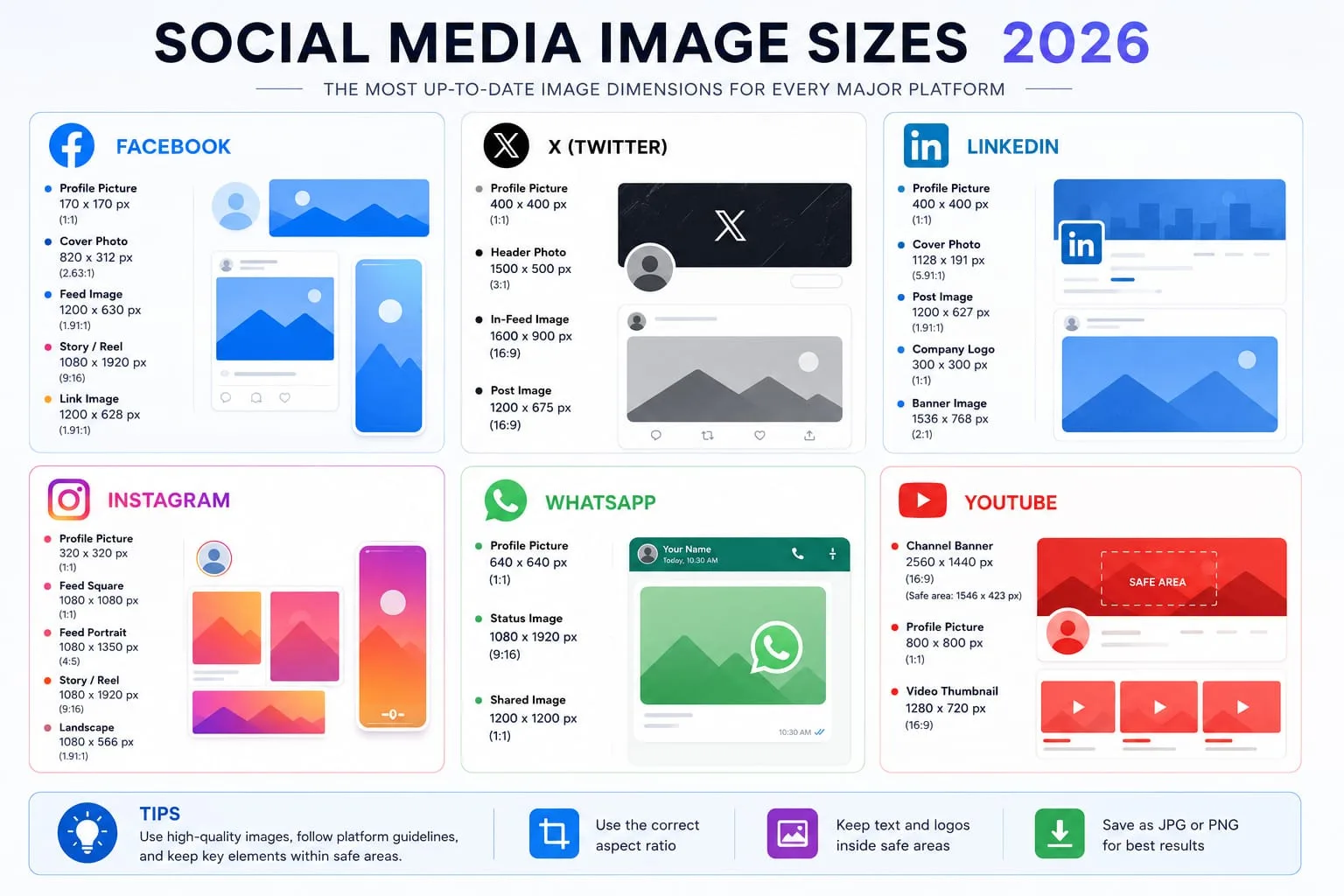
How to Resize Images for Every Social Media Platform in 2026
Learn the best image sizes for Facebook, X, LinkedIn, WhatsApp, Instagram, and YouTube. Resize, crop, preview, and export social images online with PicFlow AI.
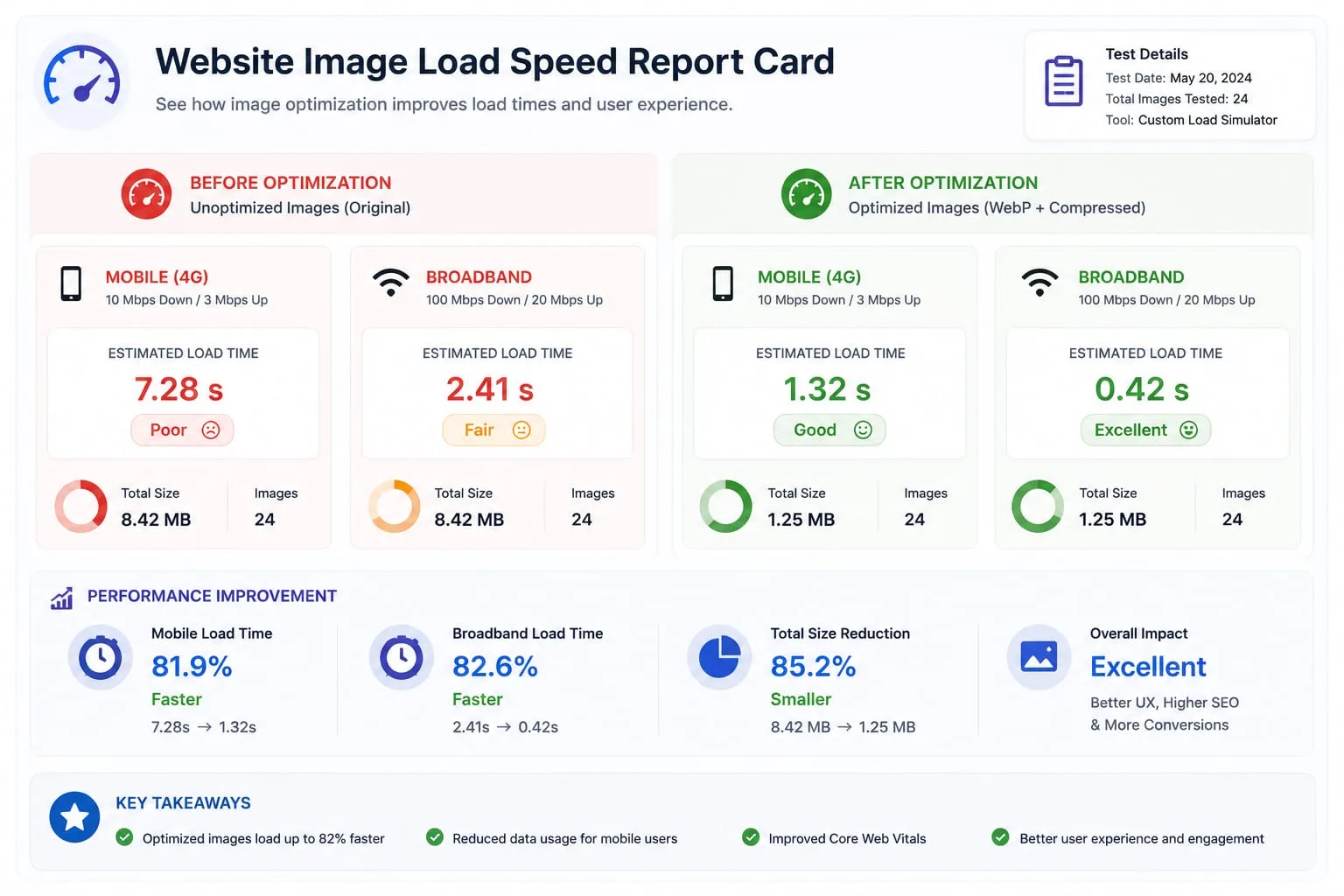
Image Loading Speed Test - Estimate Image Load Time Before Publishing
Learn how to test image loading speed, estimate load time on 3G, 4G, and broadband, and fix slow images before they hurt user experience or Core Web Vitals.
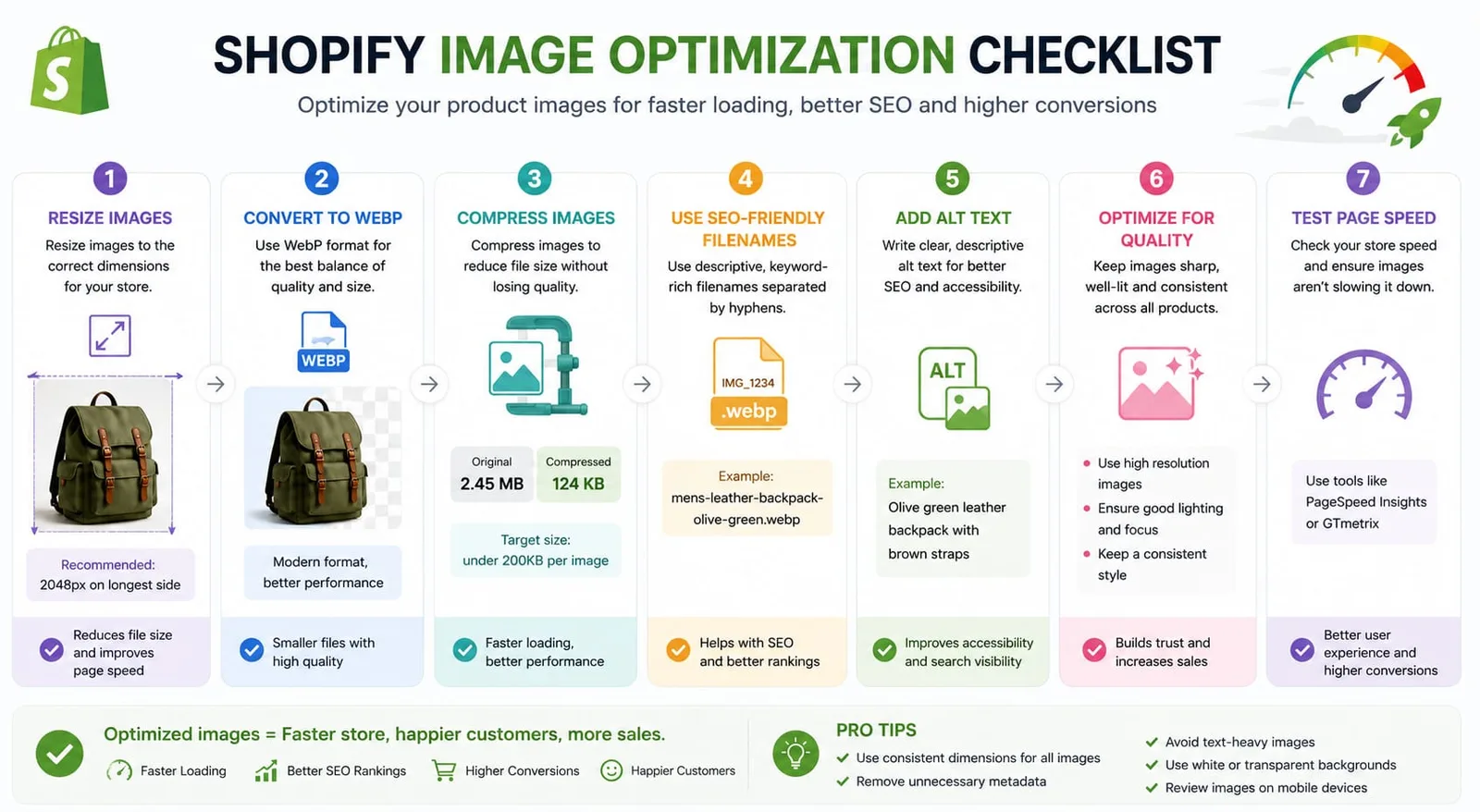
How to Optimize Images for Shopify - Complete 2026 Guide
Learn how to optimize Shopify product images for speed, SEO, mobile shoppers, and conversions. Includes dimensions, compression, WebP, filenames, alt text, and batch workflows.