How to Optimize Images for Shopify - Complete 2026 Guide
Learn how to optimize Shopify product images for speed, SEO, mobile shoppers, and conversions. Includes dimensions, compression, WebP, filenames, alt text, and batch workflows.
Recommended PicFlow tool
Need to optimize images while reading?
Use PicFlow tools to compress, resize, convert, or inspect images directly from your browser.
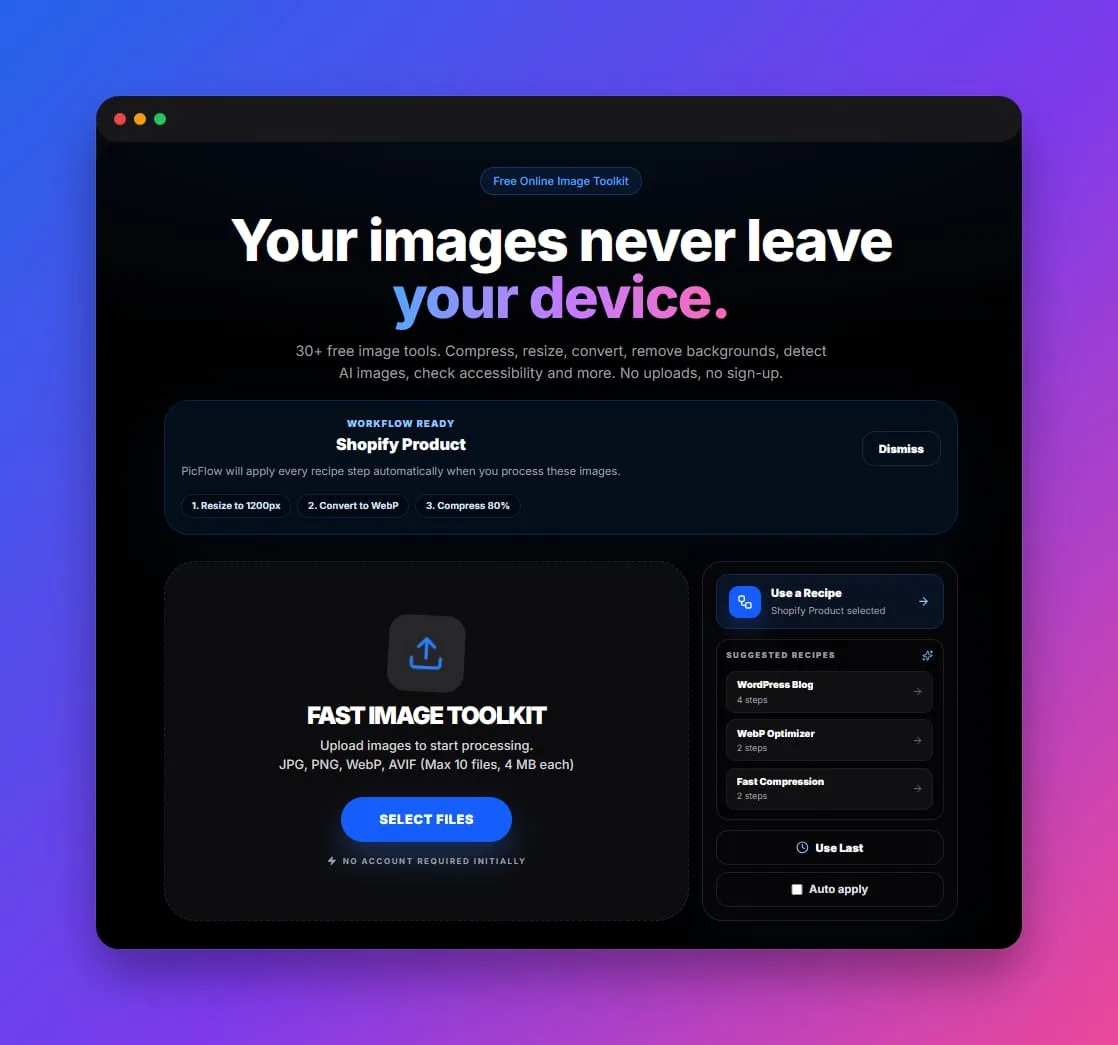
Use PicFlow Image Compressor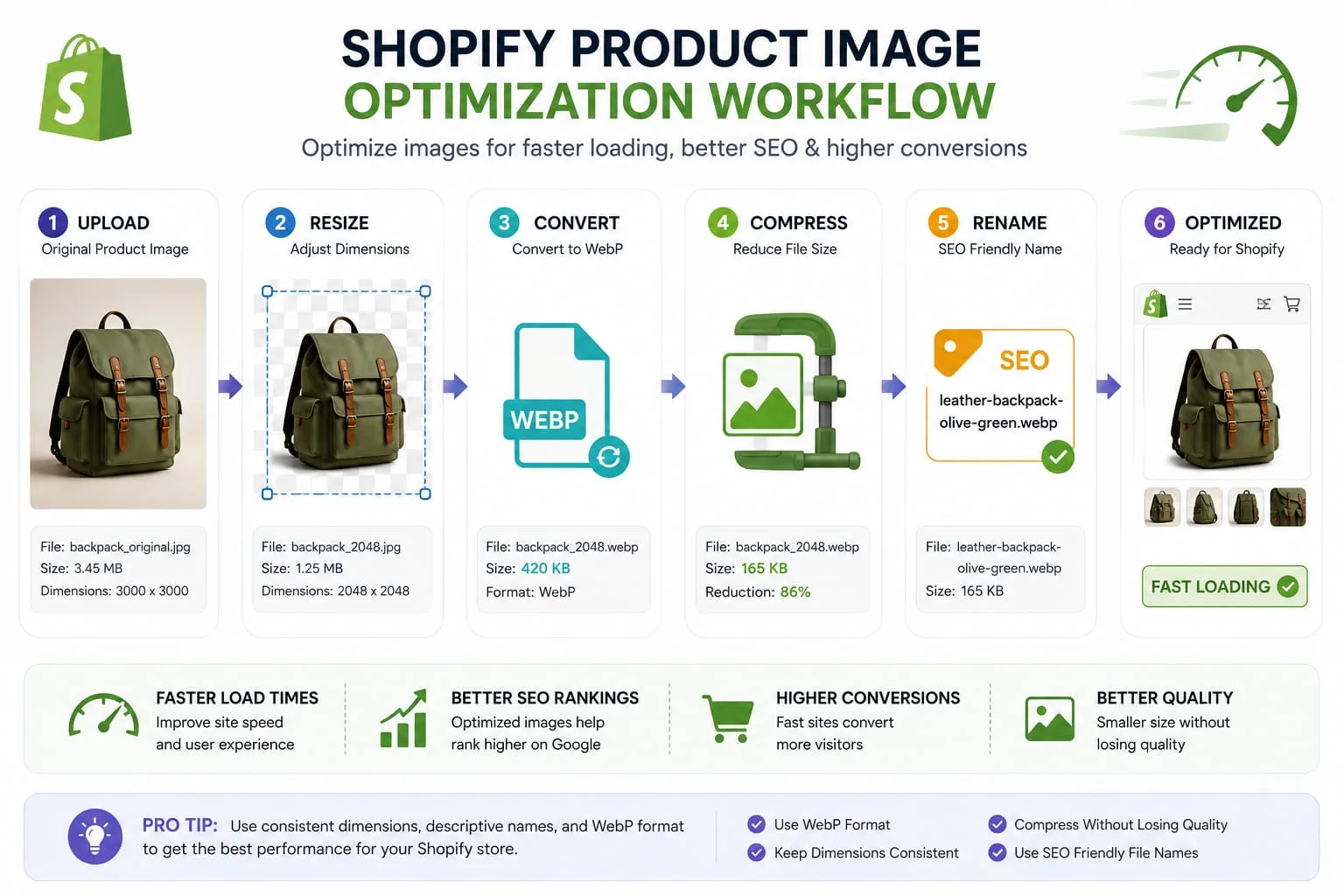
Shopify stores live or die by product images. A strong product photo can make a product feel trustworthy, premium, and worth buying. A slow, oversized product image can do the opposite. It can delay the page, create layout issues, frustrate mobile shoppers, and make your store feel less professional.
The challenge is that Shopify image optimization is not only about making files smaller. It is about balancing quality, consistency, speed, SEO, and workflow. If you compress too much, products look cheap. If you upload images that are too large, your collection pages become heavy. If every product photo has a different aspect ratio, your grid looks messy. If filenames and alt text are ignored, you miss an easy SEO opportunity.
This guide shows you how to optimize images for Shopify in a practical, repeatable way using PicFlow AI. You will learn what image sizes to use, when to convert to WebP, how to compress product images safely, how to improve image SEO, and how to create a batch workflow so you do not have to repeat the same steps manually for every product.
Why Shopify Image Optimization Matters
Most Shopify stores are image-heavy. A single product page may include a main product photo, gallery images, variant images, trust badges, lifestyle shots, collection thumbnails, recommendation images, and review images. On collection pages, dozens of product thumbnails may load at once.
That creates three major problems:
- Speed problem: Large image files increase page weight.
- Design problem: Inconsistent dimensions make product grids look uneven.
- SEO problem: Poor filenames and missing alt text reduce image search clarity.
For mobile shoppers, image weight is especially important. Many users browse stores on mobile networks where every extra megabyte matters. If a product grid takes too long to load, shoppers may leave before they even compare products.
Optimized images help your Shopify store feel faster, cleaner, and more professional.
The Best Shopify Image Optimization Workflow
A good Shopify workflow should look like this:
- Collect original product images.
- Remove unnecessary backgrounds if needed.
- Crop to a consistent aspect ratio.
- Resize to the right dimensions.
- Convert to the best publishing format.
- Compress without visible quality loss.
- Rename files with descriptive keywords.
- Add useful alt text in Shopify.
- Test speed and layout on mobile.
- Save the workflow as a reusable recipe.
This workflow is simple, but doing it manually for every product can take hours. That is why PicFlow AI’s Recipes feature is useful: you can save repeated image-processing steps and apply them again later.
Recommended Image Sizes for Shopify
There is no single perfect size for every Shopify image because themes display images differently. However, some practical standards work well for most stores.
Product images
A common product image target is a square format, such as 2048 × 2048 pixels, especially for products that appear in grids. Square images help collection pages look consistent and reduce unexpected cropping.
Collection images
Collection images often work well as square or consistent rectangular images. The most important rule is consistency. If one collection image is square, another is portrait, and another is wide, your collection grid may look uneven.
Hero banners
Hero images are usually wide. A 16:9 or wide rectangular layout often works better than a square product image. Avoid using the same product image everywhere without resizing it for the placement.
Blog images
Shopify blog images should usually be wide enough for the article layout but not oversized. A 1600px to 1800px wide image is often enough for most themes.
The key is this: resize images for where they appear, not for the maximum Shopify allows.
File Size: How Small Should Shopify Images Be?
Your goal is not to make every image tiny at all costs. Your goal is to make each image as small as possible while still looking professional.
A practical target:
- product thumbnails: as small as possible while sharp
- product gallery images: compressed but still detailed
- hero banners: visually strong but not multi-megabyte
- decorative images: very small
- icons/logos: SVG or lightweight PNG/WebP where appropriate
If a product image is 4MB and it displays at a small size in a collection grid, it is too large. If a compressed image makes product texture look fake, it is too compressed.
Use PicFlow’s Image Compressor to compare the original and compressed result before uploading.
Should You Use WebP on Shopify?
WebP is a strong publishing format because it can reduce file size while keeping good visual quality. For Shopify product photos, WebP can be especially useful when you have large catalogs or image-heavy collection pages.
Use WebP for:
- product photos
- collection thumbnails
- blog images
- homepage banners
- promotional graphics
Keep PNG for:
- transparent source files
- logos if SVG is not available
- graphics that need perfect edges
- screenshots or UI images
A safe workflow is to keep your original product images in their source format and use WebP only for published optimized versions.
How to Compress Shopify Images Without Making Products Look Cheap
Compression is where many store owners make mistakes. They either do no compression at all, or they compress so aggressively that product details are damaged.
For product images, pay attention to:
- fabric texture
- jewelry shine
- product labels
- skin tones
- small text
- sharp edges
- shadows
- color accuracy
If those details look damaged, increase the quality setting. A product image is not just decoration. It is part of the buying decision.
Use a before/after preview and zoom in before replacing product images.
Image SEO for Shopify
Shopify image SEO is often ignored, but it is simple to improve.
Use descriptive filenames
Before uploading, rename files clearly.
Bad filename:
IMG_4938.png
Better filename:
black-leather-crossbody-bag-front.webp
The filename helps organize your assets and gives search engines a clearer context.
Write useful alt text
Alt text should describe the image naturally. It should help visually impaired users understand the image and help search engines understand what the image shows.
Bad alt text:
product image
Better alt text:
Black leather crossbody bag with gold zipper and adjustable strap
Avoid keyword stuffing. Write for humans first.
Place images near relevant content
Product images already appear on relevant product pages, but blog images and collection images should also match the surrounding text.
Use consistent product naming
If your product title says “linen summer shirt,” your filename and alt text should use similar language naturally.
Background Removal for Product Photos
For many Shopify stores, clean product photos convert better than messy backgrounds. This is especially true for fashion, accessories, tools, beauty products, and marketplace-style stores.
Use background removal when:
- the original background is distracting
- product photos come from different sources
- you want a clean catalog style
- you need a transparent product cutout
- you need consistent product cards
After removing the background, you can use a white, transparent, or brand-colored background depending on your store design.
Try PicFlow’s Remove Background tool before resizing and compressing.
Build a Shopify Image Recipe in PicFlow AI
A useful Shopify recipe might include:
- Crop to square.
- Resize to 2048 × 2048.
- Convert to WebP.
- Compress at a safe quality level.
- Remove unnecessary metadata.
- Export with a clean filename.
For blog images, the recipe may be different:
- Resize to 1600px wide.
- Convert to WebP.
- Compress.
- Generate a placeholder.
- Export.
For social product images, another recipe might be:
- Crop to Instagram portrait.
- Resize to 1080 × 1350.
- Compress.
- Preview cropping.
- Download.
The point is not that one recipe fits every image. The point is that repeated workflows should not be repeated manually.
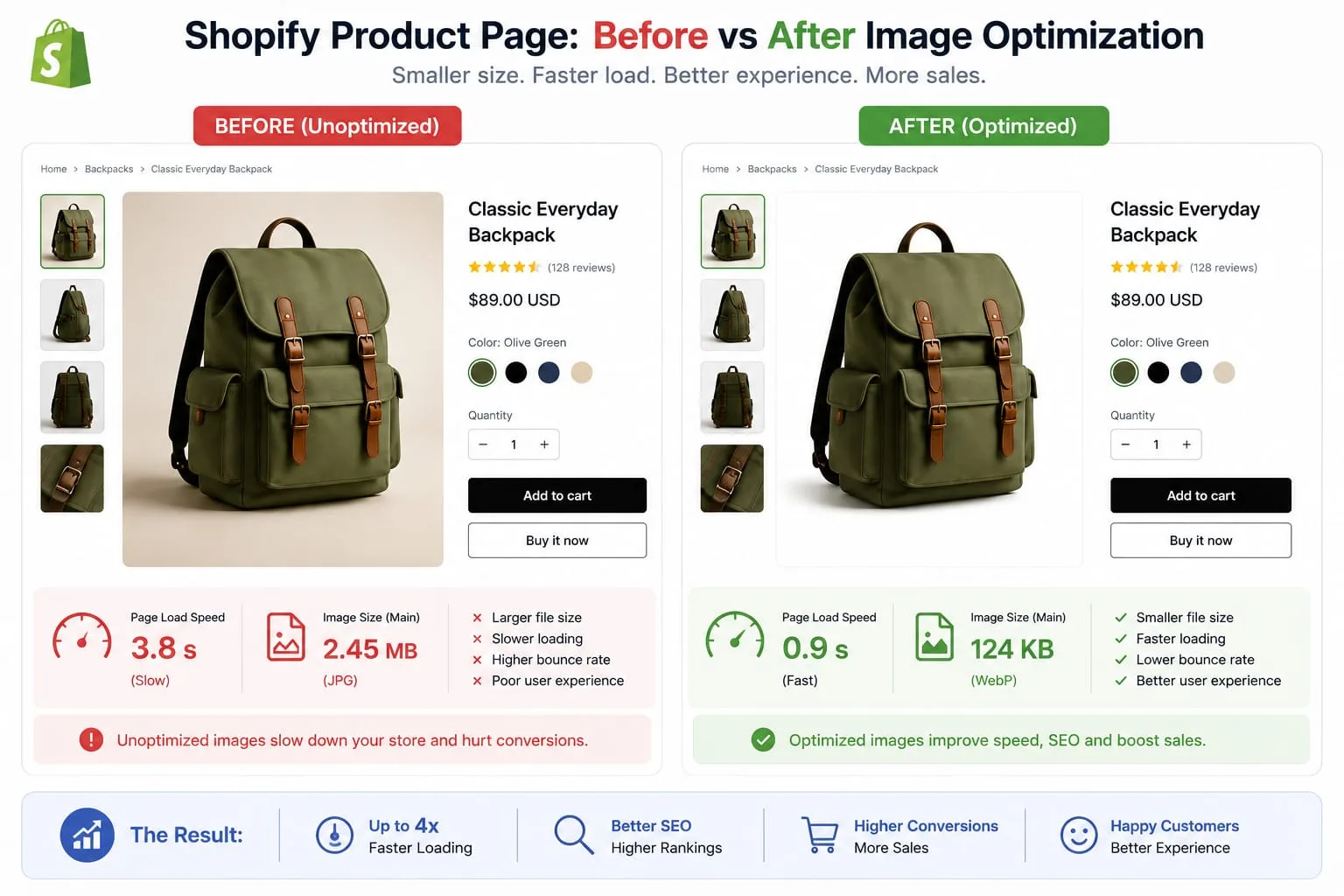
How to Test Whether Shopify Images Are Slowing You Down
After optimization, test your images in three ways:
1. Visual test
Open the product page and check whether images still look sharp.
2. Mobile test
Load the page on a phone. Check how fast collection thumbnails appear.
3. Speed estimate
Use PicFlow’s Image Loading Speed Simulator to estimate how long a large image takes to load on slower connections.
If an image is visually identical after compression but loads faster, that is a win.
Common Shopify Image Mistakes
Uploading the same huge image everywhere
A product gallery image, collection thumbnail, and social post may need different dimensions.
Mixing aspect ratios in product grids
A grid with square, portrait, and landscape images can look messy.
Ignoring mobile shoppers
A desktop page may feel acceptable while mobile visitors experience slow loading.
Using generic filenames
Filenames like image1.jpg and final-final.png do not help organization or SEO.
Compressing after uploading
It is better to optimize images before uploading them to your store.
Final Shopify Image Checklist
Before uploading product images, check:
- Is the image the right aspect ratio?
- Is it resized for the placement?
- Is the file size reasonable?
- Is the format appropriate?
- Is the filename descriptive?
- Is the alt text useful?
- Does it look good on mobile?
- Does it match the rest of the product grid?
- Can this workflow be saved as a recipe?
If the answer is yes, your image is ready.
Shopify Image Optimization by Store Type
Different Shopify stores need different image priorities. A jewelry store, a clothing store, and a digital product store should not use the exact same image workflow.
Fashion stores
Fashion stores usually need consistent model photos, clean product cutouts, and mobile-friendly portrait images. The collection grid should feel uniform, and product detail pages should preserve fabric texture. Avoid over-compressing clothing images because texture and color accuracy affect buying decisions.
Beauty and skincare stores
Beauty stores often rely on packaging details, labels, ingredient callouts, and lifestyle shots. Use high-quality product images on product pages, but compress thumbnails and collection images heavily enough to keep browsing fast.
Furniture and home decor stores
Furniture images are often large because customers need to see room context, materials, and scale. Use multiple formats: a wide lifestyle image for context, square product images for collection pages, and compressed thumbnails for related products.
Digital product stores
Digital products often use mockups, screenshots, covers, and UI graphics. PNG may be useful as a source format, but WebP is usually better for final website display.
Shopify Image Naming Examples
Here are practical filename patterns:
white-ceramic-coffee-mug-front.webpwhite-ceramic-coffee-mug-handle-detail.webplinen-summer-shirt-blue-front.webplinen-summer-shirt-blue-close-up.webpwireless-keyboard-black-lifestyle-desk.webporganic-face-serum-bottle-label.webp
A good product filename should describe what the shopper sees. If you have color, material, size, or angle information, include it naturally.
How to Create a Repeatable Shopify Batch Process
For stores with many products, image optimization should be a repeatable production process, not a random manual task. Create folders like:
originalsbackground-removedresizedcompressedfinal-upload
Then use the same PicFlow recipe for each product batch. This makes quality control easier because every final image has the same dimensions, format, and compression strategy.
FAQ
What is the best image format for Shopify?
WebP is a strong choice for many published Shopify images because it can reduce file size. JPG is still useful for photographs, and PNG is useful for transparent or sharp graphics.
What size should Shopify product images be?
A square size such as 2048 × 2048 pixels is commonly used for product images, but the best size depends on your theme and layout.
Should I compress images before uploading to Shopify?
Yes. Compressing images before uploading can reduce page weight and improve loading speed, especially on collection pages.
Does image SEO matter for Shopify?
Yes. Descriptive filenames and useful alt text help users, improve accessibility, and give search engines better context.
Can PicFlow AI batch optimize Shopify images?
Yes. You can use PicFlow tools and Recipes to resize, convert, compress, and prepare batches of product images.
Internal Linking Suggestions
Frequently asked questions
What is the main takeaway from How to Optimize Images for Shopify - Complete 2026 Guide?
The guide explains practical image optimization steps that can help improve file size, loading speed, visual quality, and publishing workflows.
Can I use PicFlow tools while following this guide?
Yes. PicFlow includes browser-based tools for compression, resizing, conversion, metadata checks, background removal, and other image workflows.
Does image optimization help SEO?
Yes. Smaller, correctly sized images can improve page speed and Core Web Vitals, which supports better user experience and search performance.
Which image format should I use for websites?
WebP and AVIF are often efficient for websites, while JPG is widely compatible for photos and PNG is useful when transparency is needed.
Does PicFlow upload my images?
PicFlow is built around privacy-first browser workflows where supported, with processing handled for the action you request.
Related PicFlow tools
Related posts
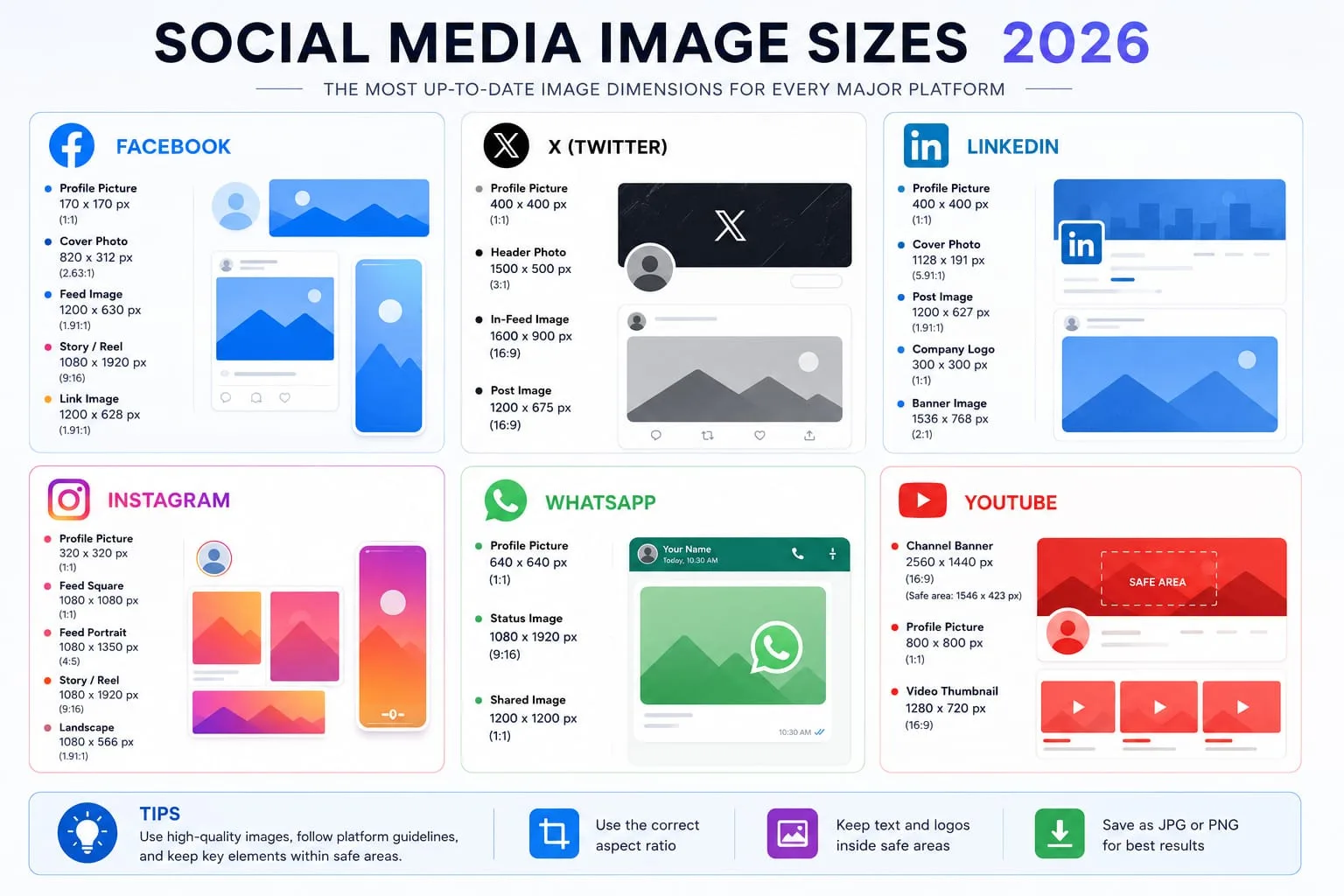
How to Resize Images for Every Social Media Platform in 2026
Learn the best image sizes for Facebook, X, LinkedIn, WhatsApp, Instagram, and YouTube. Resize, crop, preview, and export social images online with PicFlow AI.
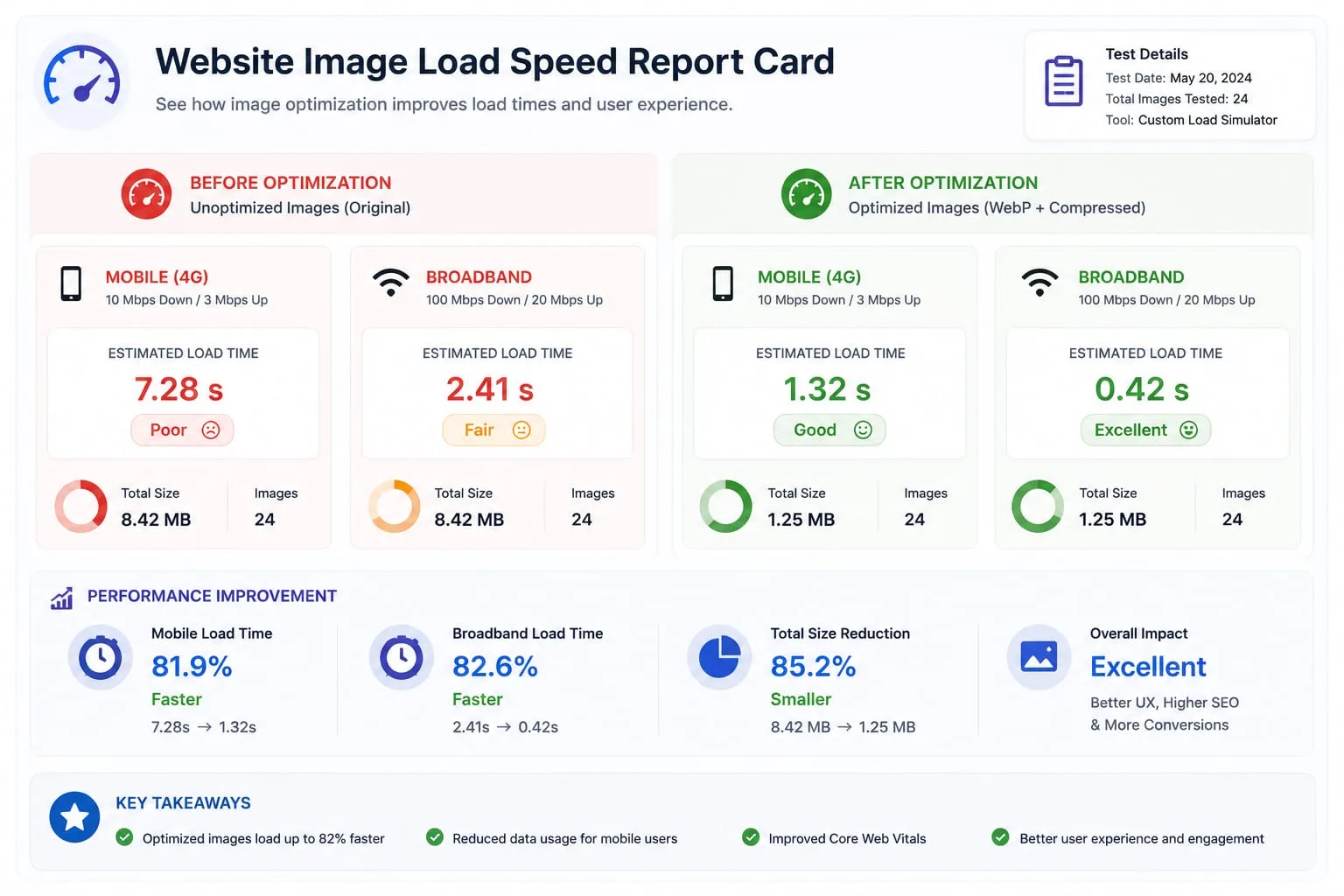
Image Loading Speed Test - Estimate Image Load Time Before Publishing
Learn how to test image loading speed, estimate load time on 3G, 4G, and broadband, and fix slow images before they hurt user experience or Core Web Vitals.

Image Placeholder Generator - Blur, Base64 and LQIP Guide
Learn how blur placeholders, Base64 placeholders, dominant color placeholders, and LQIP images improve perceived loading speed. Generate placeholders online with PicFlow AI.