How to Optimize Images for Google PageSpeed: The Complete Scorecard Fix
Struggling with a low PageSpeed score? Learn how to optimize images for Google PageSpeed Insights, fix common warnings, and boost your LCP with our complete guide.
Recommended PicFlow tool
Need to optimize images while reading?
Use PicFlow tools to compress, resize, convert, or inspect images directly from your browser.
Use PicFlow Image Compressor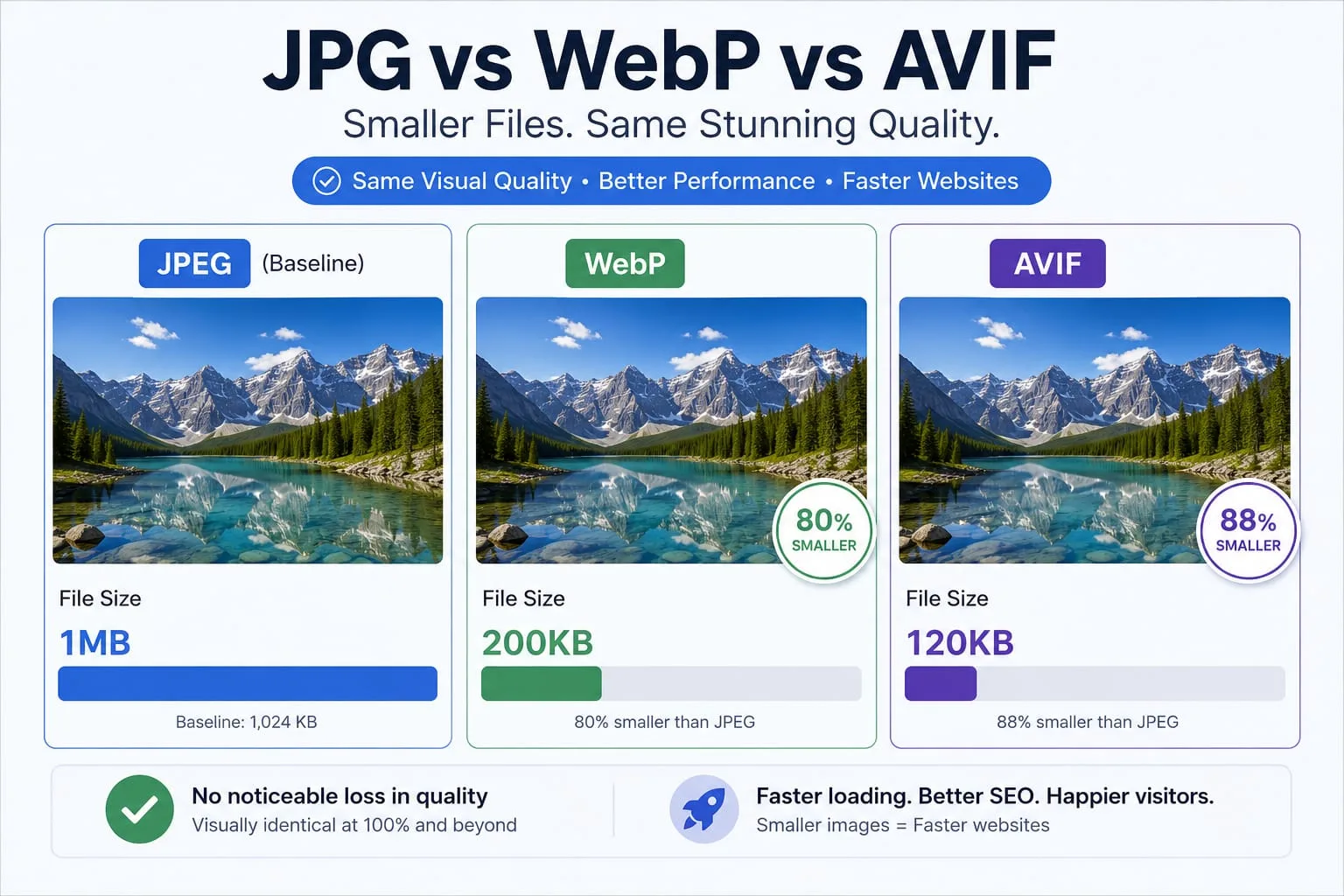
We’ve all been there. You spend weeks building a beautiful website. You choose the perfect fonts, craft the copy, and upload stunning, high-resolution photography. You hit publish, feeling proud, and then you run it through Google PageSpeed Insights.
The result? A glaring red score.
Your heart sinks as you scroll down to the "Opportunities" section. It's a wall of text that feels like a foreign language: “Efficiently encode images,” “Properly size images,” “Serve images in next-gen formats.”
It’s frustrating because your site looks great to you. But to Google’s bots—and to many of your mobile visitors—your site is a heavy, slow-moving giant.
The truth is that images are almost always the #1 reason a website fails the PageSpeed test. They often account for more than 60% of the total “weight” of a webpage. But here’s the good news: they are also the easiest thing to fix. You don’t need to be a senior developer or a math genius to turn that red score into a healthy green.
In this guide, we’re going to walk through exactly how to optimize images for Google PageSpeed. We’ll decode those cryptic warnings and show you how to use tools like PicFlow AI to clear your scorecard in record time.
Why Images are the #1 Cause of Slow PageSpeed Scores
When a browser loads your website, it has to download every single file associated with that page. CSS, JavaScript, fonts, and, of course, images.
The problem is that images are massive compared to everything else. A single unoptimized hero banner can easily be 3MB or 4MB. To put that in perspective, the entire code for a complex web page is often less than 0.5MB.
The Performance Multiplier Effect
When you have multiple large images on a page, the problem doesn't just add up; it multiplies. This is because browsers have a limit on how many files they can download at the same time. If the browser is busy struggling to download a 4MB JPEG, it might delay the download of critical CSS or JavaScript, meaning your page stays a blank white screen for seconds longer than it should.
For someone on a 4G connection or a slow public Wi-Fi, this can lead to “shuttering” loads where the page jumps around, or worse, they just get tired of waiting and hit the back button.
The Business Cost of Slow Images
I once worked with an e-commerce brand that had beautiful, 5MB product shots. They looked stunning on a 5K monitor in their office, but on a mobile device in a subway, the page took 15 seconds to load. By simply applying smart compression and resizing via PicFlow AI, we dropped the load time to under 3 seconds. Their conversion rate jumped by 22% in a single month. That is the real power of image optimization—it’s not just a technical metric; it’s a revenue metric.
Google knows that slow sites lead to unhappy users. That’s why they created Core Web Vitals. They want to reward sites that feel instant. If your images are slowing down your “Largest Contentful Paint” — the time it takes for the main content to appear — your rankings will eventually suffer.
Decoding Google PageSpeed Insights Image Warnings
Before we get into the “how,” let’s look at the “what.” Google doesn’t just tell you your images are slow; it gives you specific audits. Understanding these is 90% of the battle.
1. “Efficiently encode images”
This is Google’s way of saying: “Your images are too heavy for no reason.” This happens when your files contain unnecessary data—like the camera model you used, the lens settings, or even the GPS coordinates of where you took the photo. It also means the actual pixels haven’t been compressed using modern, efficient algorithms.
2. “Properly size images”
This is the most common mistake. It happens when you upload a 4000-pixel wide photo but only display it in an 800-pixel wide box on your site. You’re asking the user to download 5x more data than they can actually see. It's like buying a billboard-sized poster just to put it in a small picture frame on your desk.
3. “Serve images in next-gen formats”
Google wants you to stop using old formats like JPEG and PNG for everything. They want you to use WebP or AVIF, which provide much better compression without losing visual quality. This is one of the highest-impact fixes you can make.
4. “Defer offscreen images”
This refers to Lazy Loading. If you have 20 images in a long blog post, why download them all immediately? This warning tells you to only load images as the user scrolls down to see them.
How to ‘Efficiently Encode Images’ with AI Compression
Compression is the process of reducing the file size of an image without noticeably changing how it looks. There are two ways to do this: Lossy and Lossless.
Lossless vs. Lossy: What’s the Difference?
Think of lossless compression like a vacuum-sealed bag for your clothes. You suck the air out to make the package smaller, but when you open it up, every fiber is exactly as it was. It’s great for archival, but the size savings are small.
Lossy compression is more like a skilled photo editor. It looks at the image and says, “There are 200 shades of blue in this sky, but the human eye can only distinguish 10 of them. Let’s merge the rest.” It removes non-essential data to drastically reduce the file size.
For the web, you almost always want Lossy compression. This is where the magic happens.
Traditional compression tools are “dumb.” They apply a universal quality reduction to the whole image. If you have a photo of a person against a flat blue sky, they treat the skin texture and the empty sky exactly the same.
This is where PicFlow AI Compressor changes the game. Our AI uses Perceptual Optimization. It analyzes the content of your image. It understands that it can aggressively compress that flat blue sky without anyone noticing, but it needs to preserve the fine details in the person’s face or the sharp edges of text.
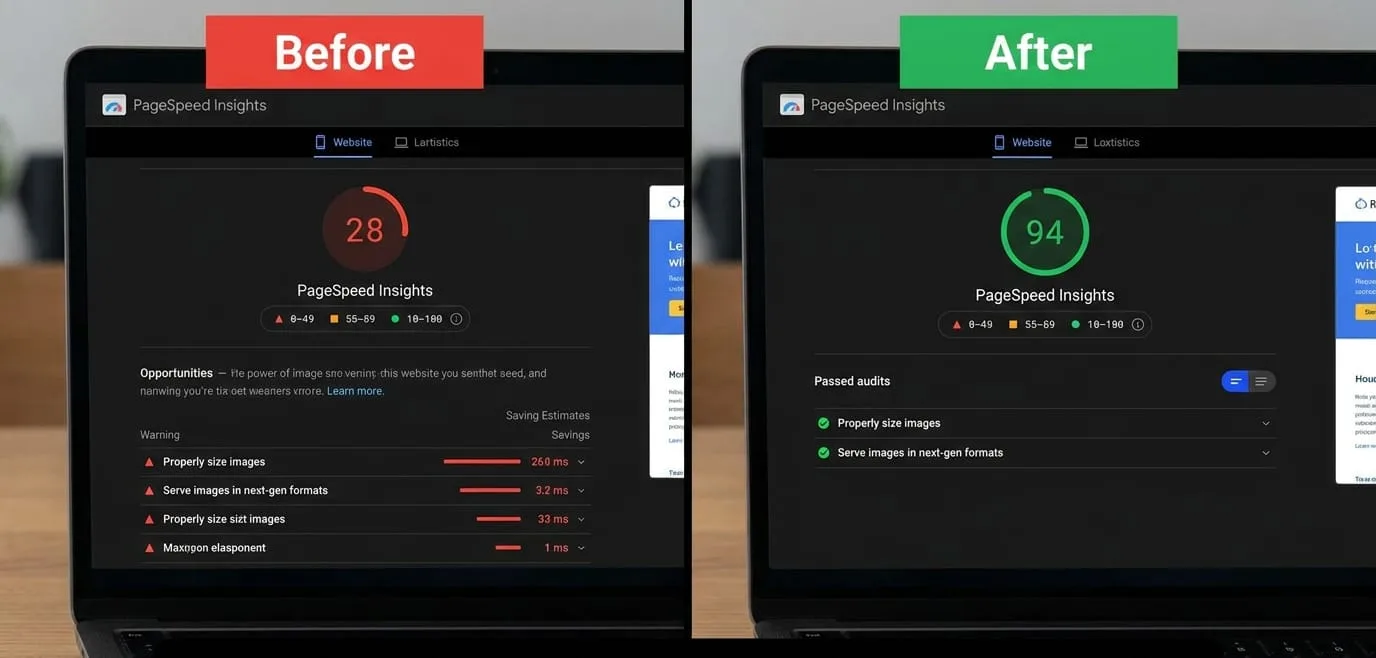
The PSI Fix: When you run your images through an AI-powered compressor before uploading, you satisfy the “Efficiently encode images” audit instantly. You’re giving Google the smallest possible file that still looks professional.
Fixing the “Properly Size Images” Audit for Mobile & Desktop
Imagine you're buying a suit. You wouldn’t buy one that’s five sizes too big and then just tuck in the extra fabric, right? You’d get one that fits.
The same logic applies to web images. If your blog’s content area is 1200px wide, your image should be 1200px wide. Not 3000px. Not 5000px.
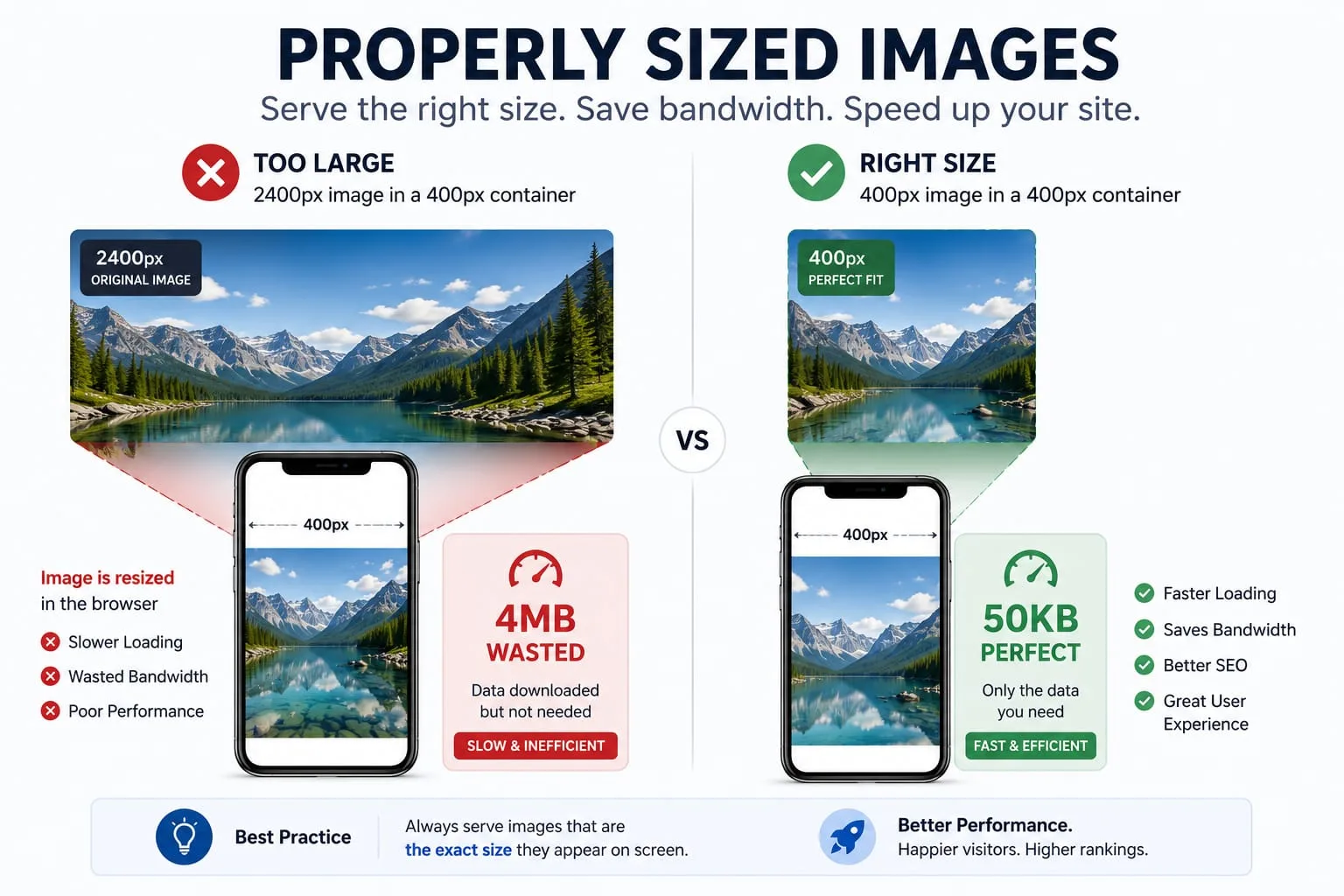
The Manual Fix:
Before you upload, check your website’s layout. What is the maximum width an image will ever be displayed at?
- Hero Banners: Usually 1920px or 2560px for high-res screens.
- Blog Images: Usually 800px to 1200px.
- Thumbnails: Usually 150px to 400px.
Resize your image to that exact width using the PicFlow AI Image Resizer.
The Automatic Fix (srcset):
Modern websites use the srcset attribute. This allows you to upload three or four different sizes of the same image. The browser then looks at the user’s screen — phone vs. desktop — and picks the one that fits best.
Expert Tip: If you’re on Shopify or a modern WordPress theme, srcset is often handled for you. However, you still need to make sure your original upload isn’t a 10MB monster, as that will be used as the source for all the smaller versions.
Why Next-Gen Formats (WebP & AVIF) are No Longer Optional
If you are still using JPEGs for every photo and PNGs for every graphic, you are leaving speed on the table.
WebP is the current industry standard. It supports both lossy and lossless compression, and it handles transparency just like a PNG. On average, a WebP file is 25-35% smaller than a JPEG of the same visual quality.
AVIF is the newcomer. It offers even better compression than WebP, though browser support is still slightly lower.
Don’t worry about changing your entire workflow in Photoshop. Just use an online converter. You can drag your existing PNGs and JPEGs into the PicFlow AI WebP Converter, and it will spit out modern, optimized files that make PageSpeed Insights happy.
Implementing Native Lazy Loading for Offscreen Images
This is one of the most effective ways to boost your initial page load score.
Traditionally, a browser would try to download every image on a page as soon as the user landed on it. If you had a long “Top 10” list with big photos, the user would be stuck waiting for the bottom of the page to load before they could even read the top.
Lazy Loading tells the browser: “Only download this image when it’s about to enter the user’s viewport.”
Intersection Observer vs. Native Lazy Loading
In the past, developers had to use complex JavaScript libraries to achieve this. Today, most modern browsers support Native Lazy Loading.
<img src="image.webp" loading="lazy" alt="Description">By adding loading="lazy", you clear the “Defer offscreen images” warning and significantly improve your site’s perceived speed.
The Role of Image Optimization in Core Web Vitals (LCP)
If you’ve been looking at PageSpeed Insights lately, you’ve seen the term LCP (Largest Contentful Paint). This is one of the “big three” metrics Google uses to measure user experience.
LCP measures how long it takes for the largest piece of content on the screen to become fully visible. In most cases, that “largest piece” is your hero image.
If your hero image is unoptimized, your LCP will be high. If it’s optimized, your LCP will be low.
How to Optimize for LCP:
- Preload the Hero Image: Use
<link rel="preload" as="image" href="...">. - Compress Aggressively: Keep hero images under 150KB whenever possible.
- Avoid Lazy Loading for Hero Images: Never lazy-load above-the-fold images.
Choosing the Right Tools: PicFlow AI vs. Manual Optimization
1. The Manual Way
You can open every image in Photoshop, use “Export for Web,” manually adjust sliders, and hope you didn’t lose too much detail. It’s time-consuming and inconsistent.
2. The AI Way (PicFlow AI)
Tools like PicFlow AI are designed specifically to satisfy Google PageSpeed requirements.
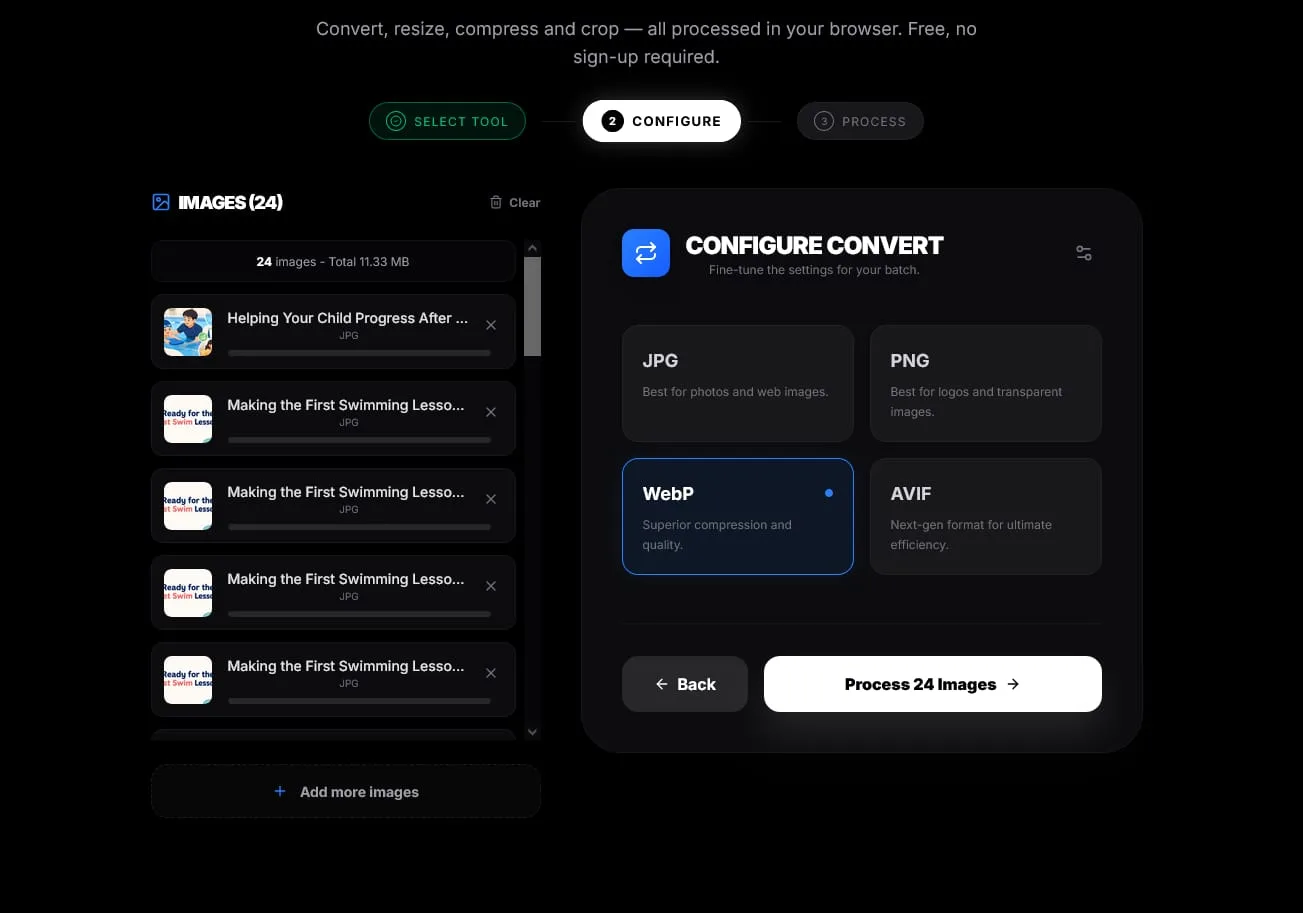
- Bulk Resize: Fix the “Properly size images” warning for hundreds of files at once.
- AI Compress: Clear the “Efficiently encode images” audit automatically.
- Auto-Convert: Satisfy the “Next-gen formats” requirement in seconds.
Advanced Strategies: CDNs and Responsive Breakpoints
If you’ve already compressed and resized your images but still want more speed, it’s time to look at Content Delivery Networks (CDNs).
A CDN like Cloudflare stores copies of your images on servers around the world. If a visitor is in London, they get the image from a London server instead of one in New York. This reduces latency and improves loading speed.
Many CDNs also handle image optimization automatically, but they can be expensive and difficult to configure. For most businesses, optimizing images before upload using PicFlow AI is the simplest and most cost-effective solution.
Final Thoughts: A Faster Site is a Better Site
Google PageSpeed Insights can feel like a harsh critic, but it’s actually giving you a roadmap to a better business. A faster site means lower bounce rates, higher conversion rates, and better search rankings.
Optimizing your images isn’t just about chasing a green number on a scorecard. It’s about respecting your visitors’ time and data.
By following the steps in this guide and leveraging tools like PicFlow AI, you’re building a foundation for long-term SEO success.
Don’t let unoptimized images hold you back. Start optimizing your images today and turn those red warnings into green checkmarks.
FAQ: Frequently Asked Questions
What does “efficiently encode images” mean in PageSpeed Insights?
This warning means your images are larger than they need to be. Usually, they contain unnecessary metadata or outdated compression. AI-powered compression tools can fix this instantly.
How do I serve images in next-gen formats?
Convert JPEG and PNG files into WebP or AVIF before uploading them. These formats provide dramatically smaller file sizes while maintaining visual quality.
Does Google PageSpeed care about image quality?
Google cares about user experience. Your images should still look professional while being as lightweight as possible.
Will fixing image warnings improve my Google rankings?
Yes. Faster-loading websites and improved Core Web Vitals can positively impact rankings and user engagement.
How do I fix “properly size images” on Shopify or WordPress?
Resize images before uploading them and ensure your theme supports responsive images using srcset.
Frequently asked questions
What is the main takeaway from How to Optimize Images for Google PageSpeed: The Complete Scorecard Fix?
The guide explains practical image optimization steps that can help improve file size, loading speed, visual quality, and publishing workflows.
Can I use PicFlow tools while following this guide?
Yes. PicFlow includes browser-based tools for compression, resizing, conversion, metadata checks, background removal, and other image workflows.
Does image optimization help SEO?
Yes. Smaller, correctly sized images can improve page speed and Core Web Vitals, which supports better user experience and search performance.
Which image format should I use for websites?
WebP and AVIF are often efficient for websites, while JPG is widely compatible for photos and PNG is useful when transparency is needed.
Does PicFlow upload my images?
PicFlow is built around privacy-first browser workflows where supported, with processing handled for the action you request.
Related PicFlow tools
Related posts
How to Resize Images for Every Social Media Platform in 2026
Learn the best image sizes for Facebook, X, LinkedIn, WhatsApp, Instagram, and YouTube. Resize, crop, preview, and export social images online with PicFlow AI.
Image Loading Speed Test - Estimate Image Load Time Before Publishing
Learn how to test image loading speed, estimate load time on 3G, 4G, and broadband, and fix slow images before they hurt user experience or Core Web Vitals.

Image Placeholder Generator - Blur, Base64 and LQIP Guide
Learn how blur placeholders, Base64 placeholders, dominant color placeholders, and LQIP images improve perceived loading speed. Generate placeholders online with PicFlow AI.