How to Build a Batch Image Workflow (Save Hours Every Week)
Learn how to build a high-efficiency batch image workflow. Automate image resizing, compression, conversion, and optimization to save hours of manual work every week.
Recommended PicFlow tool
Need to optimize images while reading?
Use PicFlow tools to compress, resize, convert, or inspect images directly from your browser.
Use PicFlow Image Compressor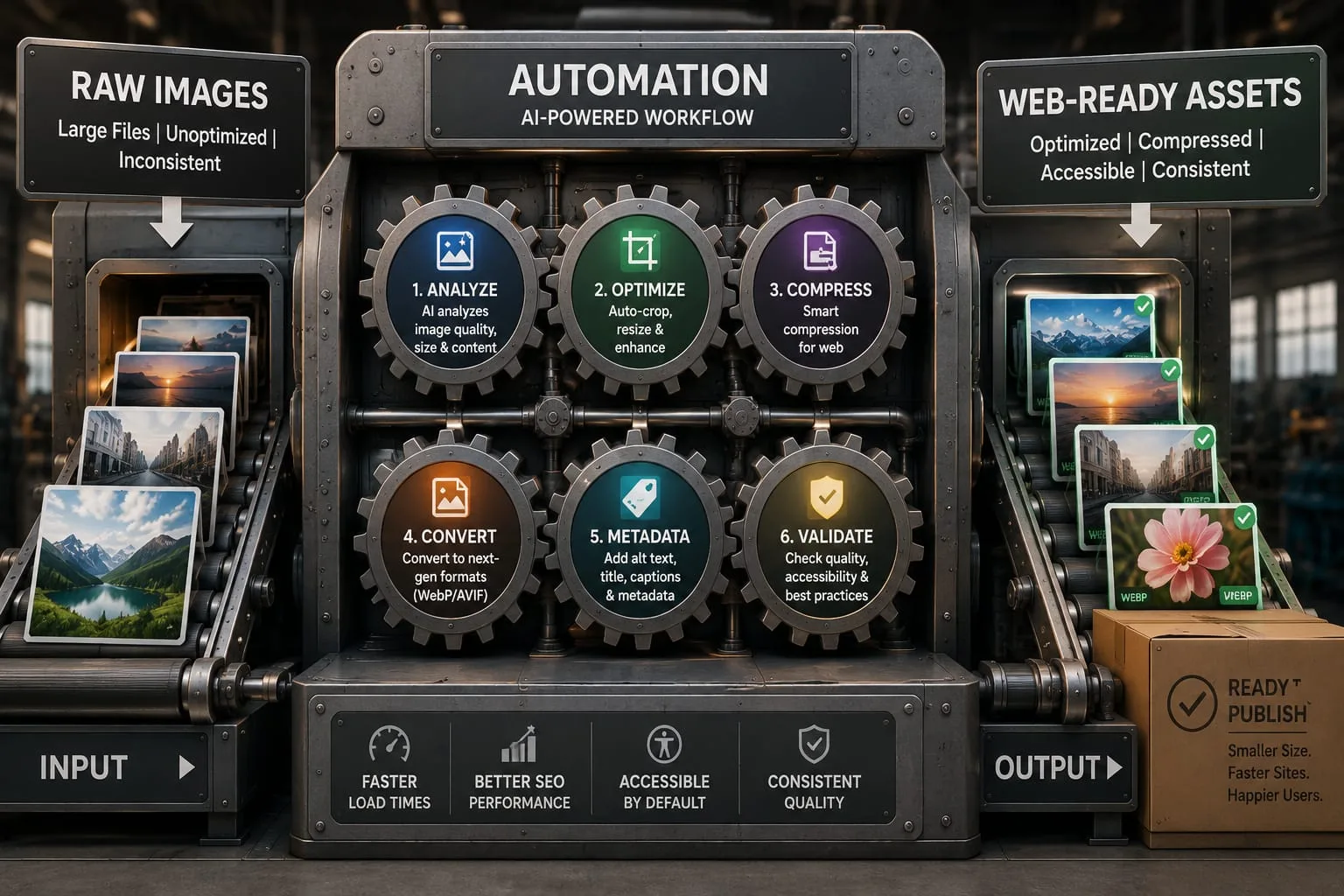
If you’ve ever found yourself clicking "File > Save As" for the fiftieth time in a single afternoon, you know the soul-crushing reality of manual image editing. Whether you’re an e-commerce entrepreneur with a new product line, a social media manager batching a month’s worth of posts, or a photographer returning from a long shoot, the one-by-one method is the fastest way to burn out.
Modern content production is not about being the best at manual clicking. It is about building a system. A professional batch image workflow allows you to treat a hundred images as if they were one, applying edits, resizing, and optimizations in a single motion.
In this guide, we are going to show you how to move from manual labor to an automation engine. We’ll break down the exact steps to build a high-efficiency workflow that saves you hours every week and ensures your visual content is always web-ready and high-quality.
The Cost of Manual Editing: Why You Need a Batch Workflow Today
Before we look at the tools, let’s look at the math.
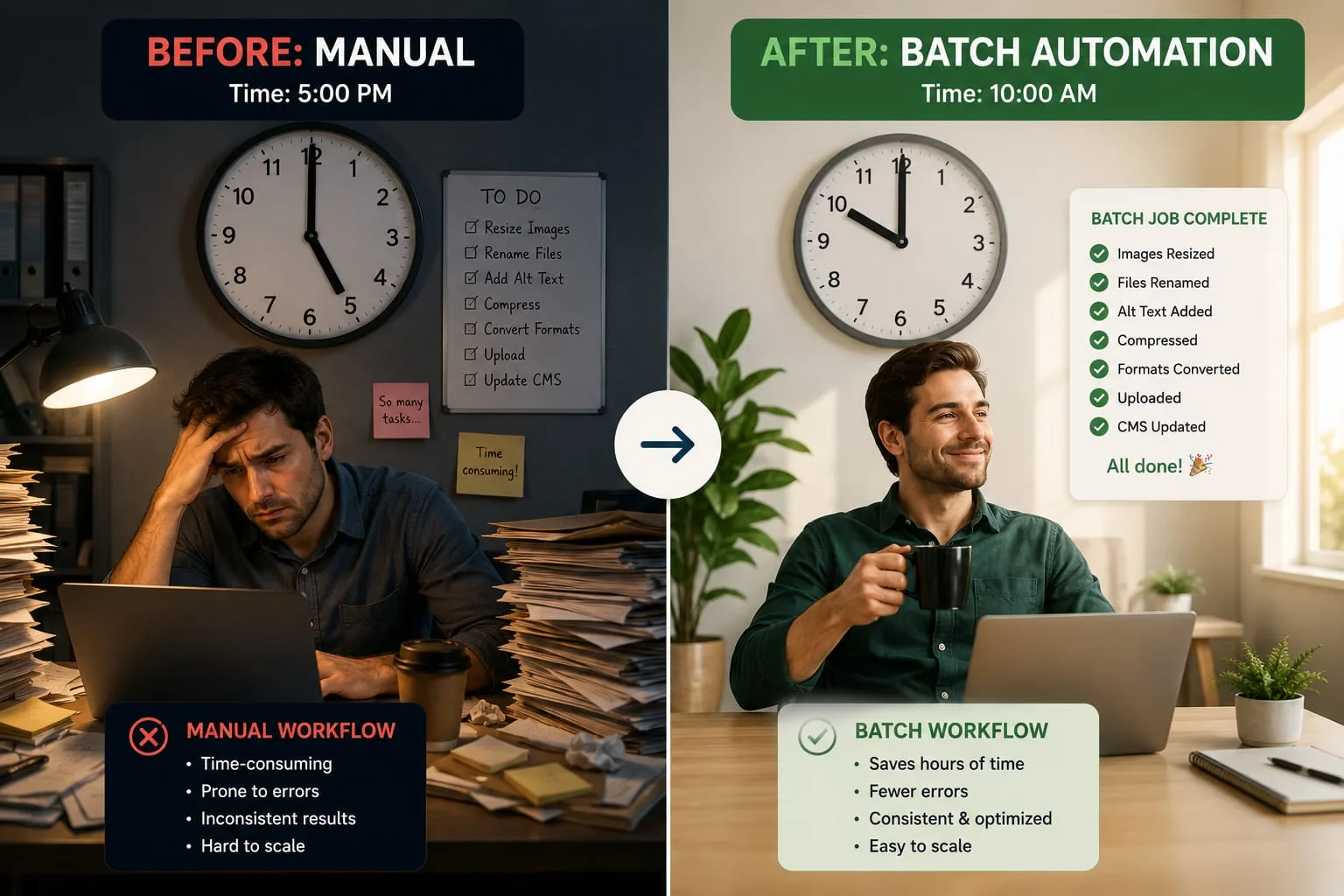
If it takes you just 60 seconds to open an image, resize it, compress it for the web, and save it with a new name, processing 100 images will take you around 1.6 hours. If you launch one new product line a week, you are losing over 80 hours a year to a task that a machine can do in less than 30 seconds.
Beyond the time, manual editing introduces:
- Inconsistency: Did you use 70% or 80% compression on that last image? Is one image 1200px wide while another is 1250px?
- Human Error: One wrong click and you may overwrite your high-resolution original file with a low-resolution thumbnail.
- Creative Fatigue: Every minute spent on repetitive work is a minute you are not spending on marketing, strategy, or actual creation.
Step 1: Naming & Organization — The Foundation of Speed
A great batch workflow begins before you even open an editing tool. It starts with how you handle your files. If your folders are filled with names like IMG_4829.jpg and Final_Final_v2.png, your batch process will stall before it starts.
The Power of Descriptive Naming
In a batch environment, your file names should tell a story. Instead of generic camera names like IMG_001.jpg, use a systematic structure:
[Brand]-[Product-Category]-[Product-Name]-[Color]-[Angle].jpg
Example: picflow-shoes-airmax-90-red-sideview.jpg
Why does this matter? Because many batch tools, including PicFlow AI, allow you to use smart naming features. If your files are organized, you can:
- Automate Alt Text: Use the file name to generate SEO-friendly alt text in bulk.
- Prevent Overwrites: A systematic naming convention helps you avoid accidentally replacing files with the same generic name.
- Improve Searchability: Descriptive names help both users and your team find assets faster.
Culling: The No-Junk Policy
Do not waste processing power on bad shots. Use a culling stage to quickly delete:
- Technical Misses: Out-of-focus or poorly exposed shots.
- Duplicates: The four nearly identical shots you took just in case.
- Irrelevant Context: Images that do not help the customer or support the story.
Your batch workflow should only contain the winners. Processing 10 polished images is always better for your site speed and user experience than processing 50 mediocre ones.
Step 2: Automating Edits — Presets, Actions, and AI Filters
Once your files are organized, it is time to apply the visual edits. In a professional workflow, we never edit the same thing twice. We create a recipe and apply it to the whole batch.
Lightroom Presets: The Global Look
Lightroom is one of the most popular tools for establishing a consistent look and feel. You can edit one photo by adjusting exposure, white balance, and contrast, then sync those settings across hundreds of photos in seconds. This helps ensure a consistent brand aesthetic across your entire product line, gallery, or blog.
Photoshop Actions: The Technical Heavy Lifters
For multi-step technical tasks, Photoshop Actions can be extremely useful. You can record a sequence such as:
- Remove background.
- Add a standard drop shadow.
- Add a logo watermark in the bottom-right corner.
- Apply a specific sharpen filter.
Once recorded, that action can be applied to an entire folder while you focus on other work.
The Rise of Browser-Based Batching
For most web users, desktop software is overkill. Modern batch workflows are moving to the cloud for three main reasons:
- Accessibility: You can process large batches on a basic laptop or Chromebook because the heavy lifting happens on the server.
- Collaboration: You do not need to send large ZIP files to your team. You can share access to the batch processing workflow.
- Speed: Server-side processing can handle many images at the same time instead of processing them one after another.
Step 3: The Export Engine — Bulk Resizing and Compression at Scale
The export stage is where most time is lost and where the most value is gained. This is the heart of your batch image workflow.
Bulk Resizing: The Responsive Strategy
A single image file is rarely enough for a modern website. You need responsive images for different layouts and devices.
- Desktop Hero: Around 1920px wide.
- Tablet and Mobile: Around 800px wide.
- Thumbnail: Around 150px wide.
A high-efficiency workflow uses a multi-export approach. You set your target widths once, and the engine generates all required versions for the entire batch in one go. This prevents you from running the same batch multiple times.
Smart Compression: Quality vs. Weight
You should not have to choose between a small file and a good-looking image. Modern bulk tools use AI-driven compression algorithms. Instead of applying the same compression level to every image, AI analyzes each image individually.
- Simple Images: A logo on a white background can often be compressed aggressively without visible quality loss.
- Complex Images: A detailed landscape or product photo should be compressed more carefully to preserve fine details.
Detailed Tool Comparison: Desktop vs. Cloud
Adobe Lightroom
Primary use: Color grading and culling.
Batch speed: Moderate and dependent on your computer’s CPU.
Learning curve: Higher, especially for beginners.
Hardware requirements: Works best on a capable PC or Mac.
WebP support: May require recent versions or additional workflow setup.
Batch compression: Usually applies similar export settings across the batch.
PicFlow AI Cloud
Primary use: Image optimization and exporting.
Batch speed: Very fast because processing happens server-side.
Learning curve: Low and beginner-friendly.
Hardware requirements: Works from almost any browser.
WebP support: Native and optimized for modern web usage.
Batch compression: Smart AI compression can optimize each image individually.
From Raw to Web: A Workflow Template for E-commerce Owners
If you are running a Shopify or Amazon store, here is a simple workflow you can use for weekly image production:
- Transfer: Move images from your camera to an incoming folder.
- Cull: Delete the misses and keep only the usable images.
- Batch Rename: Use a bulk renamer to give images descriptive SEO-friendly names.
- Batch Process with PicFlow AI: Upload the selected images to PicFlow AI bulk tools, apply crop settings, resize images, compress them, and convert them to WebP.
- Deploy: Download the optimized files and upload them directly to your store.
Comparison: Desktop Software vs. Browser-Based Batch Tools
Desktop Software such as Lightroom or Photoshop
Desktop tools are powerful and flexible, especially for advanced photographers and designers. However, they often depend heavily on your computer hardware, come with a higher learning curve, and can be slower for repetitive web optimization tasks.
Browser-Based Tools such as PicFlow AI
Browser-based tools are designed for speed, simplicity, and scalability. They are ideal for users who need to resize, compress, crop, and convert many images quickly without installing heavy software.
Integrating PicFlow AI into Your Content Production Pipeline
PicFlow AI was built to be the missing link in the content production chain. It does not need to replace your camera or design team. Instead, it removes the repetitive export and optimization tasks that slow down your workflow.
The Automation Engine
By using the Bulk Image Resizer and Bulk Compressor as a single step, you can build an export engine that lives in your browser.
- Drop: Drag your high-resolution originals into the tool.
- Configure: Set your recipe, such as WebP, 1200px wide, and your preferred quality level.
- Execute: Process the full batch instead of editing every image manually.
FAQ: Batch Image Workflow
What is a batch image workflow?
A batch image workflow is a systematic process of applying the same set of edits or optimizations to a large group of images at the same time. Instead of opening and saving files individually, you use automation tools to process them together.
How do I batch resize images for a website?
The fastest way is to use a browser-based tool like PicFlow AI. You upload your batch, set your target width, and the tool automatically scales every image while maintaining the correct aspect ratio.
Can I automate image editing without Photoshop?
Yes. Modern browser-based tools allow you to perform bulk resizing, cropping, optimization, and format conversion without installing heavy desktop software.
What is the fastest way to compress 100 images?
The fastest way is to use a multi-image bulk compressor. Manual compression can take hours for 100 images, while a bulk tool can process many files at once.
How do professional photographers handle large volumes of images?
They usually use a three-stage system: culling, global editing, and bulk exporting. First, they select the best photos. Then they apply consistent edits. Finally, they export optimized versions for web, print, or delivery.
Final Thoughts: Scale Your Content, Not Your Effort
The difference between a stressed creator and a productive one is often the system they use. By moving away from manual image tasks and building a robust batch image workflow, you reclaim your most valuable asset: time.
Stop clicking "Save As." Start automating.
Ready to build your first workflow? Try PicFlow AI today and see how fast your production can really be.
Frequently asked questions
What is the main takeaway from How to Build a Batch Image Workflow (Save Hours Every Week)?
The guide explains practical image optimization steps that can help improve file size, loading speed, visual quality, and publishing workflows.
Can I use PicFlow tools while following this guide?
Yes. PicFlow includes browser-based tools for compression, resizing, conversion, metadata checks, background removal, and other image workflows.
Does image optimization help SEO?
Yes. Smaller, correctly sized images can improve page speed and Core Web Vitals, which supports better user experience and search performance.
Which image format should I use for websites?
WebP and AVIF are often efficient for websites, while JPG is widely compatible for photos and PNG is useful when transparency is needed.
Does PicFlow upload my images?
PicFlow is built around privacy-first browser workflows where supported, with processing handled for the action you request.
Related PicFlow tools
Related posts
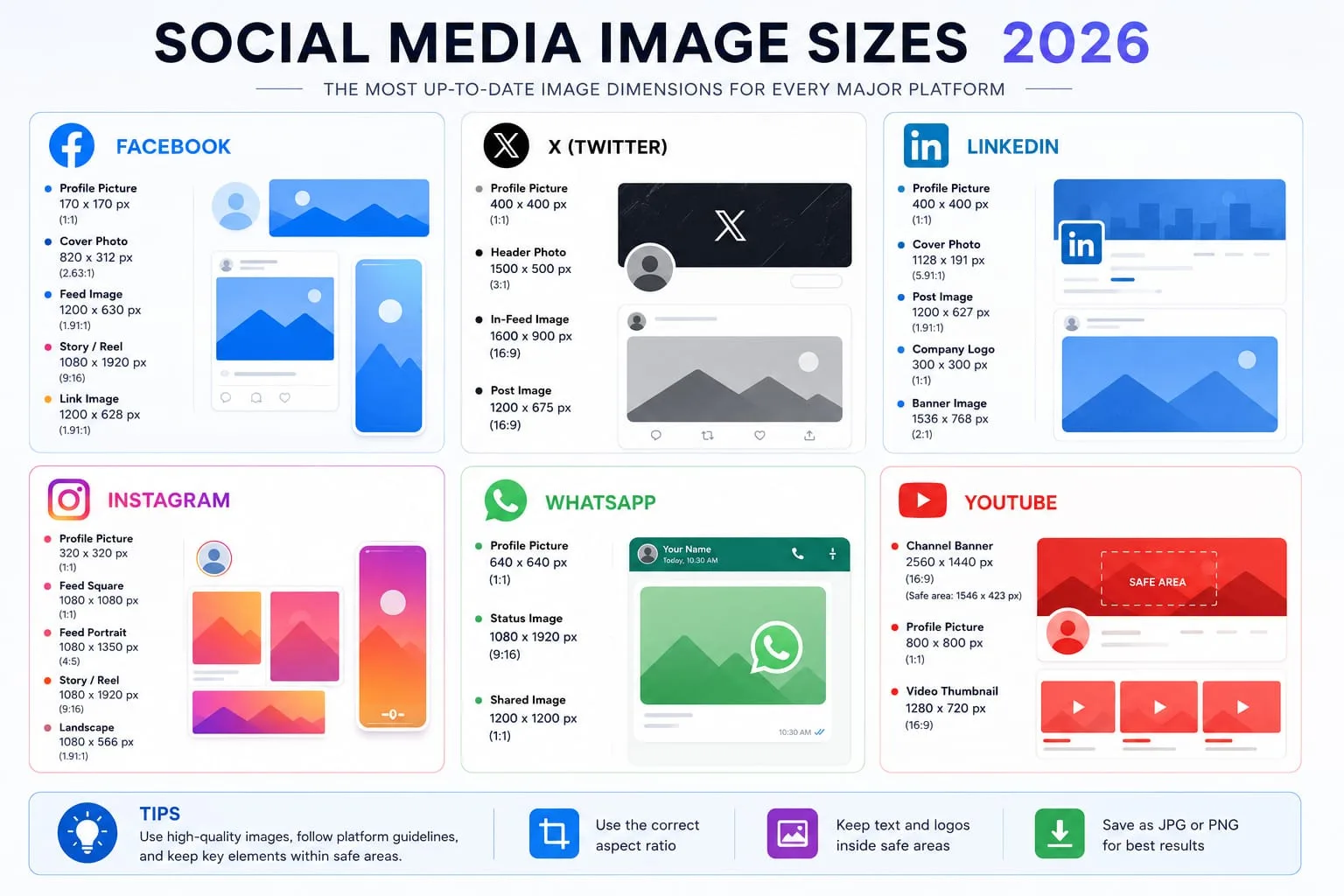
How to Resize Images for Every Social Media Platform in 2026
Learn the best image sizes for Facebook, X, LinkedIn, WhatsApp, Instagram, and YouTube. Resize, crop, preview, and export social images online with PicFlow AI.
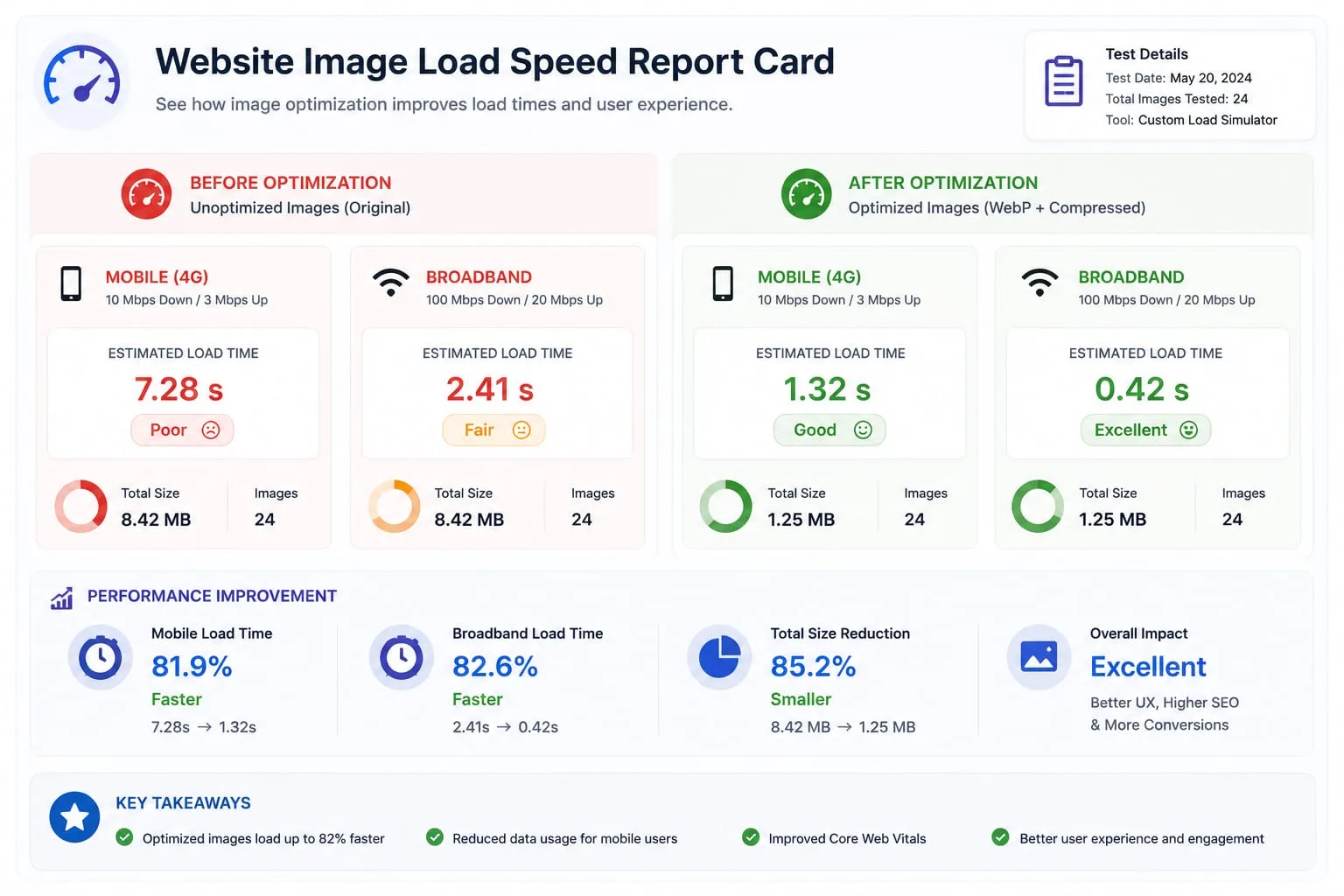
Image Loading Speed Test - Estimate Image Load Time Before Publishing
Learn how to test image loading speed, estimate load time on 3G, 4G, and broadband, and fix slow images before they hurt user experience or Core Web Vitals.

Image Placeholder Generator - Blur, Base64 and LQIP Guide
Learn how blur placeholders, Base64 placeholders, dominant color placeholders, and LQIP images improve perceived loading speed. Generate placeholders online with PicFlow AI.