HEIC Files: What They Are and How to Convert Them Fast
Learn what HEIC files are, why iPhones use them, when to convert HEIC to JPG or PNG, and how to convert HEIC files online quickly with PicFlow AI.
Recommended PicFlow tool
Need to optimize images while reading?
Use PicFlow tools to compress, resize, convert, or inspect images directly from your browser.
Use PicFlow Image CompressorHEIC Files: What They Are and How to Convert Them Fast
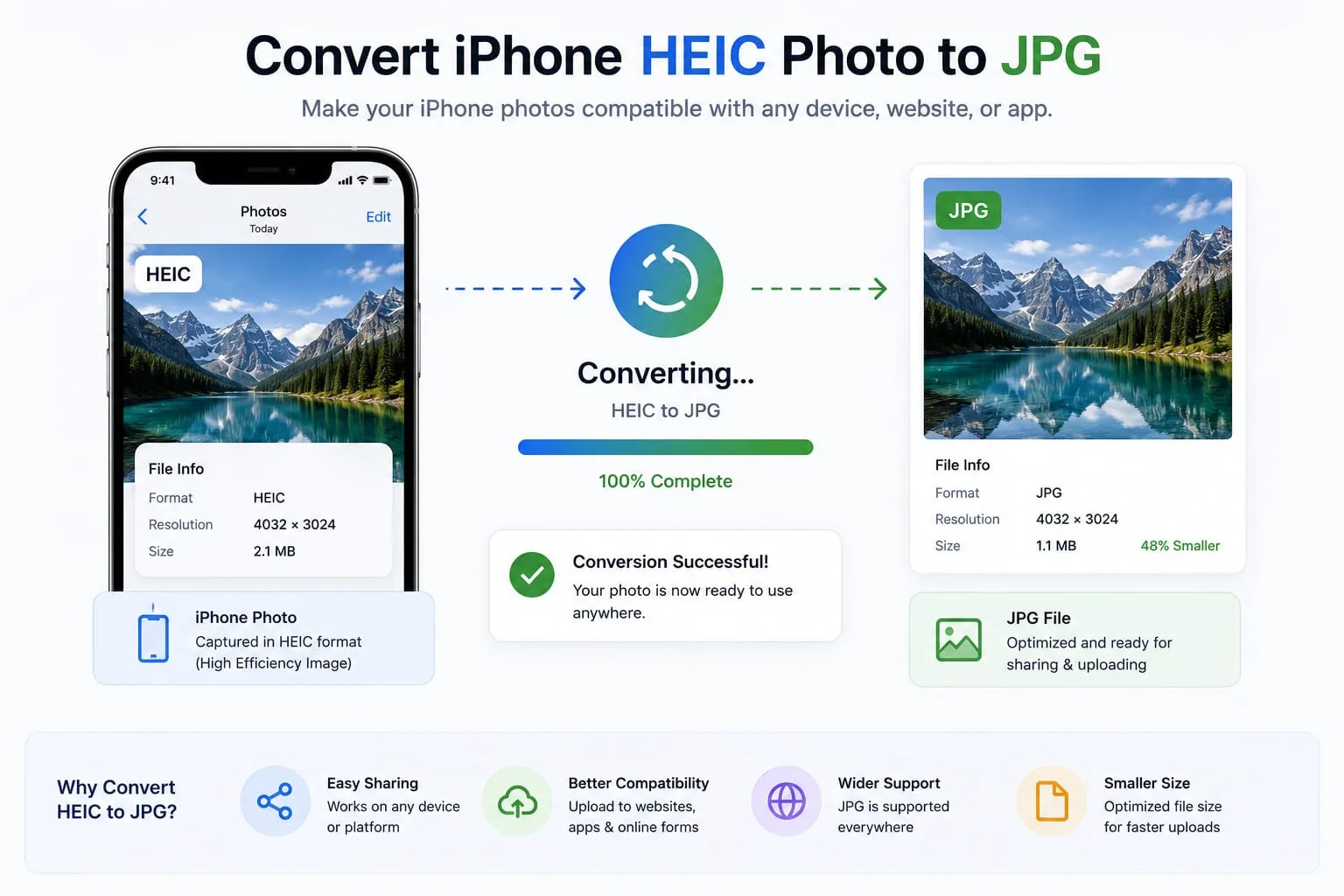
You take a photo on your iPhone, try to upload it to a website, send it to someone, or use it in a design tool — and suddenly the file is called .heic. Some apps open it. Others reject it. A client asks for JPG. A website form says the file type is unsupported. Now you need to convert it.
HEIC files are common because modern iPhones use them to save high-quality photos with efficient file sizes. The problem is that not every website, app, CMS, or workflow handles HEIC smoothly.
This guide explains what HEIC files are, why your iPhone uses them, when you should convert HEIC to JPG or PNG, and how to convert HEIC files quickly with PicFlow AI’s HEIC to JPG converter.
What Is a HEIC File?
HEIC stands for High Efficiency Image Container. It is a file container commonly used for photos saved with the HEIF image format. In simple terms, HEIC is a modern photo file type that can store high-quality images efficiently.
You will usually see HEIC files when:
- taking photos on an iPhone
- exporting images from Apple Photos
- receiving iPhone images from someone else
- downloading images from iCloud
- transferring photos from iOS to Windows or a website
A HEIC file may look like this:
IMG_2048.HEIC
The file can contain image data, metadata, and sometimes depth or burst-related information depending on how it was created.
Why Do iPhones Use HEIC?
Apple uses HEIC because it can save high-quality photos with smaller file sizes compared with older formats in many cases. Smaller files help save storage space on the device and make photo libraries more efficient.
For everyday iPhone users, this is useful. You can store many photos without filling storage as quickly. For web workflows, it can be inconvenient because many services still expect JPG or PNG.
HEIC vs JPG: What Is the Difference?
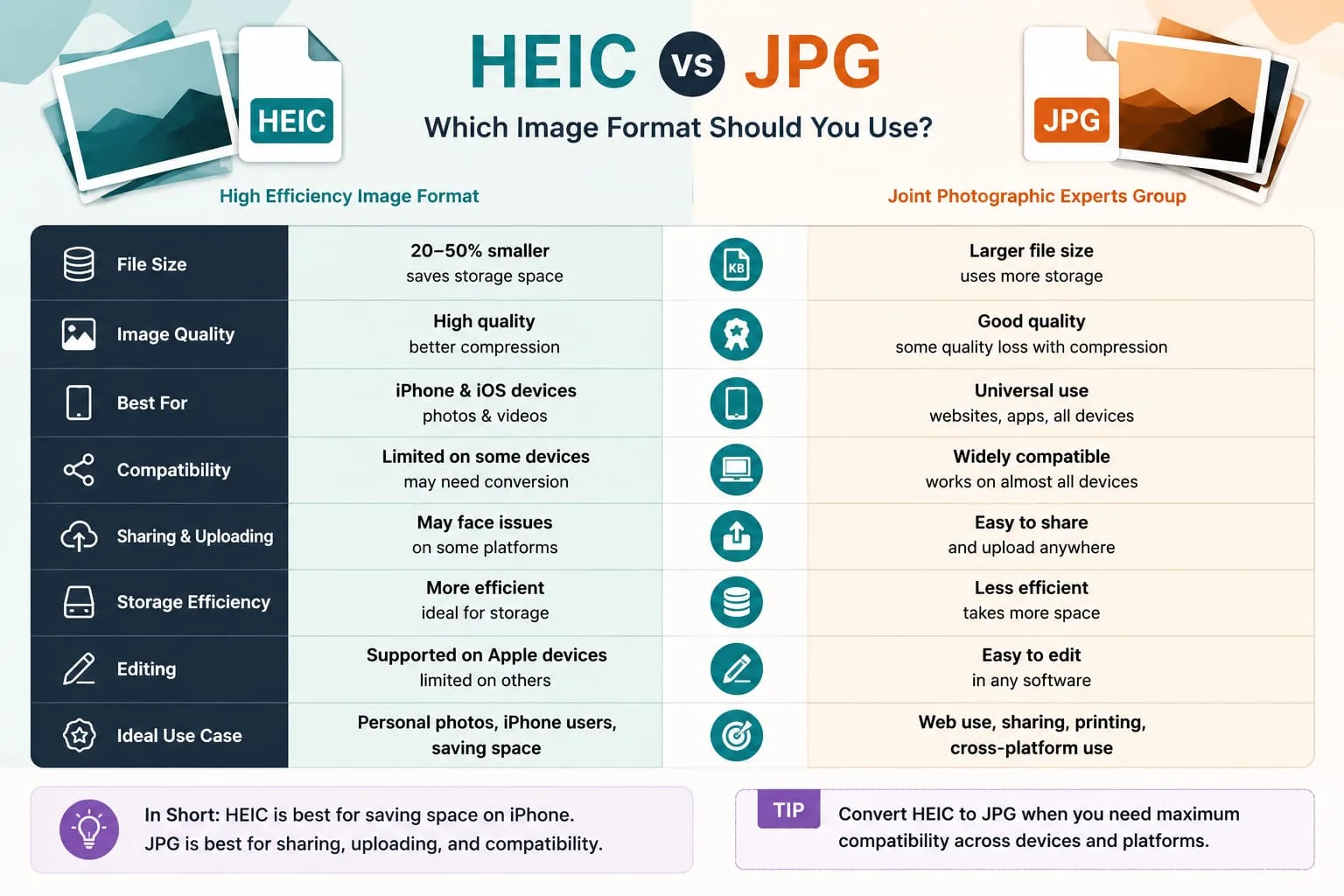
JPG is the traditional photo format supported almost everywhere. HEIC is newer and more efficient, but less universally supported.
HEIC advantages
- efficient storage
- high image quality
- useful for iPhone photo libraries
- can store more advanced image information
HEIC disadvantages
- not accepted by every website
- not supported by every older app
- can confuse clients or non-technical users
- may need conversion before editing or uploading
JPG advantages
- works almost everywhere
- easy to upload and share
- supported by websites, email, apps, and CMS platforms
- simple for clients and teams
JPG disadvantages
- can be larger at similar quality
- loses quality if repeatedly edited and saved
- does not preserve all advanced HEIC features
The practical answer is: keep HEIC if you are staying inside Apple’s ecosystem, but convert to JPG when you need compatibility.
When Should You Convert HEIC to JPG?
Convert HEIC to JPG when:
- a website does not accept HEIC uploads
- you need to send photos to a client
- you are uploading to a CMS
- you are creating blog images
- you need compatibility with older software
- you want to use the photo in a design tool
- you are submitting images to marketplaces
- you are preparing images for social media
JPG is the safest output format when compatibility matters.
When Should You Convert HEIC to PNG?
PNG is useful when you need lossless quality or transparency. However, most iPhone photos do not need PNG. PNG files may become much larger than JPG.
Convert HEIC to PNG when:
- you need lossless editing
- the image contains graphics or text
- you plan to edit it heavily
- you need a high-quality intermediate file
For normal photos, JPG is usually better.
When Should You Convert HEIC to WebP?
If you are publishing the image on a website, WebP may be a better final format than JPG because it can be smaller while keeping good visual quality.
A good workflow is:
- Convert HEIC to JPG for compatibility if needed.
- Convert or export a WebP version for the website.
- Compress the final web version.
- Add filename and alt text.
- Publish.
Use PicFlow’s Image Converter if you need more output formats.
How to Convert HEIC to JPG Online with PicFlow AI
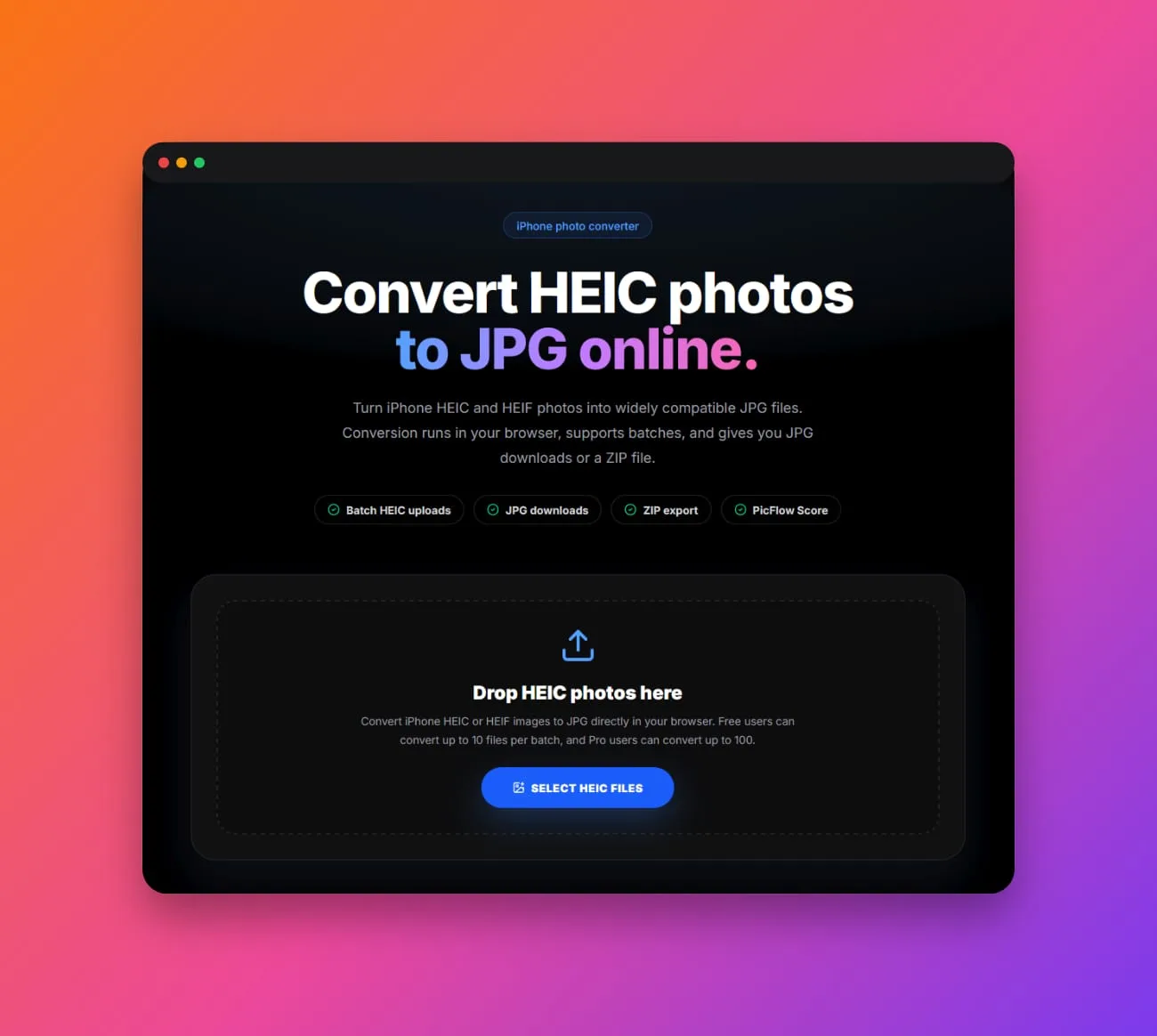
- Open [PicFlow AI HEIC to JPG](https://picflowai.pro/heic-to-jpg).
- Upload your HEIC files.
- Wait for conversion to complete.
- Download individual JPG files or a ZIP if processing multiple images.
- Optionally compress or resize the JPG files before publishing.
PicFlow is designed to make this simple for people who do not want to install desktop software just to open iPhone photos.
How to Convert Many HEIC Files at Once
Batch conversion is useful if you have:
- vacation photos
- product photos
- client images
- real estate photos
- event galleries
- blog images
- phone exports
Instead of converting each HEIC manually, upload multiple files and process them as a batch. After conversion, you can send the output through compression or resizing if the final images are for a website.
A useful batch workflow:
- Convert HEIC to JPG.
- Resize large photos.
- Compress images.
- Rename files.
- Remove unnecessary metadata.
- Export final files.
HEIC and Metadata: What Should You Know?
HEIC photos can contain metadata such as camera information, date, device details, and sometimes location information. This can be useful for personal organization but unnecessary or sensitive when publishing online.
Before uploading images publicly, consider removing metadata with PicFlow’s Remove EXIF tool.
Metadata can include:
- camera/device model
- capture date
- lens or exposure details
- GPS location if enabled
- software information
If you are uploading personal photos, removing metadata is often a good privacy step.
Why Some Websites Reject HEIC Files
Many websites reject HEIC because their upload systems are built around common web formats such as JPG, PNG, GIF, and WebP. Even if a browser can display HEIC in some situations, the backend, CMS, or image processing pipeline may not support it.
That is why JPG remains the safest format for forms, marketplaces, directories, and client handoffs.
Best Workflow for iPhone Photos Used on Websites
If you want to use iPhone photos on a blog, store, or landing page:
- Convert HEIC to JPG.
- Resize the image to the display size.
- Convert to WebP if publishing on a website.
- Compress the final file.
- Rename it descriptively.
- Add alt text.
- Remove EXIF if privacy matters.
- Test image speed.
This prevents huge files, unsupported formats, and privacy leaks.
Common HEIC Mistakes
Sending HEIC files to clients without checking compatibility
Some clients may not know how to open them.
Uploading HEIC directly to a website
The upload may fail or display incorrectly.
Converting but not compressing
A converted JPG can still be large.
Forgetting metadata
Location metadata may remain if not removed.
Saving too many versions
Keep a simple folder structure: originals, converted, optimized.
HEIC Conversion for Different Use Cases
For website owners
If you receive HEIC images for a website, convert them before publishing. Then resize, compress, and rename them. A direct HEIC upload may fail, and even if it works somewhere, it may not be ideal for website delivery.
For bloggers
Bloggers often receive images from phones. Convert HEIC to JPG first, then create a WebP version for the final article. Add descriptive filenames and alt text before publishing.
For e-commerce sellers
Product photos taken on an iPhone may be HEIC. Convert them, crop them consistently, remove metadata, compress them, and export final product images.
For real estate and hospitality
Real estate and hotel photos are often taken on phones. Convert HEIC files to JPG, resize them for galleries, and compress them so listing pages do not become slow.
HEIC Privacy Considerations
Phone photos can include more information than users realize. Depending on settings, metadata may include date, device, camera settings, and location. Before publishing photos publicly, check whether metadata should be removed.
This matters for:
- personal photos
- hotel and rental images
- client images
- product images shot at home
- location-sensitive photos
- private events
Use PicFlow’s EXIF Viewer to inspect metadata and Remove EXIF to clean it before publishing.
HEIC Conversion Quality Tips
To get better conversion results:
- start from the original HEIC file, not a compressed screenshot
- choose JPG for compatibility
- choose WebP for web publishing if supported
- avoid converting the same file repeatedly
- resize after conversion if needed
- compare visual quality before deleting originals
- keep a backup of original HEIC photos
Repeated conversion can reduce quality, especially when exporting between lossy formats. Keep originals and publish optimized copies.
Troubleshooting HEIC Problems
If a HEIC file does not convert:
- confirm the file is not corrupted
- try another HEIC from the same device
- check if it is actually a live photo component or video-related file
- use a smaller batch first
- rename the file if the filename contains unusual characters
- try converting to JPG before other formats
If a website rejects the converted file, check the output format, file size, and dimensions.
FAQ
What is a HEIC file?
A HEIC file is a modern image container often used by iPhones to store high-quality photos efficiently.
Why are my iPhone photos HEIC?
Your iPhone may be set to save photos in a high-efficiency format to reduce storage usage.
How do I convert HEIC to JPG?
Use PicFlow AI’s HEIC to JPG converter, upload your HEIC files, and download JPG versions.
Is JPG better than HEIC?
JPG is not always technically better, but it is more compatible with websites, apps, and clients.
Can I convert HEIC to WebP?
Yes, you can convert HEIC photos to web-friendly formats like WebP using an image converter.
Should I remove EXIF metadata from HEIC photos?
If you are publishing photos publicly, removing metadata can help protect privacy.
Frequently asked questions
What is the main takeaway from HEIC Files: What They Are and How to Convert Them Fast?
The guide explains practical image optimization steps that can help improve file size, loading speed, visual quality, and publishing workflows.
Can I use PicFlow tools while following this guide?
Yes. PicFlow includes browser-based tools for compression, resizing, conversion, metadata checks, background removal, and other image workflows.
Does image optimization help SEO?
Yes. Smaller, correctly sized images can improve page speed and Core Web Vitals, which supports better user experience and search performance.
Which image format should I use for websites?
WebP and AVIF are often efficient for websites, while JPG is widely compatible for photos and PNG is useful when transparency is needed.
Does PicFlow upload my images?
PicFlow is built around privacy-first browser workflows where supported, with processing handled for the action you request.