How to Make Your Images WCAG Accessible: The Complete Compliance Guide
Learn how to make your images WCAG accessible. From alt text best practices to contrast ratios — meet web accessibility standards with our practical guide.
Recommended PicFlow tool
Need to optimize images while reading?
Use PicFlow tools to compress, resize, convert, or inspect images directly from your browser.
Use PicFlow Image Compressor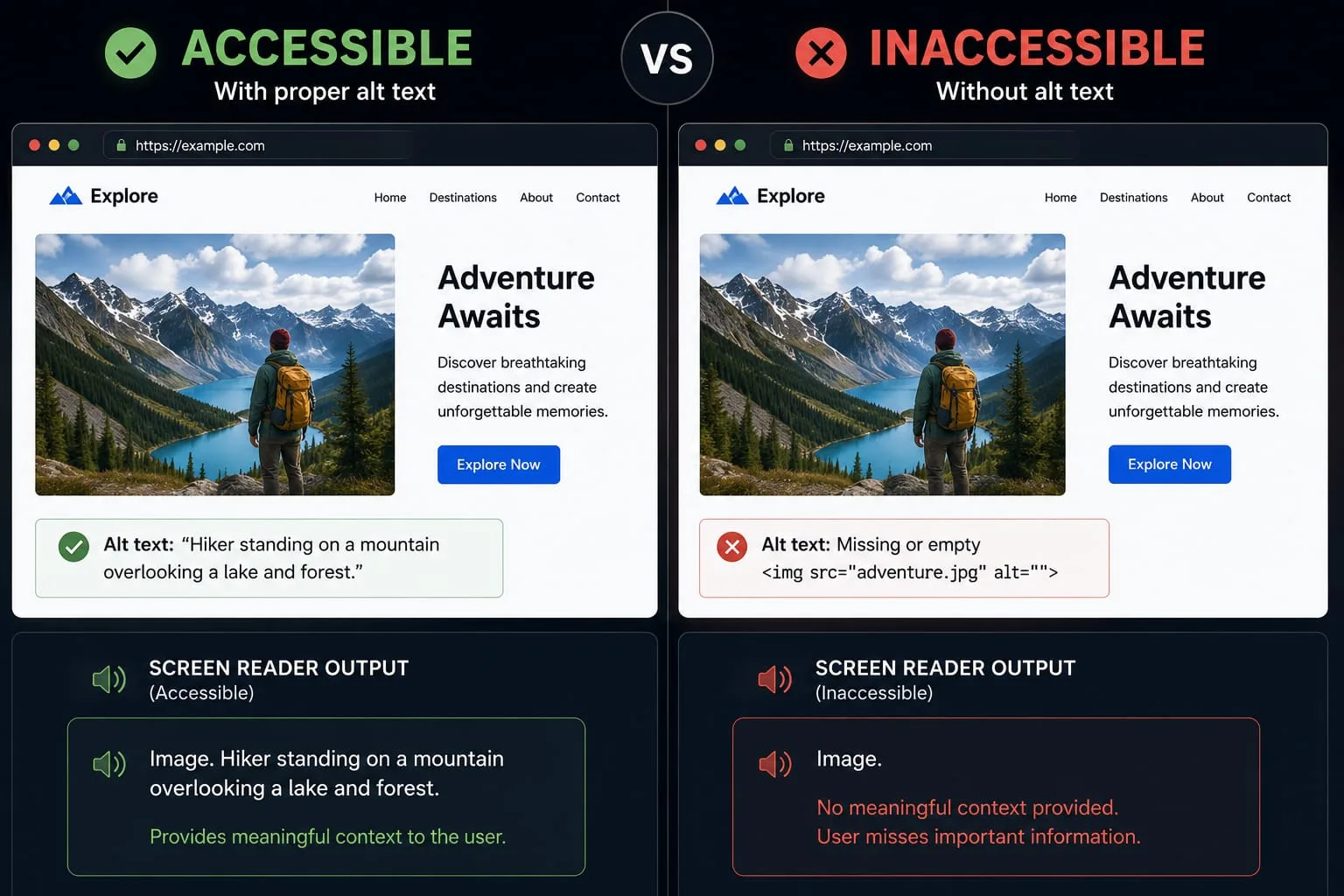
In the modern digital landscape, accessibility is no longer a "nice-to-have" feature; it is a fundamental requirement for any serious web presence. Ensuring your website is inclusive means more than just having readable text—it means ensuring that your visual content is perceivable and understandable for everyone, including the millions of users who rely on assistive technologies like screen readers.
When we talk about image accessibility WCAG — Web Content Accessibility Guidelines — we are talking about a set of international standards that ensure people with disabilities can navigate and understand the web. From colorblind users to those with complete vision loss, your choice in how you handle images can either open a door or build a wall.
In this guide, we will break down exactly how to meet these standards. We’ll look at the Golden Rule of alt text, how to handle complex graphics, and how to automate your workflow to ensure your site stays compliant as it grows.
Understanding WCAG: Why Image Accessibility is More Than Just Alt Text
The Web Content Accessibility Guidelines, also known as WCAG, are built on four core principles: Perceivable, Operable, Understandable, and Robust. These are often shortened to POUR. For images, this extends far beyond just writing a quick alt tag in your CMS.
True image accessibility involves:
- Providing Text Alternatives: Ensuring every informative image has a text-based equivalent.
- Managing Color Contrast: Ensuring that text-on-image content is legible for those with low vision.
- Handling Complexity: Making sure charts and infographics do not leave users in the dark.
- Optimizing for Performance: Ensuring images load quickly for users on limited data or slow connections.
- Focusing on Semantics: Using the right HTML5 tags and ARIA attributes to describe the relationship between images and surrounding content.
WCAG 2.1 and 2.2: What’s New for Images?
As web standards evolve, so do the requirements for visual content. WCAG 2.1 introduced specific success criteria for non-text contrast, which extends contrast requirements to graphical objects and user interface components. This means it is not just the text on your image that needs high contrast, but also the essential parts of the image itself, such as the bars in a chart or the icons in a navigation menu.
With WCAG 2.2, there is an even stronger emphasis on predictable focus and redundant entry, ensuring that users who navigate via keyboard or voice commands do not get stuck on an image that has been improperly tagged as a link or functional element.
By focusing on these areas, you are not just avoiding legal risk or ADA compliance issues. You are improving the experience for all users, including those on mobile devices or in noisy environments where they cannot focus on high-density visuals.
The Golden Rule of Alt Text: Context Over Description
One of the most common mistakes in web accessibility is describing what an image is rather than why it is there.
The rule is simple: alt text should provide the same value as the image.
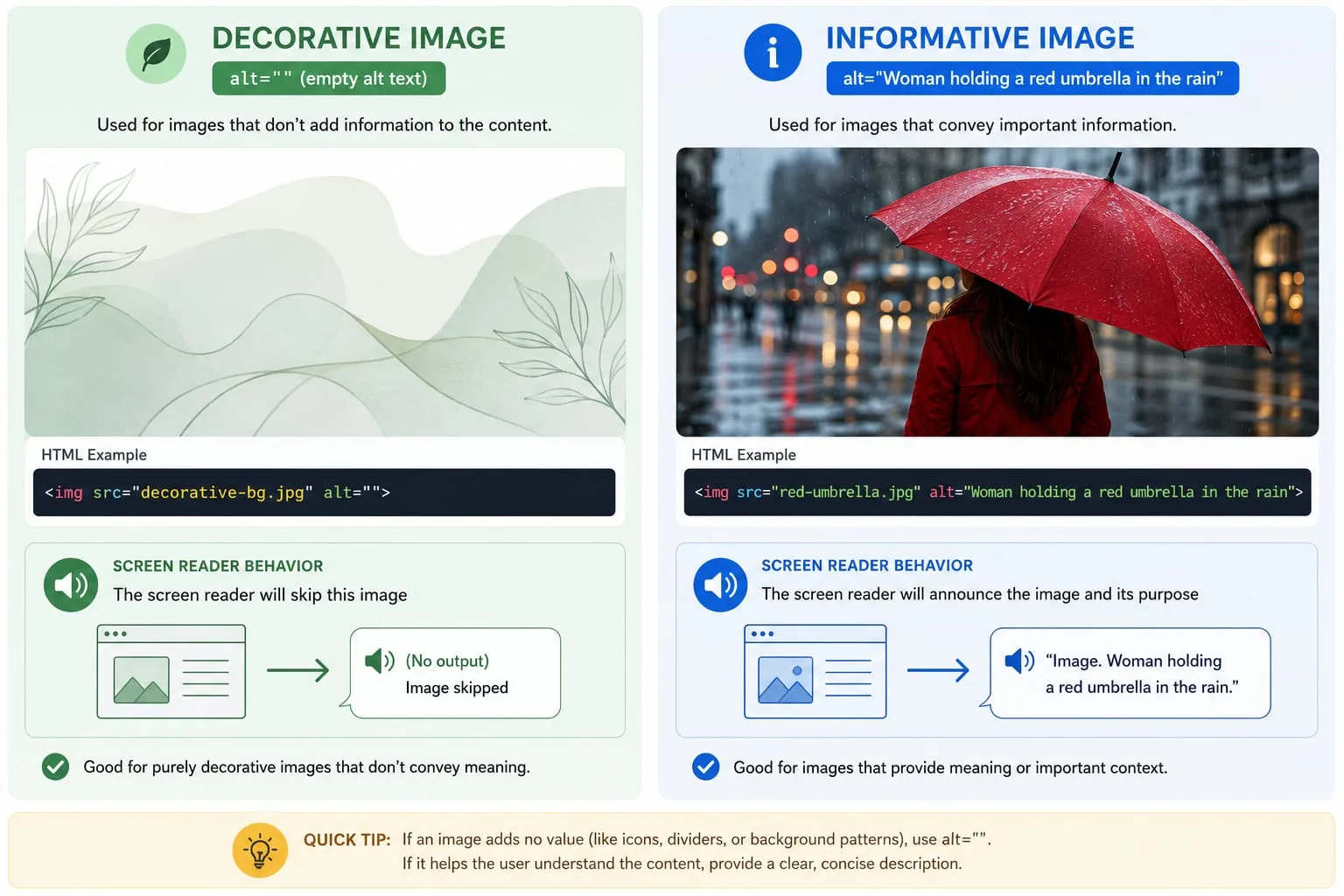
Imagine you have a photo of a woman holding an umbrella.
- If it is on a blog post about weather, the alt text might be: "A woman holding an umbrella in the rain."
- If it is on a travel site showing a specific luxury umbrella, it should be: "The PicFlow Travel-Lite Red Umbrella in use."
- If it is a button to download a weather report, the alt text must be: "Download Report."
Always ask yourself: "If I could not see this image, what information would I be missing?"
Decorative vs. Informative: How to Categorize Your Images for Screen Readers
Not every image needs a description. In fact, giving alt text to a decorative background pattern can frustrate screen reader users by cluttering their experience with useless information.
1. Decorative Images
Decorative images are used purely for visual flourish. These include dividers, background textures, or abstract shapes. They do not add any meaningful information to the page.
- How to handle: Use a null alt attribute:
alt="". This tells the screen reader to skip the image entirely. - Developer tip: If an image is purely decorative and handled with CSS using
background-image, it is usually ignored by screen readers.
2. Informative Images
Informative images add meaning to the content. These may include photos of people, products, locations, or important visual examples mentioned in the text.
- How to handle: Provide a concise, meaningful description that fits the context.
- Example: Instead of "A car," use "A silver 2024 electric SUV driving through a mountain pass."
3. Functional Images
Functional images are used as links or buttons.
- How to handle: The alt text should describe the action, such as "Add to Cart," rather than the appearance of the icon.
- ARIA option: If an image is inside a button that already has text, the image should be decorative using
alt=""to avoid repetition.
4. Images of Text
One of the most important WCAG rules is to avoid images of text whenever possible.
- The problem: If you bake a headline into a JPEG, users cannot resize it, change its color for better contrast, or search for it.
- The exception: Logos are the primary case where text inside an image is acceptable. For everything else, use real HTML and CSS.
Color and Contrast: Meeting WCAG Requirements for Visual Clarity
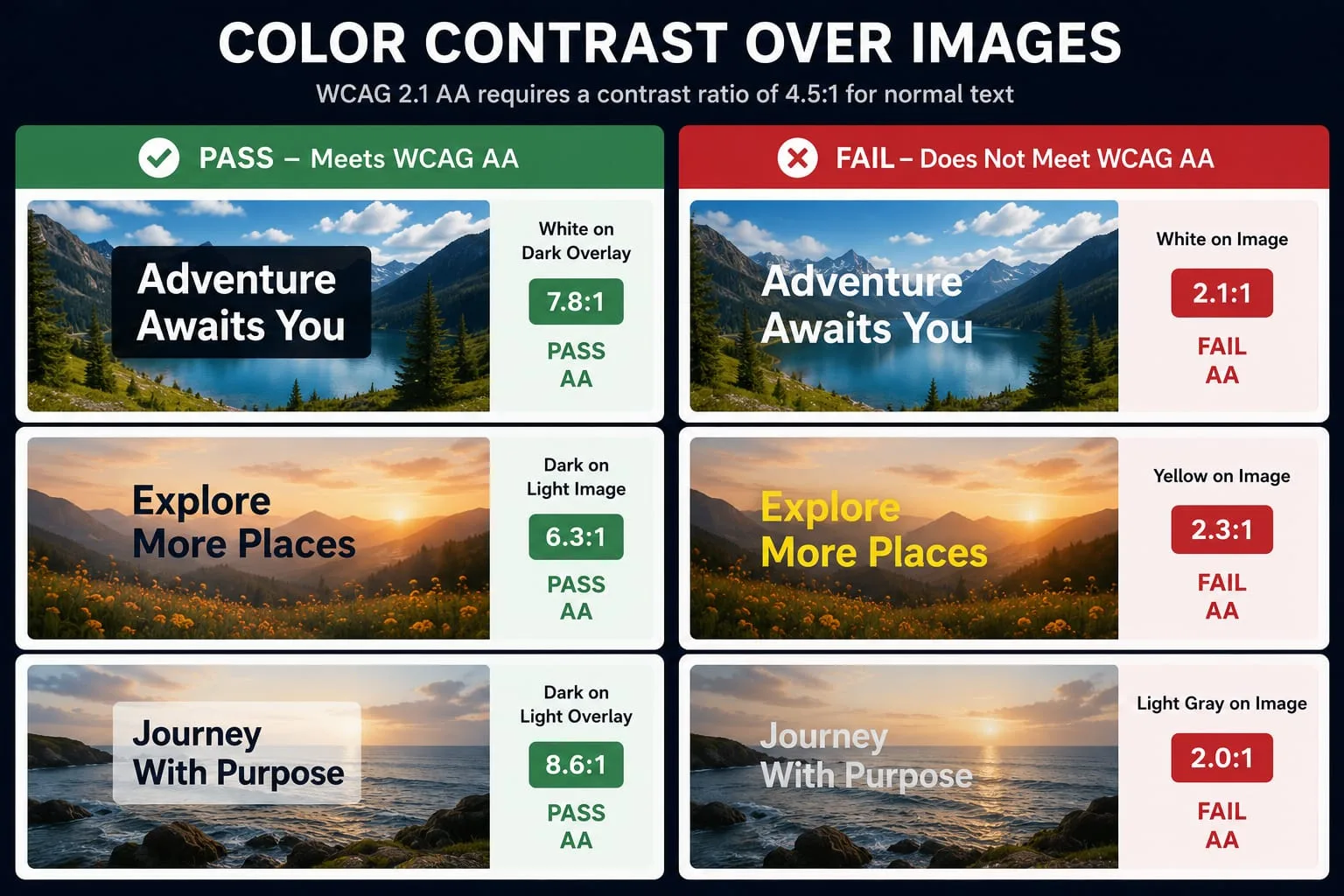
Accessibility is not only for people who are blind. It is also for anyone with visual impairments, including color blindness or age-related vision loss. A key part of image accessibility WCAG is ensuring that any text displayed over or within an image is legible.
The Standard: 4.5:1
WCAG 2.1 AA requires a contrast ratio of at least 4.5:1 for normal text and 3:1 for large text.
The fix: If your text-on-image contrast is too low, add a dark or light semi-transparent overlay behind the text. This guarantees legibility regardless of the colors in the original photo.
Handling Complex Images: Accessibility for Charts, Graphs, and Infographics
How do you make a complex infographic with 50 data points accessible? You cannot fit all of that into an alt tag. For complex image accessibility, use a layered approach.
- Short Alt Text: For example, "Infographic showing global smartphone market share in 2024."
- Long Description: Provide the full data in the text immediately following the image, or link to a separate page with a data table.
- HTML Tables: Whenever possible, include the raw data as a real HTML table. Screen readers can navigate tables far more effectively than long alt text.
- ARIA-Describedby: You can programmatically link an image to its long description using the
aria-describedbyattribute.
Accessible SVGs: A Modern Requirement
Scalable Vector Graphics, or SVGs, are the standard for modern icons and logos. However, they are not automatically accessible. Unlike standard JPEGs or PNGs, SVGs are code.
- For icons: Use
aria-hidden="true"if the icon is accompanied by text. - For standalone SVGs: Include a
<title>and<desc>tag inside the SVG code, then link them to the SVG element usingaria-labelledby.
Automating Accessibility: How PicFlow AI Helps You Scale Compliance
Managing accessibility for a handful of images is easy. Managing it for thousands is a challenge. This is where PicFlow AI changes the game.
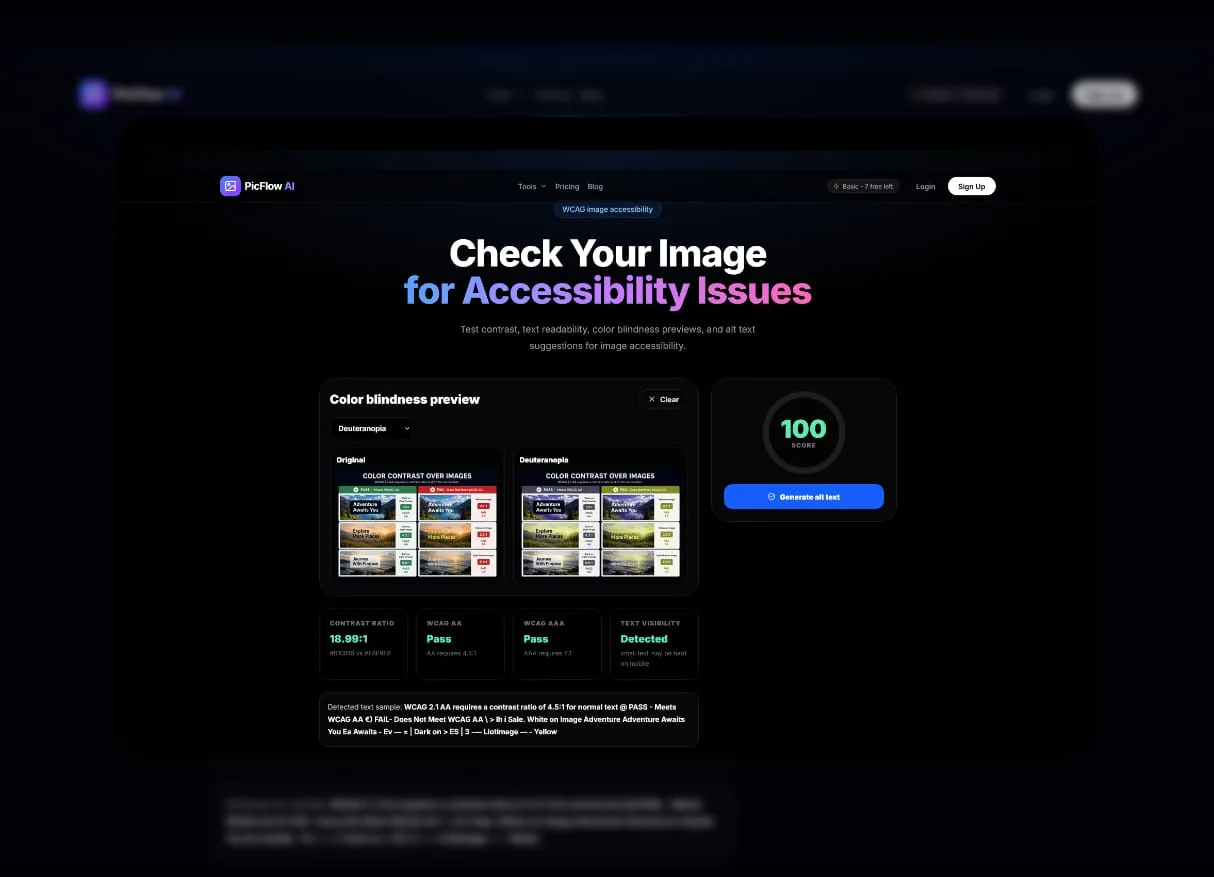
Our platform helps you maintain accessible images for web by:
- Automated Alt Text Drafting: Our AI analyzes your images and suggests accurate, context-aware alt text that you can quickly refine.
- Perceptual Optimization: We ensure your images are compressed without losing the visual clarity needed for users with low vision.
- Batch Processing: Apply accessibility settings across entire libraries of images, ensuring that no null alt attribute is forgotten.
Performance is Accessibility: The Situational Disability Factor
One often overlooked aspect of image accessibility WCAG is performance. Accessibility is not just about sensory impairment. It is also about physical, technical, and economic environment.
A user trying to access your site on a 10-year-old smartphone using a slow 3G connection in a rural area is experiencing a situational disability. If your page is bloated with 5MB unoptimized JPEGs, that user is effectively blocked from your content.
To meet the spirit of WCAG, your images should be:
- Responsive: Serving the right size image for the right device using
srcset. - Modern: Using next-gen formats like WebP or AVIF for better compression.
- Lazy Loaded: Loading images only as they are needed to save bandwidth.
Using the PicFlow AI Image Optimizer helps you automatically handle these performance requirements, ensuring your accessible site is also a fast one.
Common Accessibility Audit Errors and How to Fix Them Fast
If you have run an accessibility audit with tools like Lighthouse or Axe, you might see these common errors:
- Missing Alt Attribute: Even for decorative images, the alt attribute must exist. Change decorative image alt text to
alt="". - Redundant Alt Text: Do not start your alt text with "Image of" or "Photo of." The screen reader already tells the user it is an image.
- Text in Images: Whenever possible, use CSS to place live text over an image instead of baking the text into the image itself.
Conclusion: Inclusivity is Good Business
Mastering image accessibility WCAG is not just about compliance. It is about reach. When you make your site accessible, you invite more people to interact with your brand. You also improve SEO, as search engines use alt text to better understand your content.
Start by auditing your most visited pages. Use PicFlow AI to help automate the heavy lifting of alt text generation and contrast checking. By making accessibility a default part of your workflow, you are helping build a web that truly works for everyone.
FAQ Section
1. What are the WCAG requirements for images?
The primary requirement is that all non-text content, such as images, must have a text alternative that serves the same purpose. This means descriptive alt text for informative images, null alt tags for decorative ones, and action-based text for buttons.
2. Is alt text required for every image?
Yes, every <img> tag must have an alt attribute. However, for decorative images, that attribute should be empty: alt="". This tells screen readers to ignore the image.
3. How do I make infographics accessible?
Infographics require a short summary in the alt text and a full long description nearby in the body content. This can be written as a paragraph, structured list, or data table.
4. What is the minimum contrast ratio for image text?
For standard text placed over an image, WCAG requires a minimum contrast ratio of 4.5:1. For large text, the requirement is 3:1.
5. How do I check if my site is ADA compliant for images?
You can use automated tools like Lighthouse, Axe, or Wave to find missing alt text and contrast issues. For a deeper check, try navigating your site with a screen reader like VoiceOver on Mac or NVDA on Windows.
Frequently asked questions
What is the main takeaway from How to Make Your Images WCAG Accessible: The Complete Compliance Guide?
The guide explains practical image optimization steps that can help improve file size, loading speed, visual quality, and publishing workflows.
Can I use PicFlow tools while following this guide?
Yes. PicFlow includes browser-based tools for compression, resizing, conversion, metadata checks, background removal, and other image workflows.
Does image optimization help SEO?
Yes. Smaller, correctly sized images can improve page speed and Core Web Vitals, which supports better user experience and search performance.
Which image format should I use for websites?
WebP and AVIF are often efficient for websites, while JPG is widely compatible for photos and PNG is useful when transparency is needed.
Does PicFlow upload my images?
PicFlow is built around privacy-first browser workflows where supported, with processing handled for the action you request.