How to Compress Images for Faster Websites: The 2026 Ultimate Guide
Learn how to compress images for faster websites without losing quality. Improve your SEO, Core Web Vitals, and user experience with our ultimate guide.
Recommended PicFlow tool
Need to optimize images while reading?
Use PicFlow tools to compress, resize, convert, or inspect images directly from your browser.
Use PicFlow Image Compressor
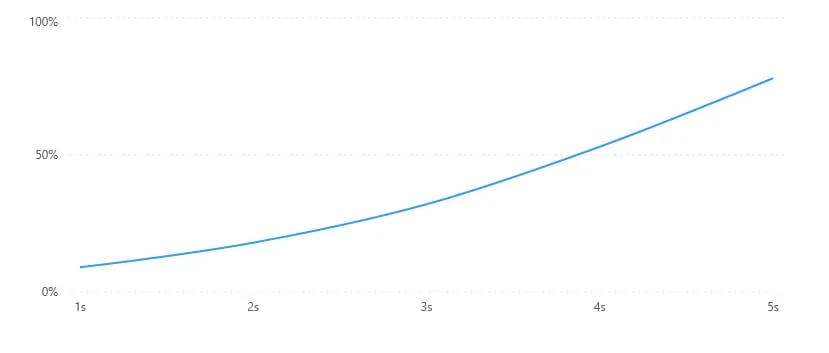
You’re not alone. Most users will abandon a site if it takes more than three seconds to load. And more often than not, the culprit isn't your code or your hosting—it's your images.
Huge, unoptimized image files are the "silent killers" of the modern web. They bloat your pages, tank your SEO rankings, and frustrate your visitors. But here’s the good news: you don't have to choose between high-quality visuals and lightning-fast speed.
In this guide, we’re going to look at exactly how to compress images for faster websites. We’ll skip the overly technical jargon and focus on practical, actionable strategies that actually work. Whether you're a photographer, a shop owner, or a developer, you're about to learn how to make your site fly.
The Hidden Cost of Large Images: Why Your Website is Slowing Down
When we talk about website speed, we’re really talking about user experience. Google knows this, which is why they introduced Core Web Vitals. One of the most important metrics is Largest Contentful Paint (LCP), which measures how long it takes for the largest element on the screen (usually a big hero image) to become visible.If your images are several megabytes each, your LCP score will be in the red. This doesn't just annoy people; it tells Google that your site isn't providing a good experience, which can lead to lower search rankings.
But it goes deeper than SEO. Large images consume more data. For users on mobile devices or slow connections, your unoptimized images are literally costing them money and time. By learning how to compress images for the web, you're not just "optimizing"; you're being a better host for your visitors.
Lossy vs. Lossless: Which Compression Method is Right for You?
If you’ve ever looked into image optimization, you’ve probably heard these terms thrown around. Let’s break them down without the headache.Lossless Compression
Lossless compression is like a vacuum-sealed bag for your clothes. It removes redundant data from the file, but when you "unpack" it, every single pixel is exactly where it was before.- Pros: Zero quality loss. Perfect for archival or professional photography.
- Cons: The file size savings are usually minimal (around 5-10%).
Lossy Compression
Lossy compression is more like a skilled editor. It looks at the image and says, "The human eye can't actually see 16 million colors in this tiny sunset, so let's simplify it." It removes non-essential data to drastically reduce the file size.- Pros: Massive file size reduction (often 70-90%).
- Cons: If you push it too far, you’ll start seeing "artifacts"—those weird blocks or blurry spots in the image.
Which should you use for your website
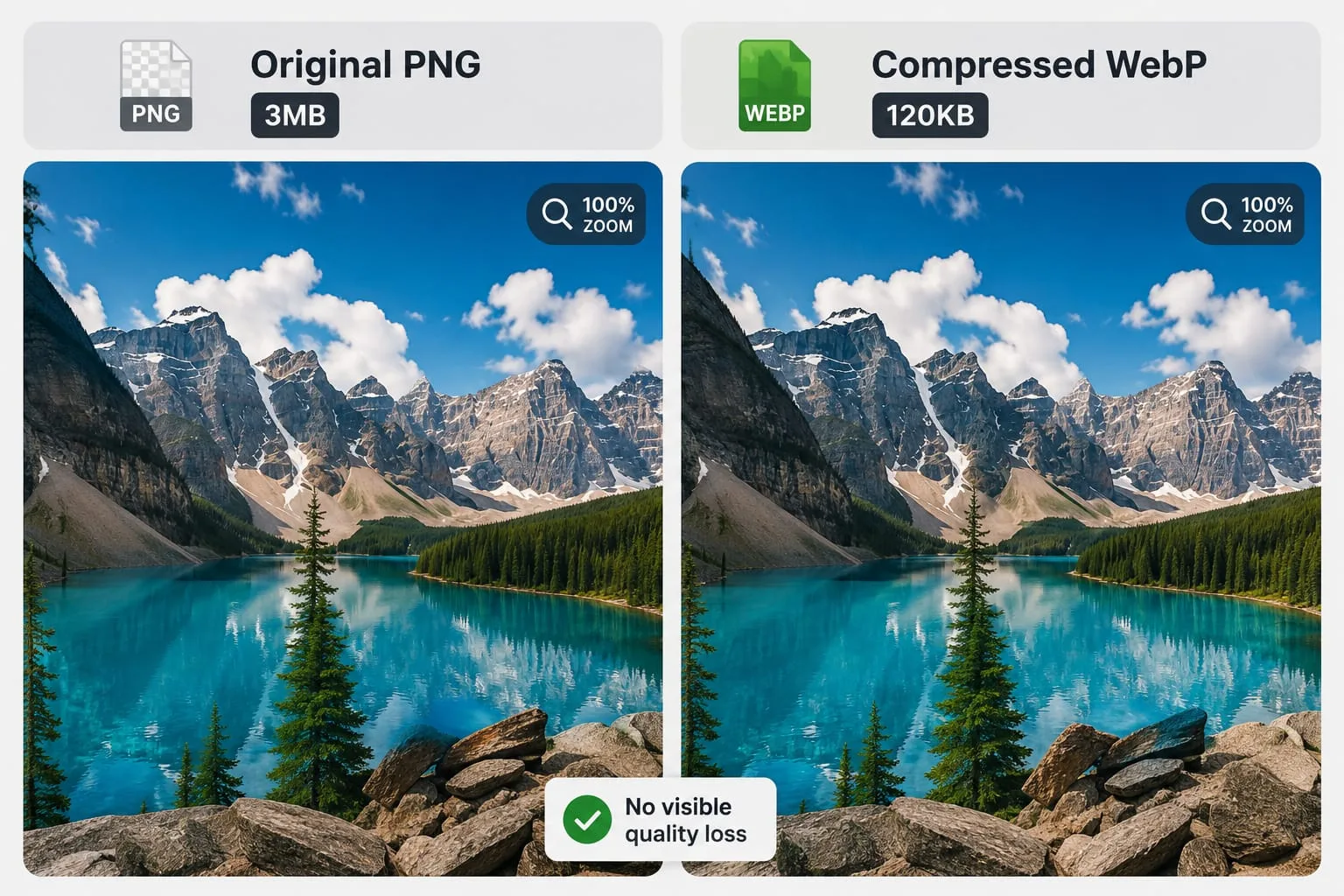
99% of the time, **Lossy** is the winner. For the web, "perceptual quality" is what matters. If a user can't tell the difference between a 2MB original and a 150KB compressed version, why would you ever use the 2MB one?Next-Gen Formats: Why You Should Be Using WebP and AVIF in 2026
We’ve lived in a JPEG and PNG world for a long time. JPEGs are great for photos, and PNGs are great for graphics with transparency. But they’re old technology.Enter WebP and AVIF.
WebP is a format developed by Google that provides superior lossless and lossy compression for images on the web. On average, WebP files are **25-35% smaller** than JPEGs at the same quality level. They also support transparency, meaning they can often replace PNGs as well.AVIF is the even newer kid on the block, offering even better compression, though browser support is still catching up (it's currently around 90%).
The bottom line: If you want a fast website, you should be converting your images to WebP. It’s the current "sweet spot" for compatibility and performance.
How to Compress Images Without Losing Perceived Quality
The "magic" of modern image optimization is something called **Perceptual Compression**.In the old days, compression was a blunt instrument. You’d set a "quality" slider to 60 and hope for the best. Sometimes it looked fine; sometimes it looked like a mess.
AI-powered tools like **PicFlow AI** change the game. Instead of applying a universal "quality" score, the AI analyzes the content of the image. It identifies areas where it can aggressively compress (like a flat blue sky) and areas where it needs to preserve every detail (like a person's face or text).
This allows you to reach incredibly small file sizes while the image remains "visually lossless" to the human eye.
Step-by-Step: How to Optimize Your Images for Google PageSpeed
Optimizing images isn't just about clicking a button; it's about a workflow. Here is the professional approach to image optimization for SEO.Step 1: Resize First
Before you even think about compression, look at the dimensions. If your blog post is 800 pixels wide, why are you uploading a 4000-pixel-wide photo? You’re asking the user’s browser to download a massive file and then do the work of shrinking it down.**Always resize your images to the maximum width they will actually be displayed at.**
Step 2: Choose the Right Format
- Photos? Use WebP or JPEG.- Graphics with transparent backgrounds? Use WebP or PNG.
- Simple icons? Use SVG (it’s code, not pixels, so it’s infinitely scalable and tiny).
Step 3: Compress (The PicFlow Way)
Upload your resized images to an AI-powered compressor. This will strip out unnecessary metadata (like the camera type and GPS coordinates) and apply perceptual compression to shrink the file size.Step 4: Test Your Results
Run your page through [Google PageSpeed Insights](https://pagespeed.web.dev/). Look for the "Image" sections. If you see green checks, you’ve done it!The Best Image Compression Tools: Manual, Automated, and AI-Driven
There are hundreds of tools out there. Here is how they stack up:1. Desktop Apps (Photoshop/Lightroom): Great for photographers, but the "Save for Web" features are often clunky and don't produce the smallest possible files.
2. Simple Online Tools (TinyPNG): These are excellent for quick, one-off tasks. They are simple and effective but lack advanced AI-driven perceptual optimization.
3. AI-Powered Platforms (PicFlow AI): This is where the industry is heading. PicFlow AI offers the best balance of extreme compression and high quality, especially when handling bulk uploads.
4. CMS Plugins (WP Smush/ShortPixel):If you're on WordPress, these are great for automating the process as you upload. Just be careful, as they can sometimes slow down your backend.
Bulk Compression: Handling Hundreds of Images in Seconds
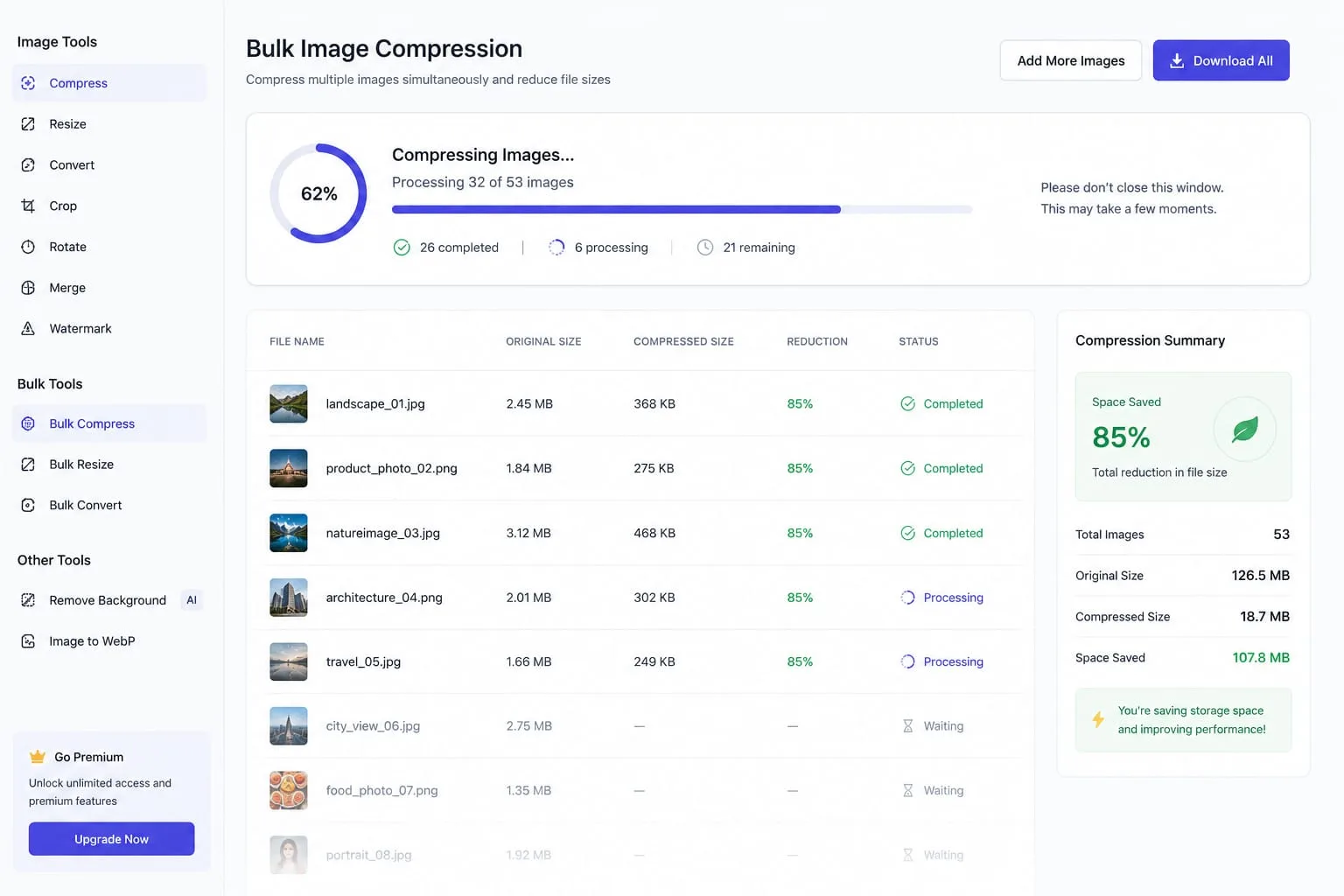
If you’re running an e-commerce site with 500 products, you can't optimize images one by one. You need a bulk solution.With PicFlow AI, you can drag and drop an entire folder of images. The system will automatically:
1. Detect the best format for each image.
2. Apply the optimal level of perceptual compression.
3. Provide them back to you in a neat ZIP file.
This saves hours of manual work and ensures that your entire site remains fast, not just your homepage.
Advanced Tips for the Speed Demons
If you've already compressed your images and want even more speed, consider these professional tactics:- Lazy Loading: This tells the browser: "Don't download this image until the user actually scrolls down to see it." This makes your initial page load significantly faster.
- Content Delivery Networks (CDN): A CDN stores your images on servers all over the world. If a user is in London, they get the image from a London server instead of one in New York.
- Responsive Images (srcset): This is a bit more technical, but it involves providing different image sizes for different devices (e.g., a small image for phones and a large one for desktops).
Final Thoughts: Fast is a Feature
In the world of SEO, we often get caught up in keywords and backlink profiles. But at its core, Google wants to reward websites that provide a great experience. A fast-loading, visually stunning website is one of the best ways to earn that reward.Image compression isn't just a technical chore; it's a competitive advantage. By following the steps in this guide and using smart tools like PicFlow AI, you're setting your website up for long-term success.
Stop making your visitors wait. Start compressing.
---
FAQ: Common Questions About Image Compression
Does image compression affect SEO?
Yes, absolutely. Image compression directly improves your page load speed and your Core Web Vitals (specifically LCP). Since speed is a confirmed ranking factor for both desktop and mobile search, optimized images are a critical part of any SEO strategy.Is WebP better than JPEG for website speed?
In almost every case, yes. WebP provides significantly better compression than JPEG, resulting in file sizes that are 25-35% smaller without a noticeable loss in quality. Most modern browsers now support WebP, making it the preferred format for web performance.How do I reduce image size without losing quality?
The best way is to use "perceptually lossless" compression. Tools like PicFlow AI use AI algorithms to remove data that the human eye cannot perceive, drastically reducing the file size while the image looks identical to the original.What is a good file size for web images?
As a general rule of thumb:- Large hero/banner images: Under 100KB - 150KB.
- Standard blog images: Under 70KB.
- Icons and small thumbnails: Under 30KB.
How do I fix the "Serve images in next-gen formats" warning?
This warning in Google PageSpeed Insights means you should stop using JPEGs and PNGs where possible and switch to WebP or AVIF. You can fix this by using an online converter like PicFlow AI to transform your existing images into WebP format.Does resizing an image reduce its file size?
Yes, and it's often more effective than compression alone. If you have a 3000px image being displayed at 300px, you are downloading 10x more data than necessary. Always resize your image to the correct dimensions before applying compression.Frequently asked questions
What is the main takeaway from How to Compress Images for Faster Websites: The 2026 Ultimate Guide?
The guide explains practical image optimization steps that can help improve file size, loading speed, visual quality, and publishing workflows.
Can I use PicFlow tools while following this guide?
Yes. PicFlow includes browser-based tools for compression, resizing, conversion, metadata checks, background removal, and other image workflows.
Does image optimization help SEO?
Yes. Smaller, correctly sized images can improve page speed and Core Web Vitals, which supports better user experience and search performance.
Which image format should I use for websites?
WebP and AVIF are often efficient for websites, while JPG is widely compatible for photos and PNG is useful when transparency is needed.
Does PicFlow upload my images?
PicFlow is built around privacy-first browser workflows where supported, with processing handled for the action you request.
Related PicFlow tools
Related posts
How to Resize Images for Every Social Media Platform in 2026
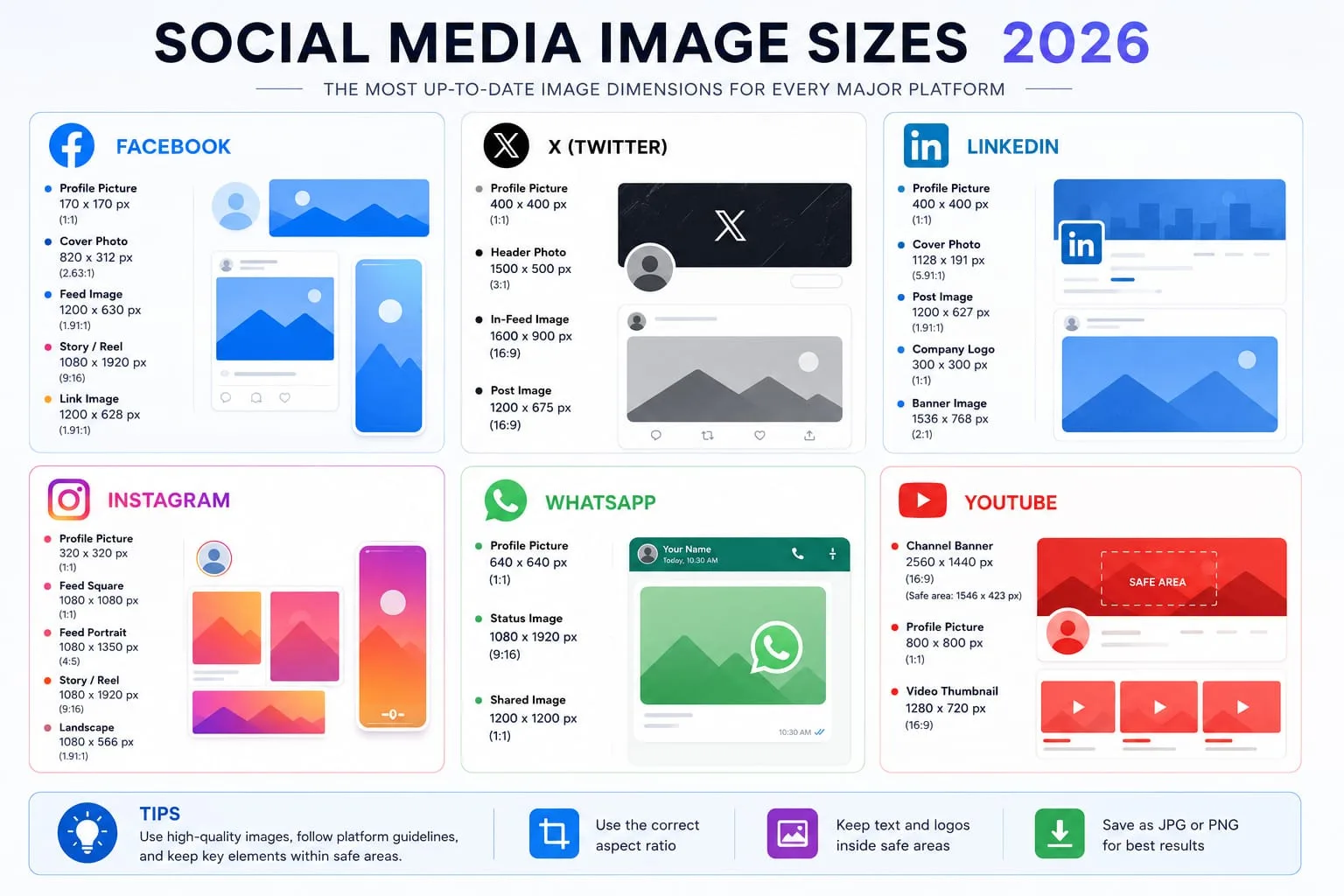
Learn the best image sizes for Facebook, X, LinkedIn, WhatsApp, Instagram, and YouTube. Resize, crop, preview, and export social images online with PicFlow AI.
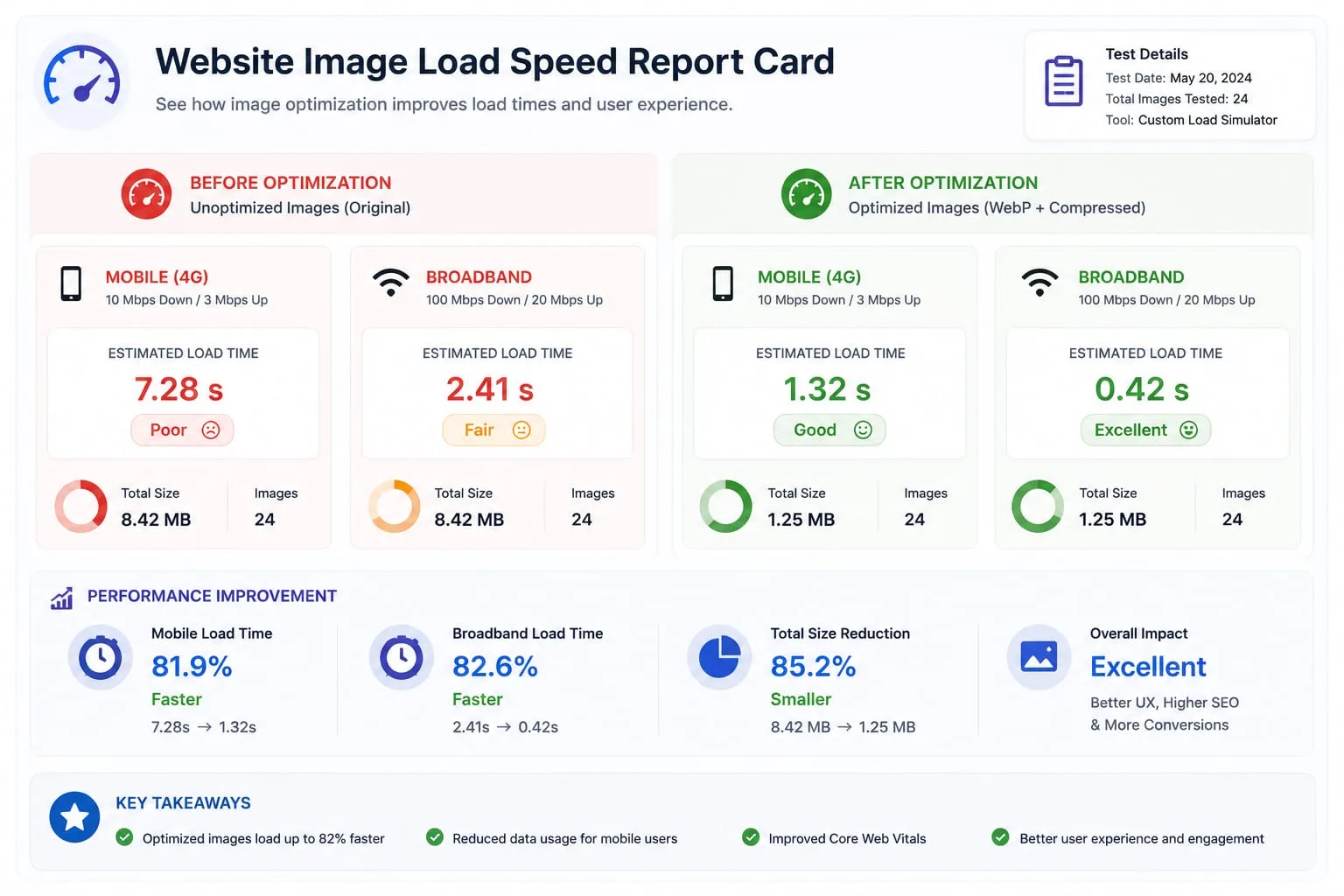
Image Loading Speed Test - Estimate Image Load Time Before Publishing
Learn how to test image loading speed, estimate load time on 3G, 4G, and broadband, and fix slow images before they hurt user experience or Core Web Vitals.

Image Placeholder Generator - Blur, Base64 and LQIP Guide
Learn how blur placeholders, Base64 placeholders, dominant color placeholders, and LQIP images improve perceived loading speed. Generate placeholders online with PicFlow AI.