How to Scan Your Website for Unoptimized Images: The Complete Audit Guide
Find unoptimized images on your website with free tools. Learn how to scan, identify, and fix every image slowing down your site and hurting your PageSpeed score.
Recommended PicFlow tool
Need to optimize images while reading?
Use PicFlow tools to compress, resize, convert, or inspect images directly from your browser.
Use PicFlow Image CompressorHow to Scan Your Website for Unoptimized Images: The Complete Audit Guide
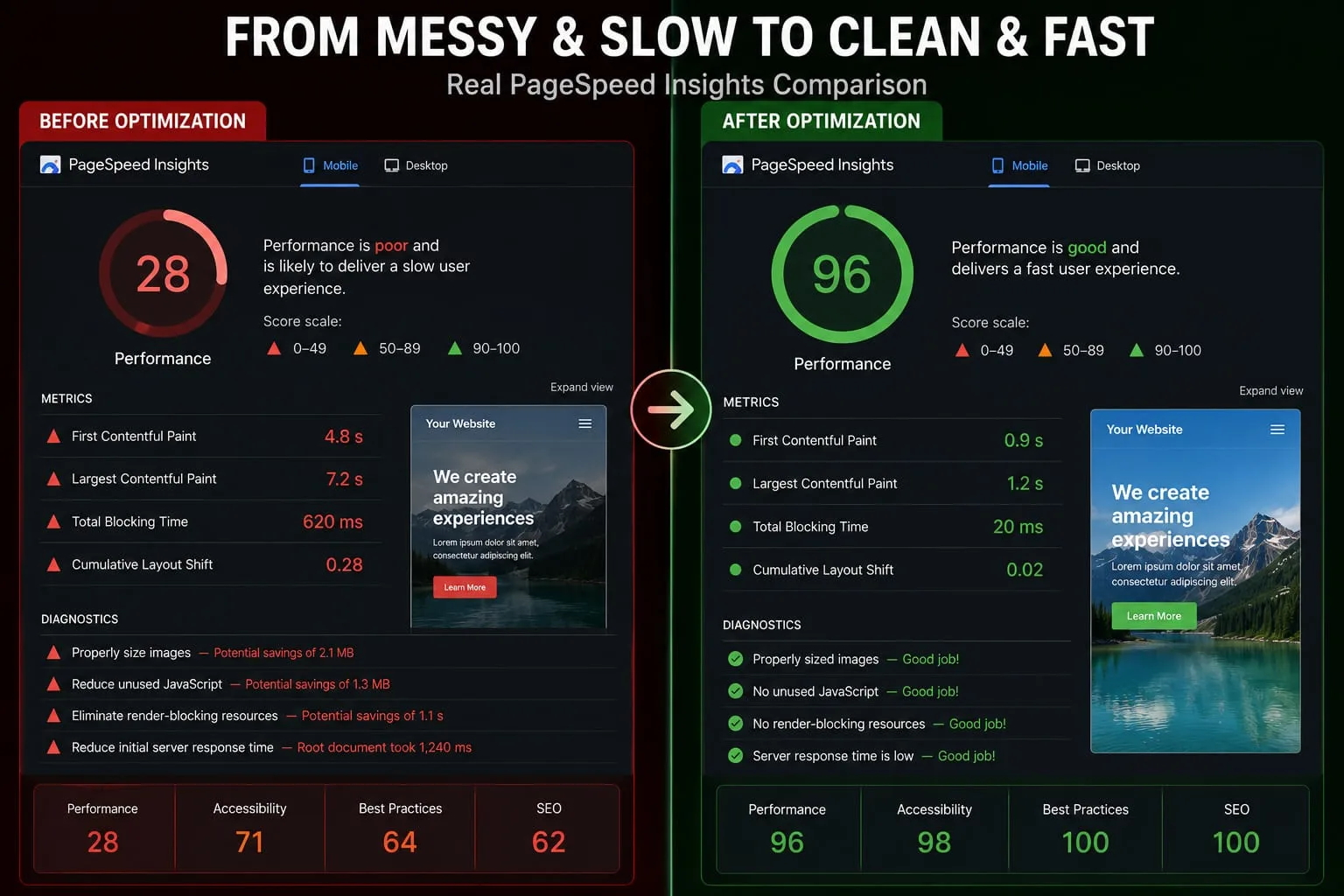
You’ve just run your website through Google PageSpeed Insights, and the results aren't pretty. Among the sea of red and orange warnings, one phrase keeps popping up: "Efficiently encode images." Or perhaps it’s "Properly size images."
You know your site feels a bit sluggish, and you know images are likely the culprit. But here’s the problem: your website isn't just one page. It’s dozens, hundreds, or even thousands of pages. How are you supposed to find unoptimized images across your entire domain without spending the next three weeks clicking through every single URL?
Finding the heavy images that are dragging down your Core Web Vitals is the first step toward a lightning-fast user experience. In this guide, we’re going to walk through the exact audit workflow professional performance engineers use to identify, categorize, and eventually fix every unoptimized image on a website.
1. The Red Warning in PageSpeed Insights: What Unoptimized Images Really Cost You
Before we dive into the how, let's talk about the why. Why does Google care so much about your images?
When a user visits your site, their browser has to download every single element on the page. Images usually make up the largest portion of a page's total weight. If you are serving a 4000-pixel-wide photo in a 400-pixel-wide container, or if you are using an uncompressed PNG where a WebP would be enough, you are forcing your users to download ghost pixels — data that they cannot even see but still have to wait for.
For you, this costs:
- Conversion Rates: Slow pages can reduce trust and lower conversions.
- SEO Rankings: Core Web Vitals, especially LCP or Largest Contentful Paint, can influence search visibility.
- Bandwidth Costs: If you are paying for CDN usage or high-traffic hosting, unoptimized images waste money.
2. How to Scan Your Entire Website for Large Images — 3 Free Methods
Identifying the problem on one page is easy. Auditing an entire site requires a more systematic approach. Here are three practical ways to find unoptimized images for free.
Method 1: The Deep Crawl with Screaming Frog
If your website has more than a handful of pages, you need a crawler. Screaming Frog SEO Spider is one of the most popular tools for this job, and the free version allows up to 500 URLs.
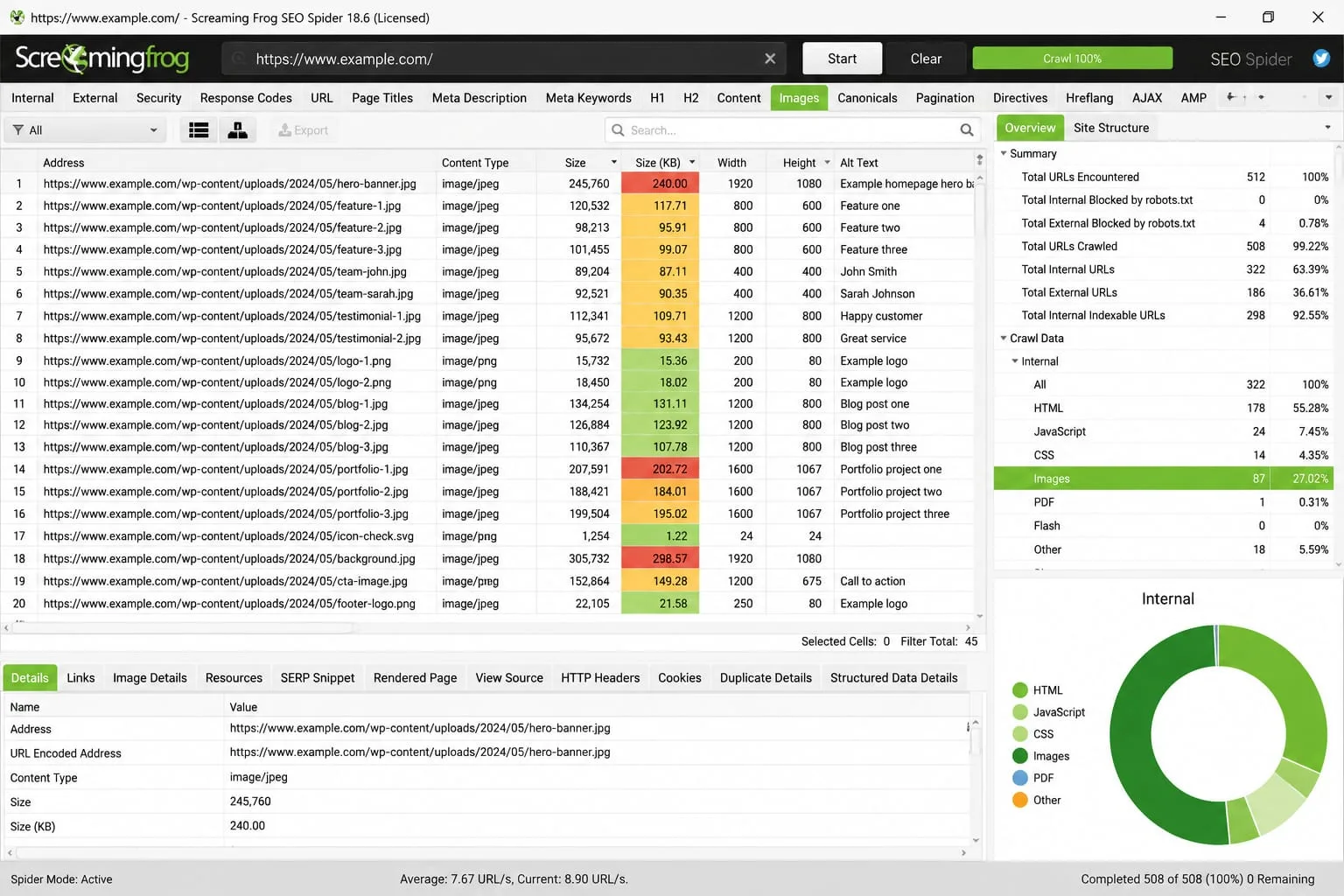
How to do it:
- Enter your website URL and click Start.
- Once the crawl is finished, click the Images tab.
- Filter the results by images over 100 KB.
- Look at the Size column and sort it from largest to smallest.
Method 2: Google Search Console — The Real-World Method
While Google Search Console will not show you a full list of image files, it will tell you which pages are failing Core Web Vitals in real-world usage.
How to do it:
- Go to Core Web Vitals under the Experience section.
- Click on Mobile or Desktop reports.
- Look for LCP issues longer than 2.5 seconds.
- Click into the issue to see example URLs.
Method 3: Chrome DevTools — The Granular Method
If you want to audit a single high-traffic page, such as your homepage or landing page, Chrome DevTools gives you precise details.
How to do it:
- Open your page in Chrome.
- Right-click and select Inspect, then go to the Network tab.
- Refresh the page and filter by Img.
- Look at the Size column to find the largest image files.
3. Identifying the Culprits: Decoding Lighthouse Performance Audits
When you run a Lighthouse audit, which powers PageSpeed Insights, you will see specific technical warnings. Understanding what these mean is key to knowing how to fix them.
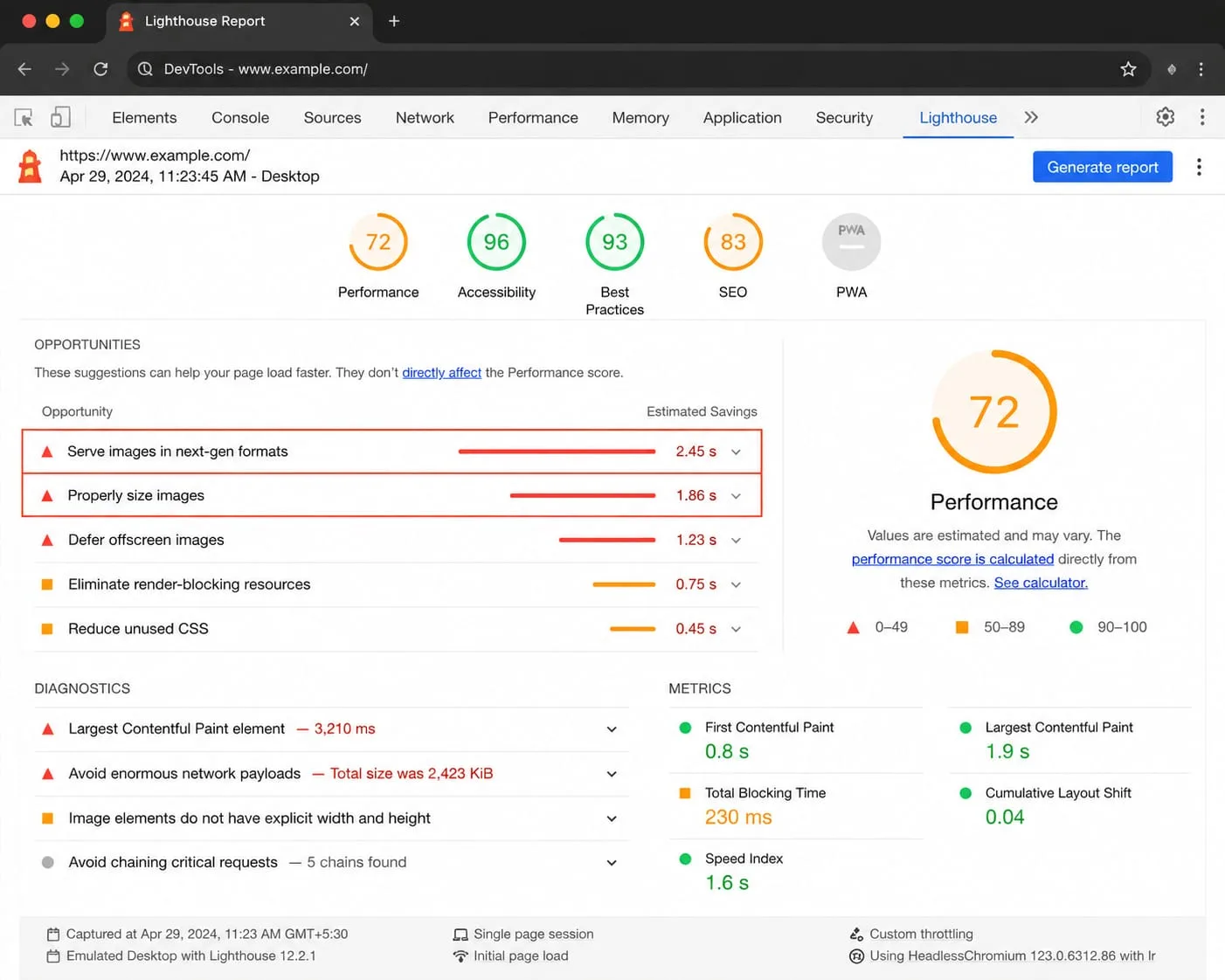
- Properly size images: You are serving an image that is much larger than the size it is displayed at.
- Efficiently encode images: Your images are not compressed enough and use more data than necessary.
- Serve images in next-gen formats: Google wants you to use modern formats like WebP or AVIF instead of relying only on JPG and PNG.
4. Beyond the Home Page: Finding Unoptimized Images in Hidden Corners
Most people optimize their homepage and call it a day. But unoptimized images often hide in places you rarely check.
- Old Blog Posts: That screenshot you uploaded three years ago as a 4MB PNG may still be slowing down your site.
- User-Generated Content: If users can upload profile pictures or files, they probably will not optimize them before uploading.
- Footer Icons: Sometimes a tiny badge or icon is actually a large uncompressed file being visually scaled down.
5. The Fix: How to Bulk Optimize Your Findings Without Losing Quality
Once you have your list of unoptimized images, fixing them one by one can feel overwhelming. This is where a batch workflow becomes essential.
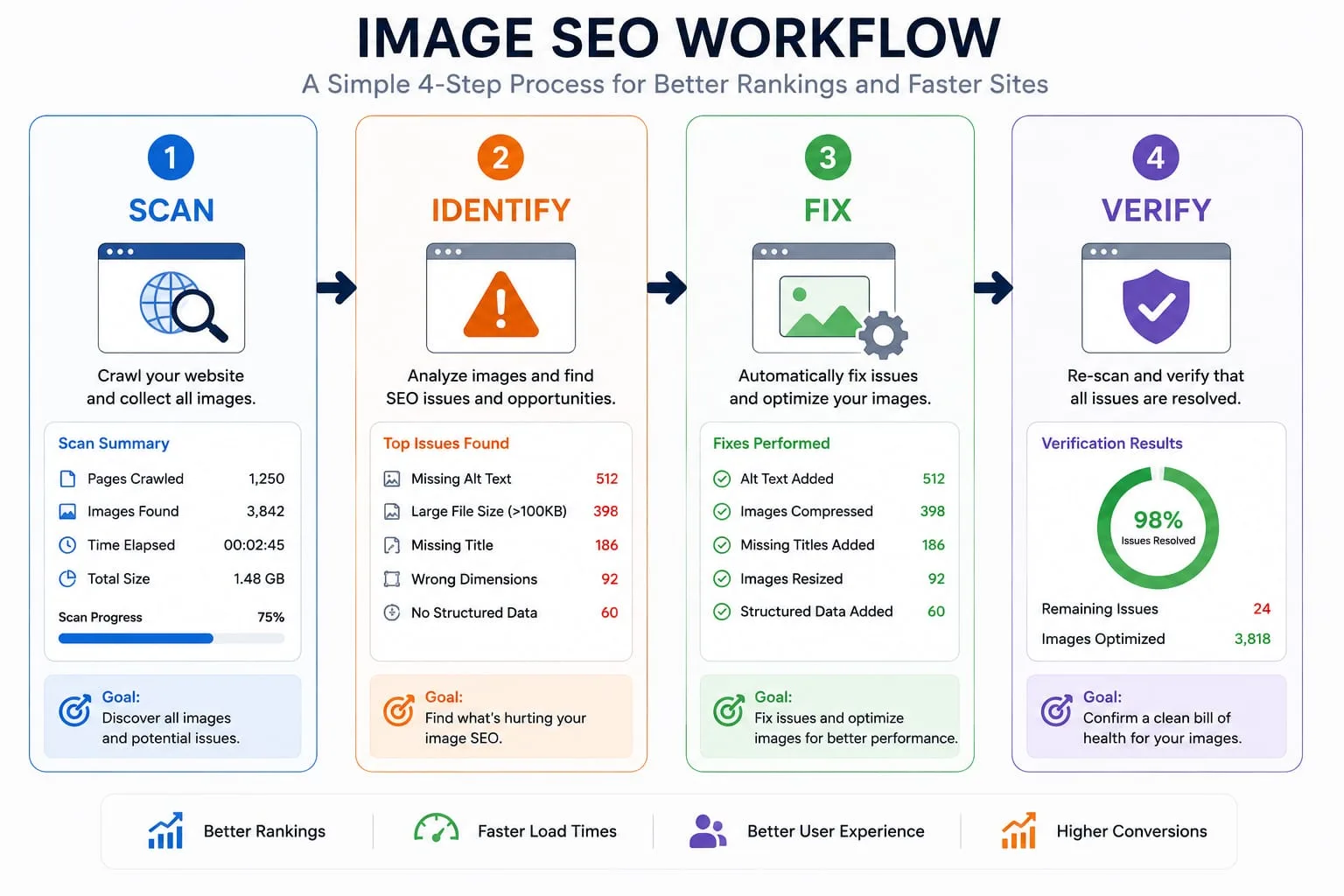
The PicFlow AI Solution
Instead of opening dozens of images manually in an editor, use PicFlow AI's bulk tools.
- Resize: Set a maximum width based on your site layout using the PicFlow AI Resizer.
- Compress: Apply smart compression to reduce file size using the PicFlow AI Compressor.
- Convert: Change images to WebP or other modern formats using the PicFlow AI Converter.
6. Automating the Audit: Tools to Monitor Your Image Health Continuously
A website is a living thing. You might optimize everything today, but tomorrow, a team member might upload a massive unoptimized banner.
To prevent optimization decay, consider tools such as DebugBear or Lighthouse CI. These can provide ongoing tracking and alert you if your PageSpeed score drops or if new heavy images are detected.
7. Verification: How to Prove Your Fix Worked for Core Web Vitals
After you re-upload your optimized images, you need to verify that the improvements actually worked.
- Clear Your Cache: Make sure you are not still seeing the old heavy image files.
- Re-Run PageSpeed Insights: Look for the Passed Audits section and check whether image warnings disappeared.
- Check the Network Tab Again: Compare the total transfer size before and after optimization.
FAQ
How do I find which images are unoptimized on my website?
The fastest way is to use Chrome DevTools. Open the Network tab, filter by Img, and sort by Size. Any image over 100–200KB is usually a candidate for optimization. For a site-wide scan, use a crawler like Screaming Frog.
What does "properly size images" mean in PageSpeed Insights?
It means the natural dimensions of your image, such as 2000x2000, are much larger than the rendered dimensions, such as 200x200, on the screen. You are wasting bandwidth by downloading pixels that the browser does not need.
How can I scan my website for large images for free?
You can use the free version of Screaming Frog for up to 500 pages or use an online image analyzer. These tools can help you identify large image files and pages that need optimization.
Why is Google still saying my images are unoptimized after I compressed them?
Compression is only one part of the puzzle. You may have reduced the file size, but if you are still using a legacy format like JPG or if the image dimensions are still too large for the container, Google may continue to flag it as unoptimized.
Frequently asked questions
What is the main takeaway from How to Scan Your Website for Unoptimized Images: The Complete Audit Guide?
The guide explains practical image optimization steps that can help improve file size, loading speed, visual quality, and publishing workflows.
Can I use PicFlow tools while following this guide?
Yes. PicFlow includes browser-based tools for compression, resizing, conversion, metadata checks, background removal, and other image workflows.
Does image optimization help SEO?
Yes. Smaller, correctly sized images can improve page speed and Core Web Vitals, which supports better user experience and search performance.
Which image format should I use for websites?
WebP and AVIF are often efficient for websites, while JPG is widely compatible for photos and PNG is useful when transparency is needed.
Does PicFlow upload my images?
PicFlow is built around privacy-first browser workflows where supported, with processing handled for the action you request.